Leads
Capture and qualify new card-programme enquiries using the Katekile lead card view and pipeline header.
Used bySales MgrCSR
A Lead is a person or organisation that has shown interest — a bank looking for a new debit-card bureau, a retailer launching a loyalty programme, a transit authority needing access cards.
Who: Katekile Sales Manager, Katekile Customer Service Rep. Menu: CRM → Leads.
The lead list
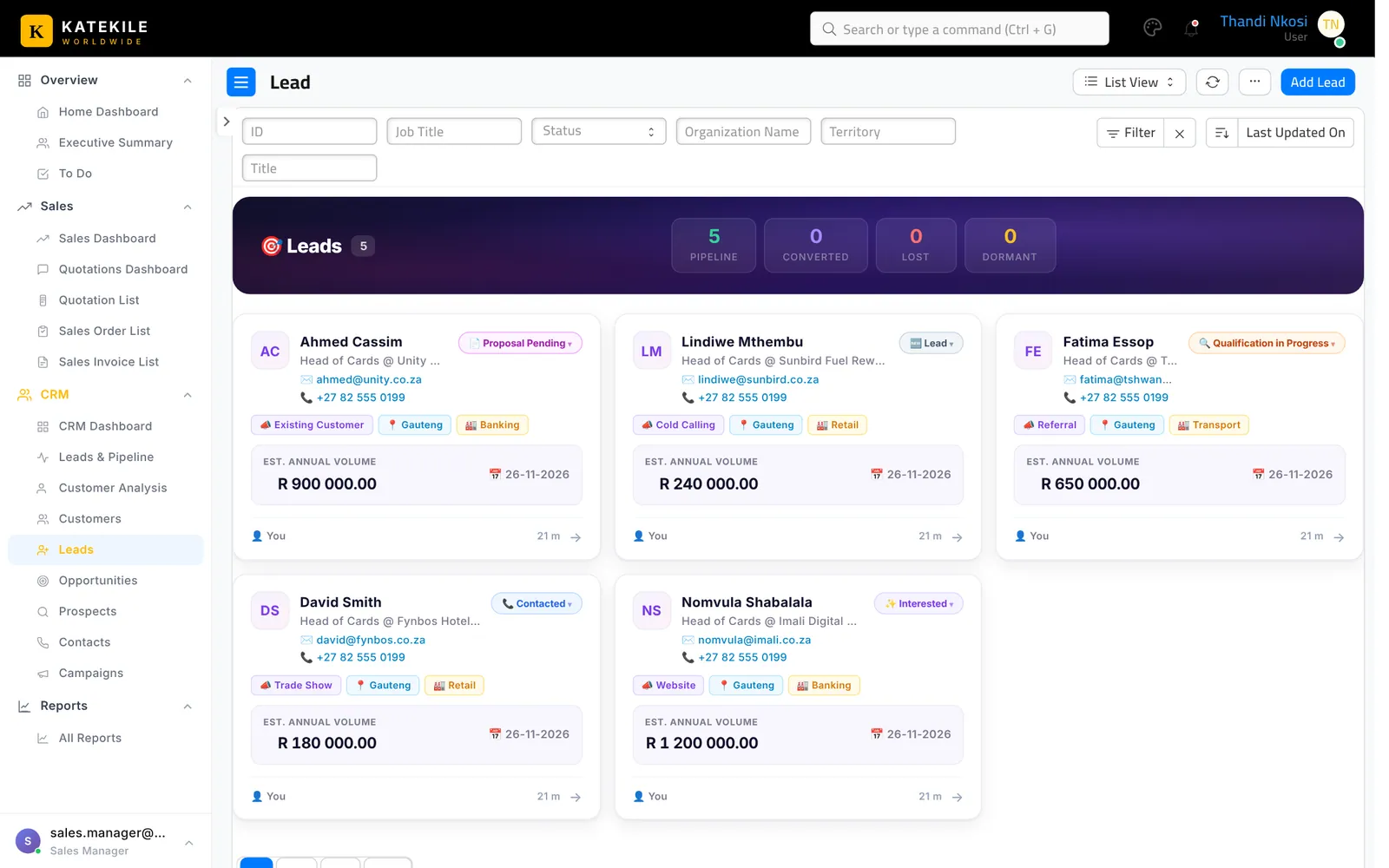
Each card shows the contact, company, phone and email, status chip, source, territory, industry, estimated annual volume and expected close date, plus who owns it.
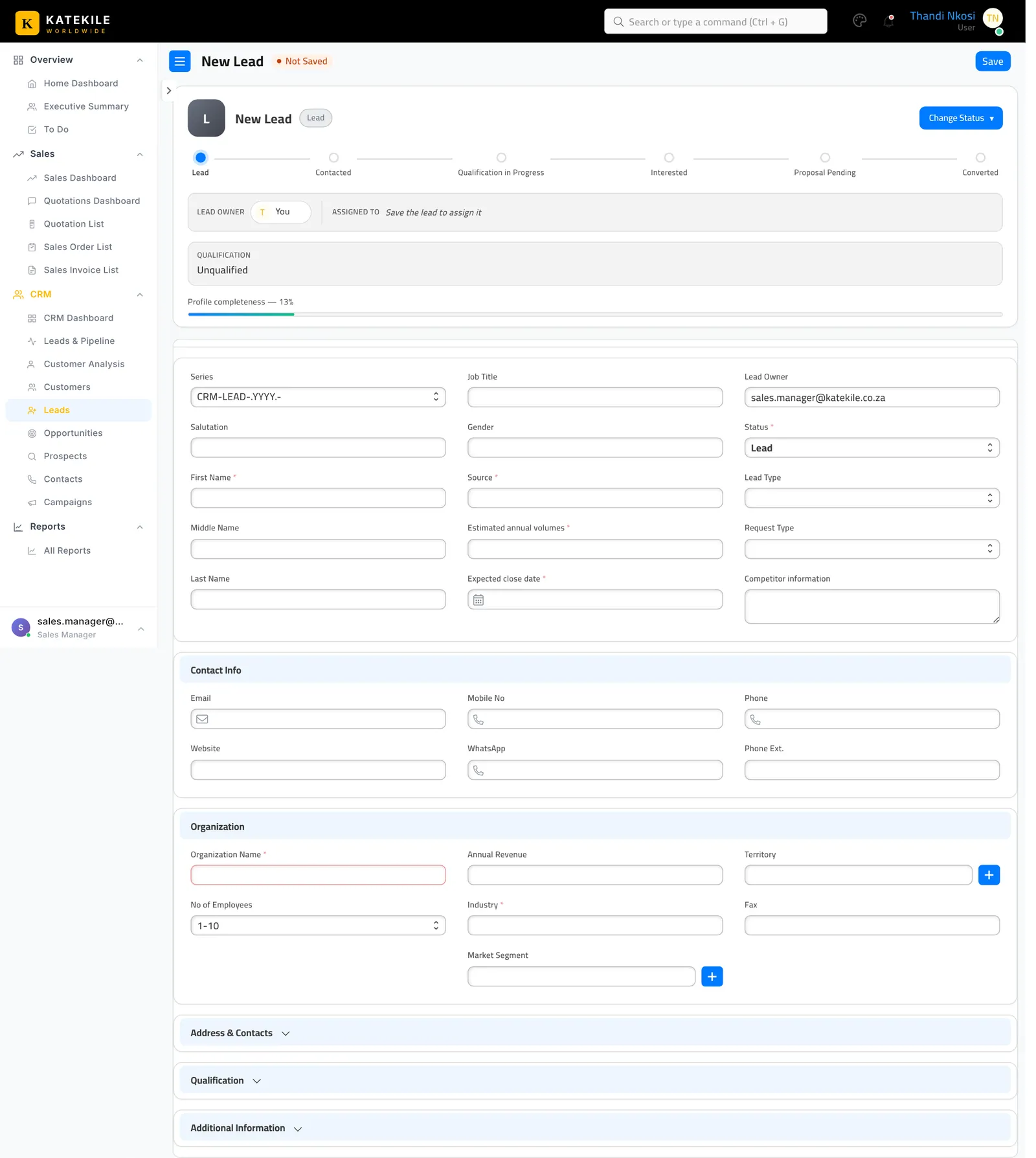
Create a lead
- Go to CRM → Leads and click Add Lead.
- Fill in the person (First Name, Last Name, Job Title) and contact details.
- Fill in the Katekile mandatory fields: – Organization Name (company) – Industry (e.g. Banking, Retail, Transport) – Source (Website, Trade Show, Referral, Existing Customer, Cold Calling …) – Estimated annual volumes — expected annual card value – Expected close date
- Optionally record Competitor information — who serves them today and why they might move.
- Set the Lead Owner and Save.
Working a lead — the pipeline header
Opening a lead shows the Katekile lead header:
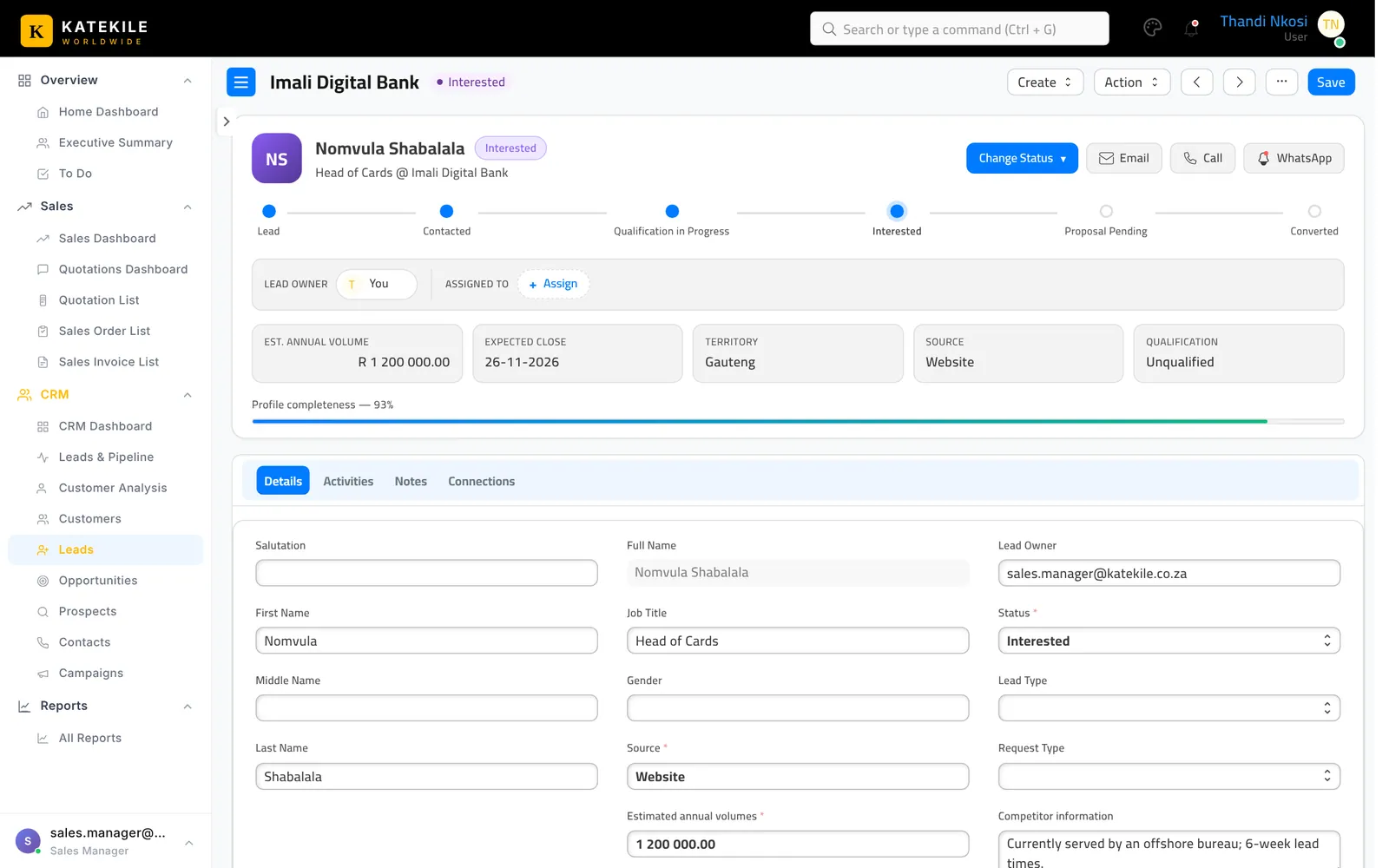
| Element | Use it to |
|---|---|
| Pipeline tracker | See and click the stage: Lead → Contacted → Qualification in Progress → Interested → Proposal Pending → Converted. |
| Change Status | Jump to Contacted, Qualification in Progress, Awaiting Information, Proposal Pending, Disqualified or Dormant. |
| Email / Call / WhatsApp | Start contact straight from the lead. |
| Lead Owner / Assigned To | See who owns it; click Assign to hand it to a colleague. |
| Key metrics | Estimated annual volume, expected close, territory, source and qualification at a glance. |
| Profile completeness | How many key fields are filled — aim for 100% before converting. |
Assigning a lead
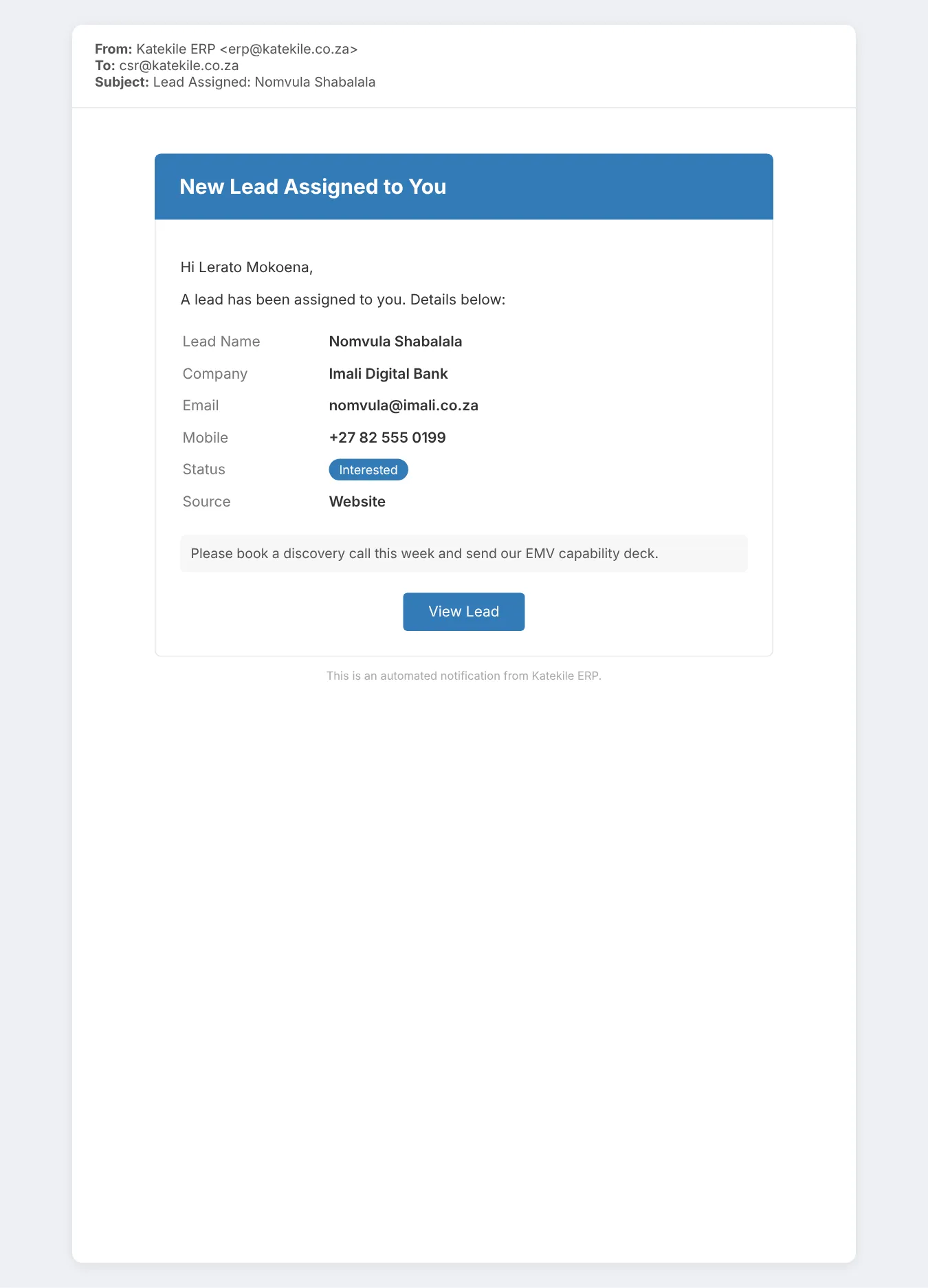
Click Assign in the header (or the Assigned To section in the sidebar), choose the user and add a comment. The assignee gets a “Lead Assigned” email with the lead’s details and a View Lead button, and the lead appears in their To Do.
Converting a lead
When the lead is qualified, use Create → Opportunity, Create → Prospect or Create → Customer from the lead. Converting to a customer starts the KYC approval.
Last updated October 16, 2026