Sales Orders
Turn an approved quotation into a Sales Order with the card job's file information.
Used byCSRSales Mgr
A Sales Order confirms what the customer ordered. At Katekile it also carries the job file information production needs: chip model, card number range and personalisation requirements.
Who: Customer Service Rep and Sales Manager create and submit; Procurement, Production, Warehouse and Finance read. Menu: Sales → Sales Order List.
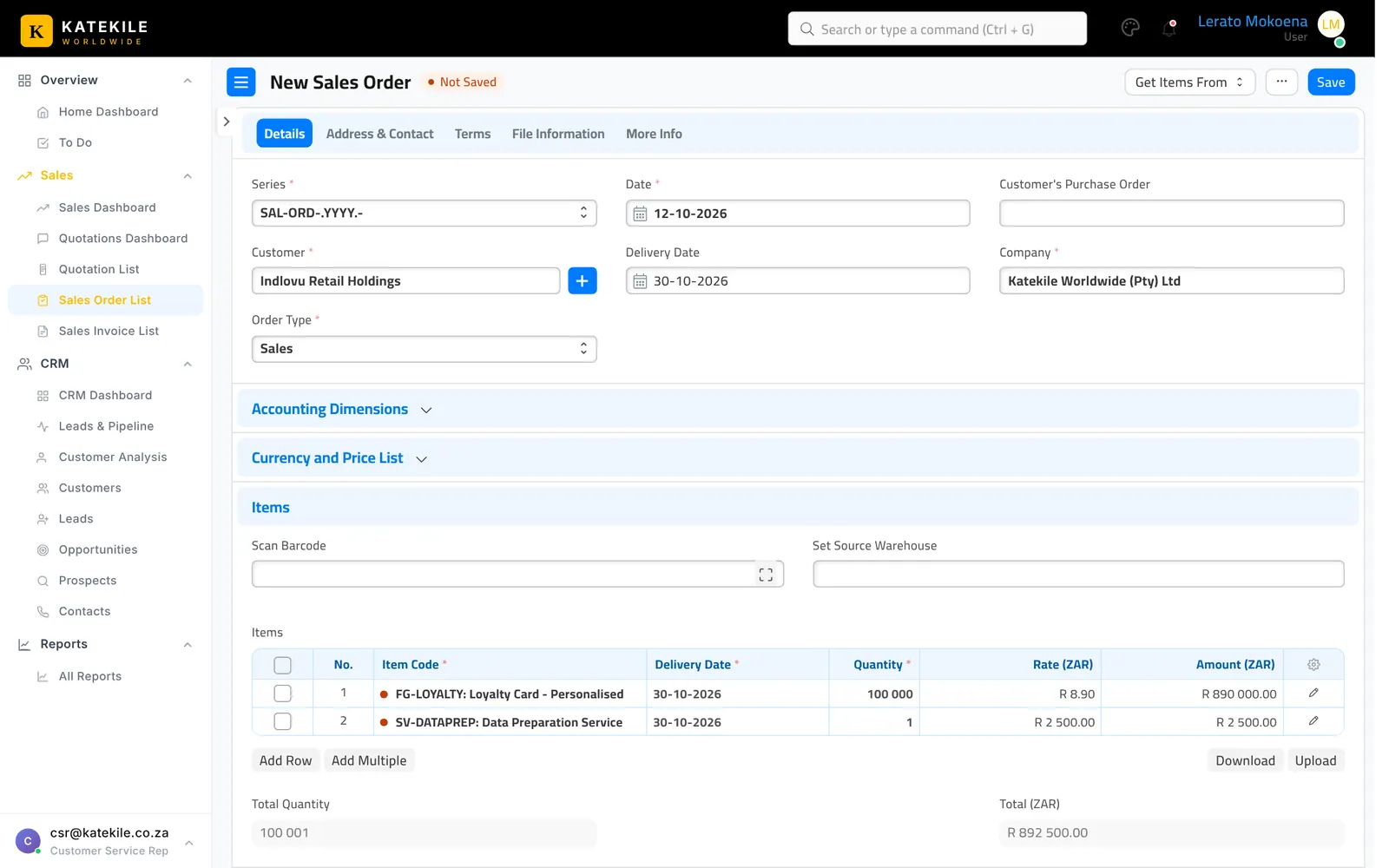
Create from an approved quotation
- Open the Approved quotation and click Create → Sales Order.
- Set the Delivery Date.
- Check items, quantities and rates (carried over from the quotation).
File Information tab
Open the File Information tab and complete the job details:
| Field | What to enter |
|---|---|
| File | The customer data file or job pack (attach). |
| Chips Model | e.g. NXP P71 Dual Interface, MIFARE DESFire EV3 4K, or N/A – magstripe. |
| Layout Requirements | Attach the signed-off artwork/layout. |
| Personalisation Requirements | Front/back print, embossing, encoding profile, carrier letter. |
| First Card / Last Card | The card number range for the batch. |
| Remarks | Delivery or data-handling instructions. |
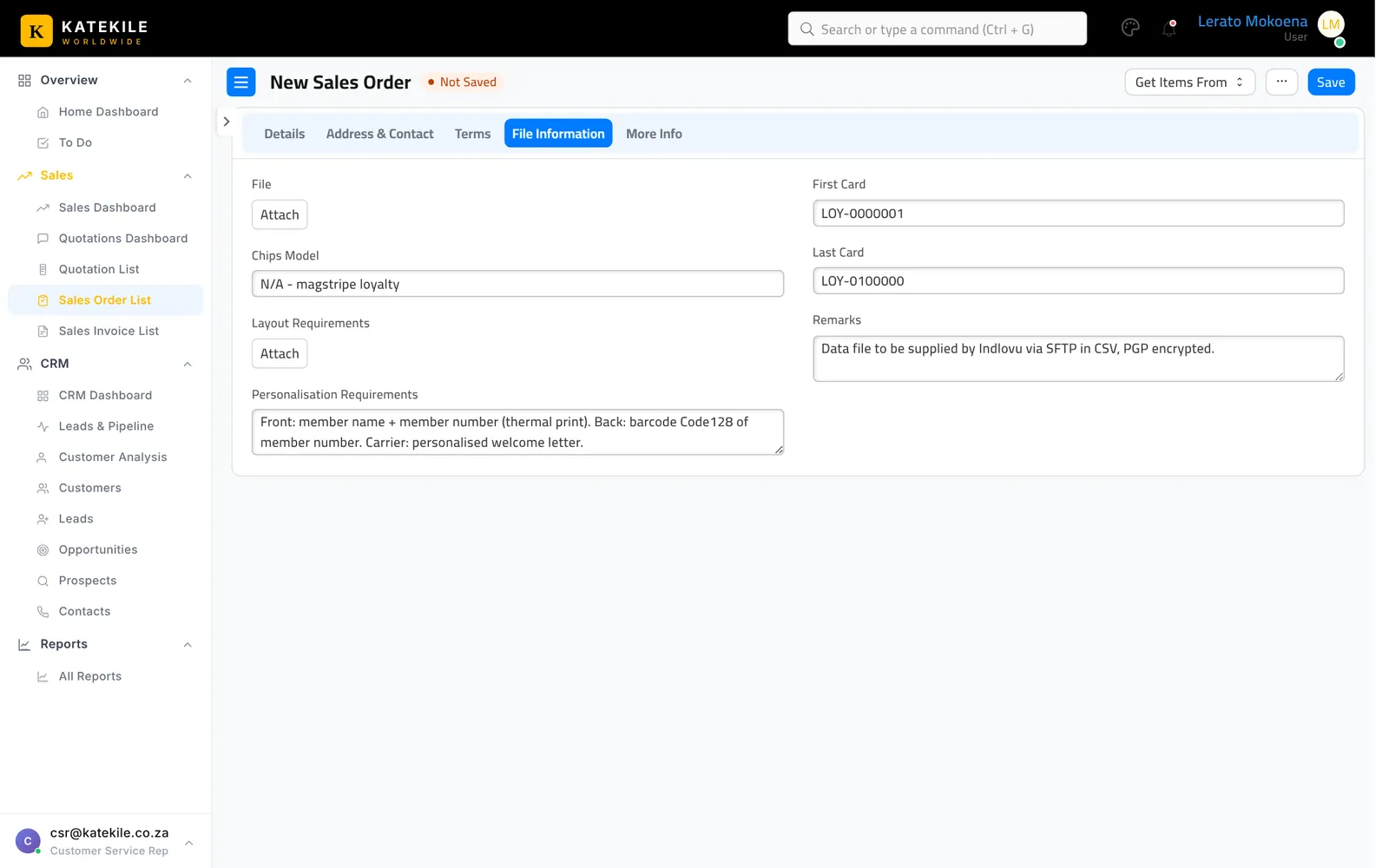
The same fields exist on the Work Order, so production sees exactly what was agreed.
Save and submit
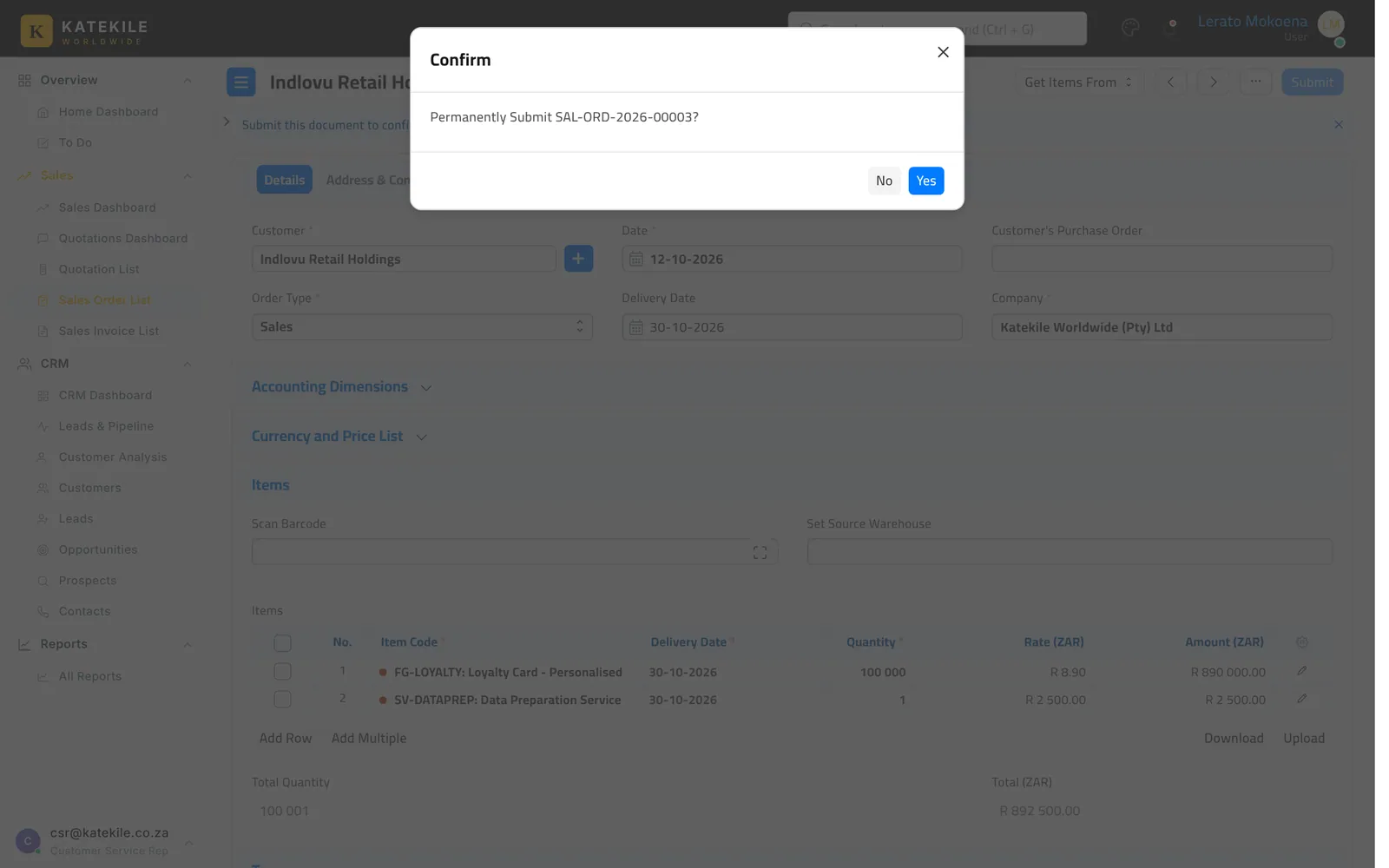
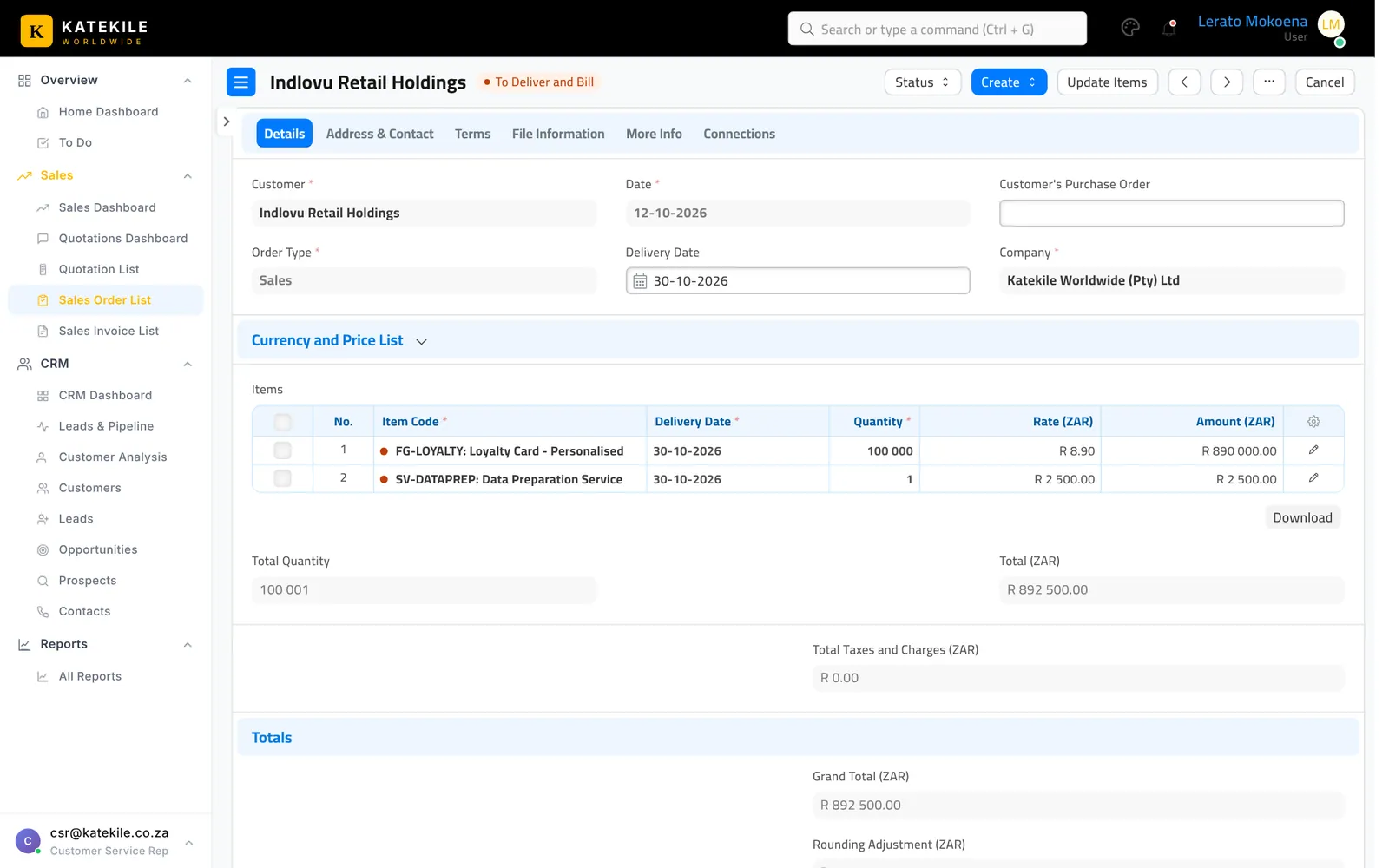
Save, then click Submit and confirm.
The Sales Order list
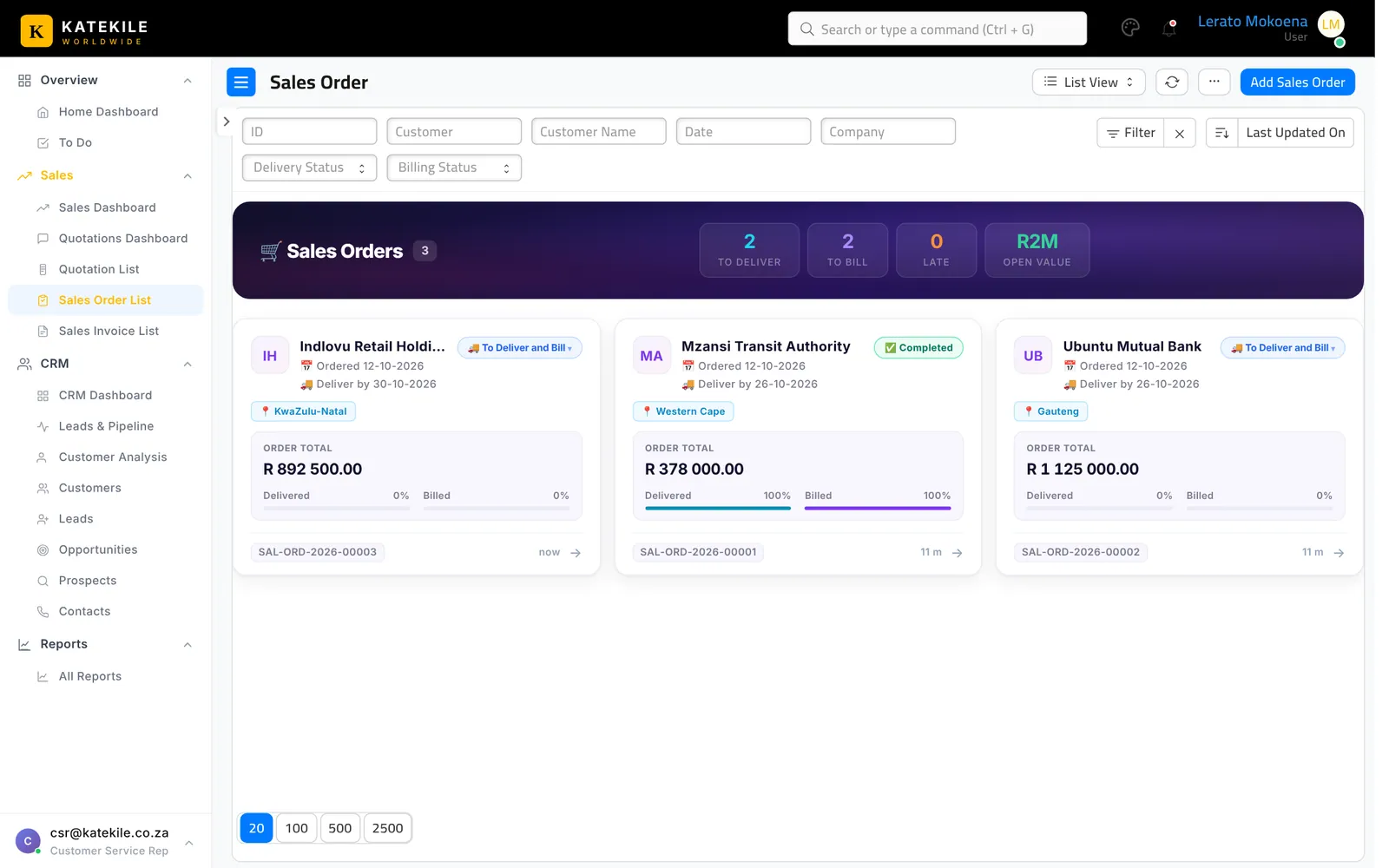
The card banner shows To Deliver, To Bill, Late and Open Value. Use Hold, Resume, Close and Re-open from the card actions.
What happens next
- Production creates a Work Order for the personalised cards — see Work Orders.
- The warehouse creates the Delivery Note — see Delivery Notes.
- Finance raises the Sales Invoice — see Sales Invoices.
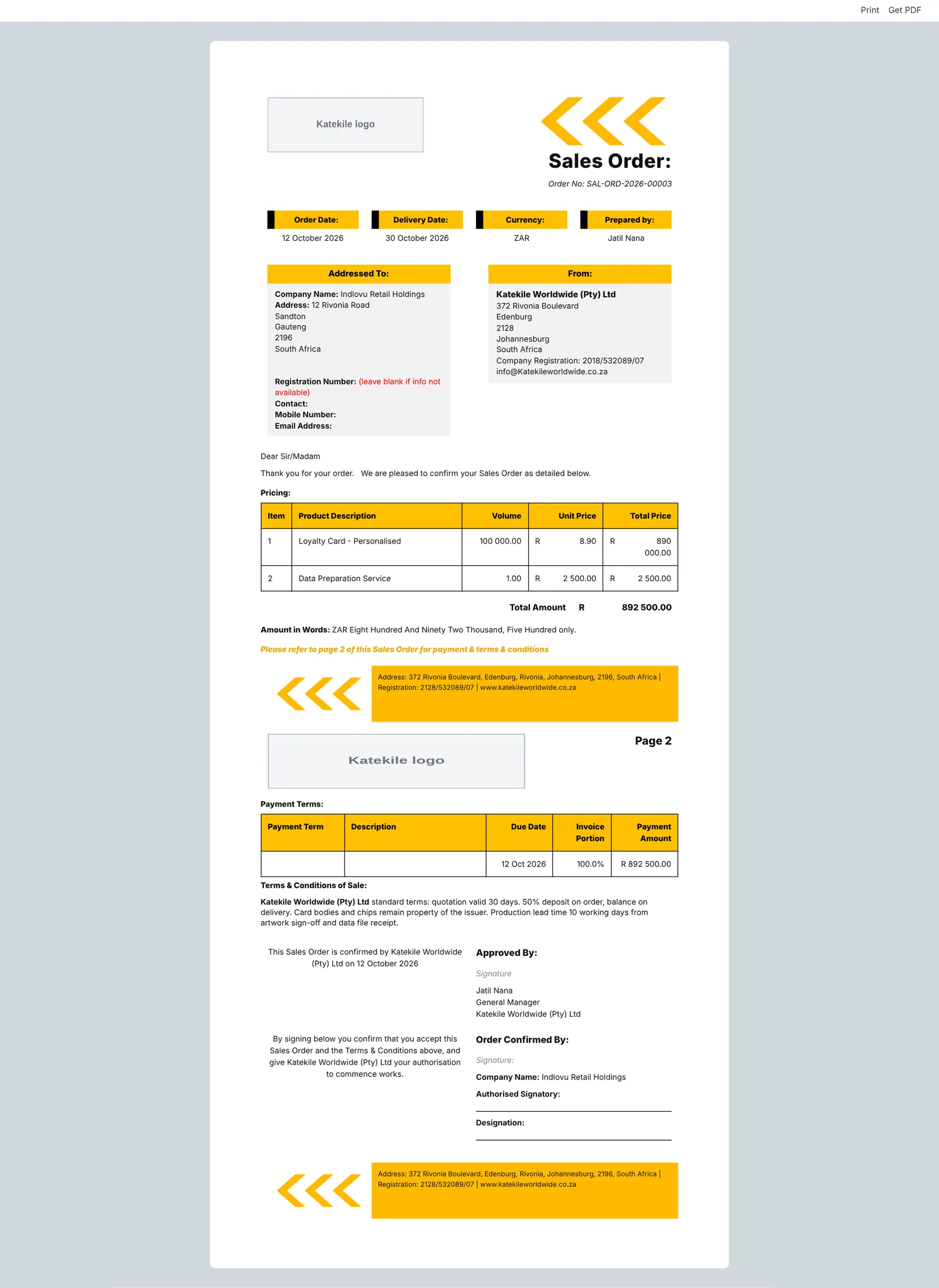
The print format is Katekile Sales Order Format.
Last updated October 16, 2026