Users & Roles
Add a user, give them the right Katekile role, link operators to employees, and adjust permissions.
Add a user
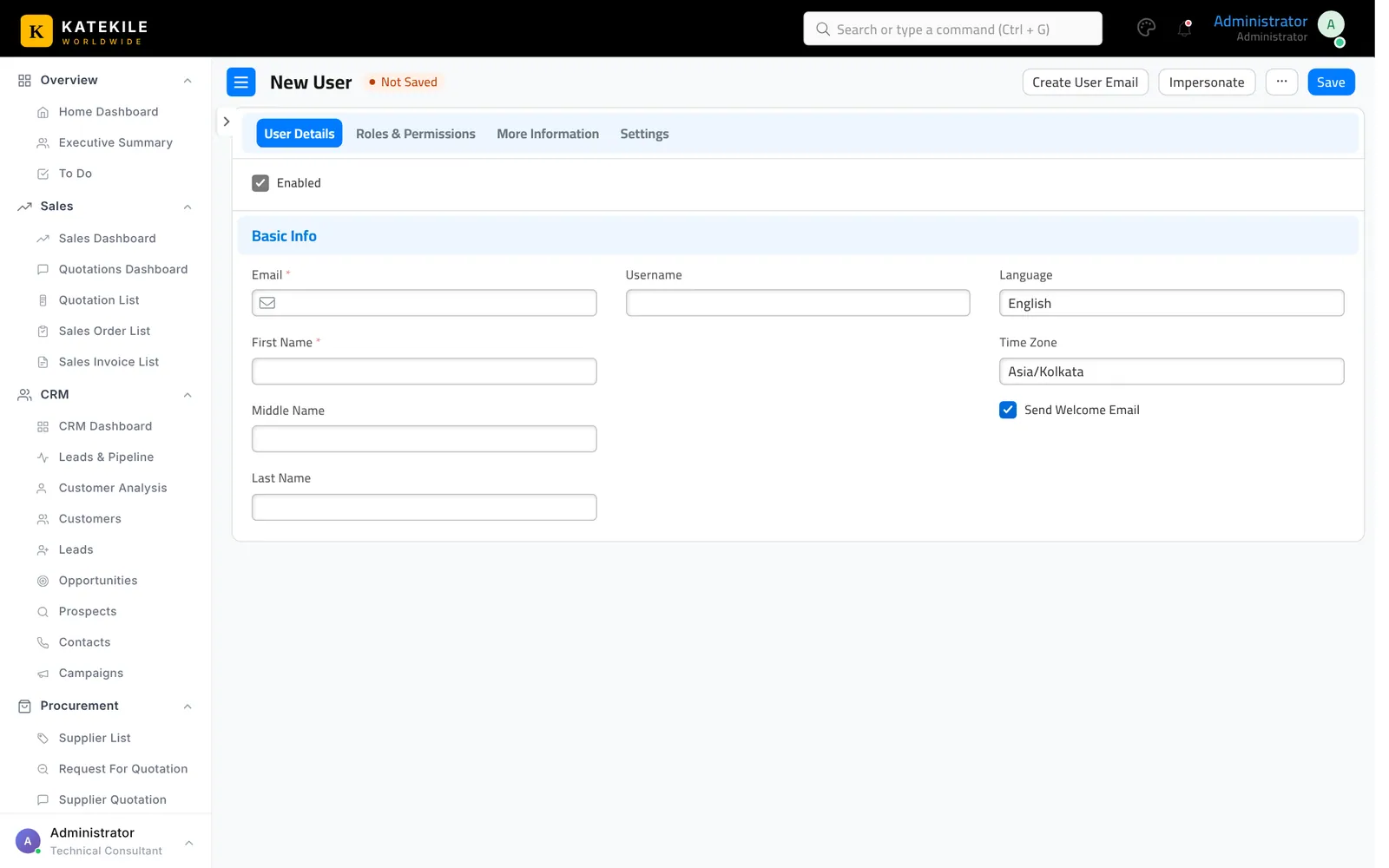
- Search User → Add User.
- Enter Email, First Name, Last Name. Leave Send Welcome Email ticked so they can set their password.
- Save. The user type becomes System User once a desk role is given.
Give the user a role
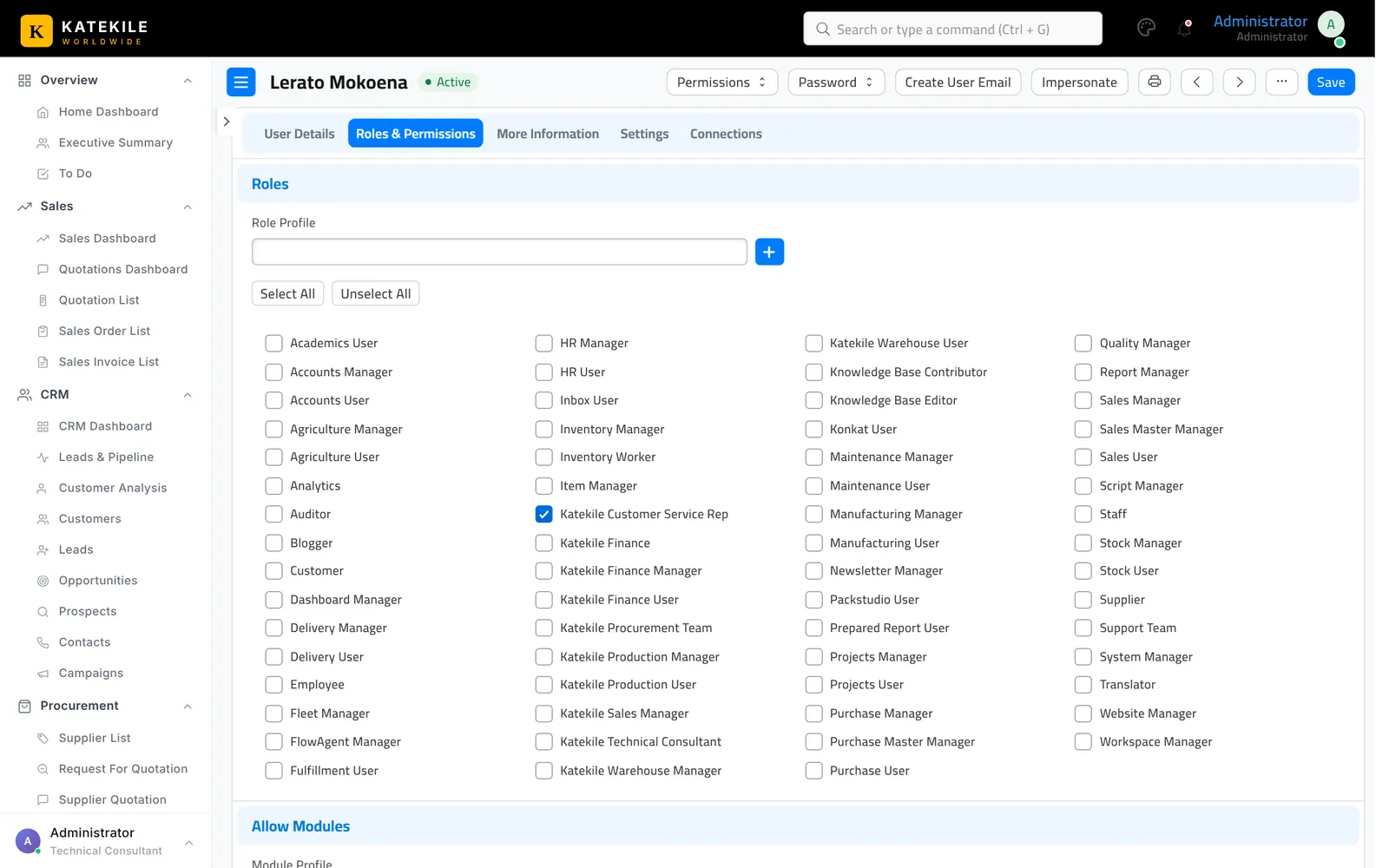
- Open the user and go to the Roles tab (Roles & Permissions).
- Tick the Katekile role(s) for their job — see Roles & Permissions:
| Job | Role(s) |
|---|---|
| Sales Manager (quotation approver) | Katekile Sales Manager |
| Customer Service / Sales admin | Katekile Customer Service Rep |
| Procurement | Katekile Procurement Team |
| Supplier verification | Katekile Finance |
| Finance manager | Katekile Finance Manager |
| Finance clerk | Katekile Finance User |
| Production manager | Katekile Production Manager (+ Manufacturing Manager to edit Manufacturing Settings) |
| Operator | Katekile Production User + Manufacturing User (for the Shop Floor app) |
| Warehouse manager / dispatch | Katekile Warehouse Manager |
| Stores / vault clerk | Katekile Warehouse User |
| Product master | Katekile Technical Consultant |
- Save. The user’s sidebar changes the next time they load the page.
Set the user’s default Company (User → Settings or via Session Defaults) so new documents start with the right Katekile entity.
Operators: link the user to an Employee
For the Shop Floor operator picker, open the operator’s Employee record and set User ID. The app then pre-selects them when they start a job.
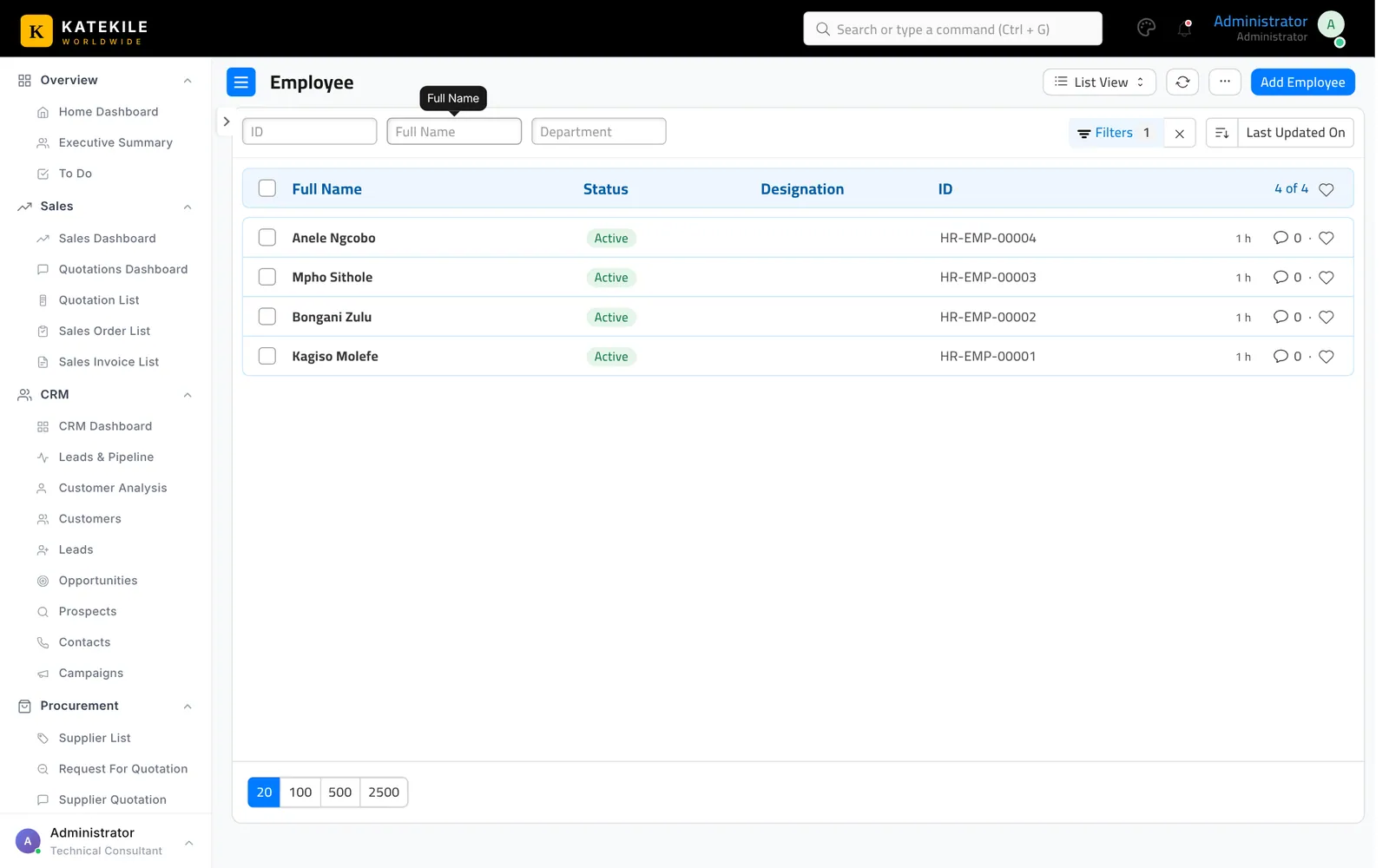
When a user is set on an Employee, Katekile ERP creates a User Permission limiting that user to their own Employee record. That can stop a supervisor opening job cards logged by other operators (“Not permitted … linked to Employee”). For managers, either don’t link the Employee, or open User Permission and remove / narrow it (untick Apply To All Document Types and apply it only where needed).
Change what a role can do
Use Role Permissions Manager (search Role Permissions Manager), pick the document type and adjust the role’s tick-boxes.
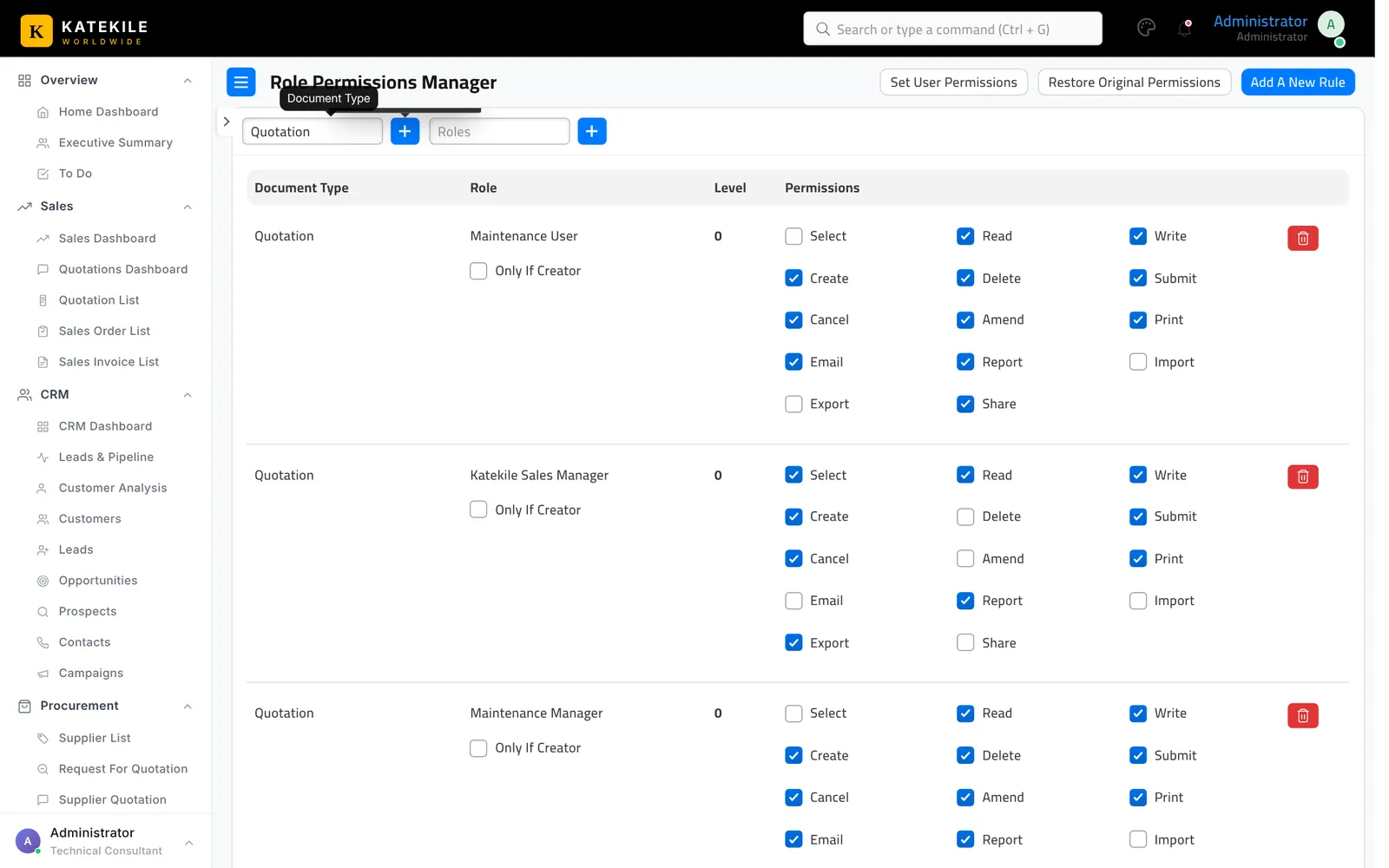
Read rights that are commonly needed alongside the Katekile roles:
| To do this | The role also needs read on |
|---|---|
| Save Purchase Orders, Purchase Receipts or Delivery Notes | Account, Cost Center |
| Save Purchase Receipts / Purchase Invoices in the form | Buying Settings |
Give a role access to a report
Open the report (search Report → the report name), add the role in Roles, save.
Last updated October 16, 2026