Quotations & Approval
Prepare a quotation, send it for approval, handle send-backs, approve, mark lost or cancel, print and email.
Used byCSRSales Mgr
Every Katekile quotation is approved by a named Sales Manager before it reaches the customer. The approval is tracked by the Quotations Workflow, and each step (except Reject) emails the right person.
Who: Customer Service Rep prepares; the Katekile Sales Manager named on the quotation approves. Menu: Sales → Quotation List.
At a glance
| Step | Who | Action | State after |
|---|---|---|---|
| 1 | Customer Service Rep | Create and save | Draft |
| 2 | Customer Service Rep (owner) | Actions → Send For Approval | Pending Approval |
| 3a | Sales Manager (named) | Actions → Approve | Approved (submitted) |
| 3b | Sales Manager | Actions → Reject | Rejected |
| 3c | Sales Manager | Actions → Send Back For Improvements (+ note) | Need Improvements |
| 4 | Customer Service Rep | Revise, then Actions → Send For Approval | Pending Approval |
| 5 | Sales Manager | Actions → Lost / Cancel (+ comment) | Lost / Cancelled |
The quotation list
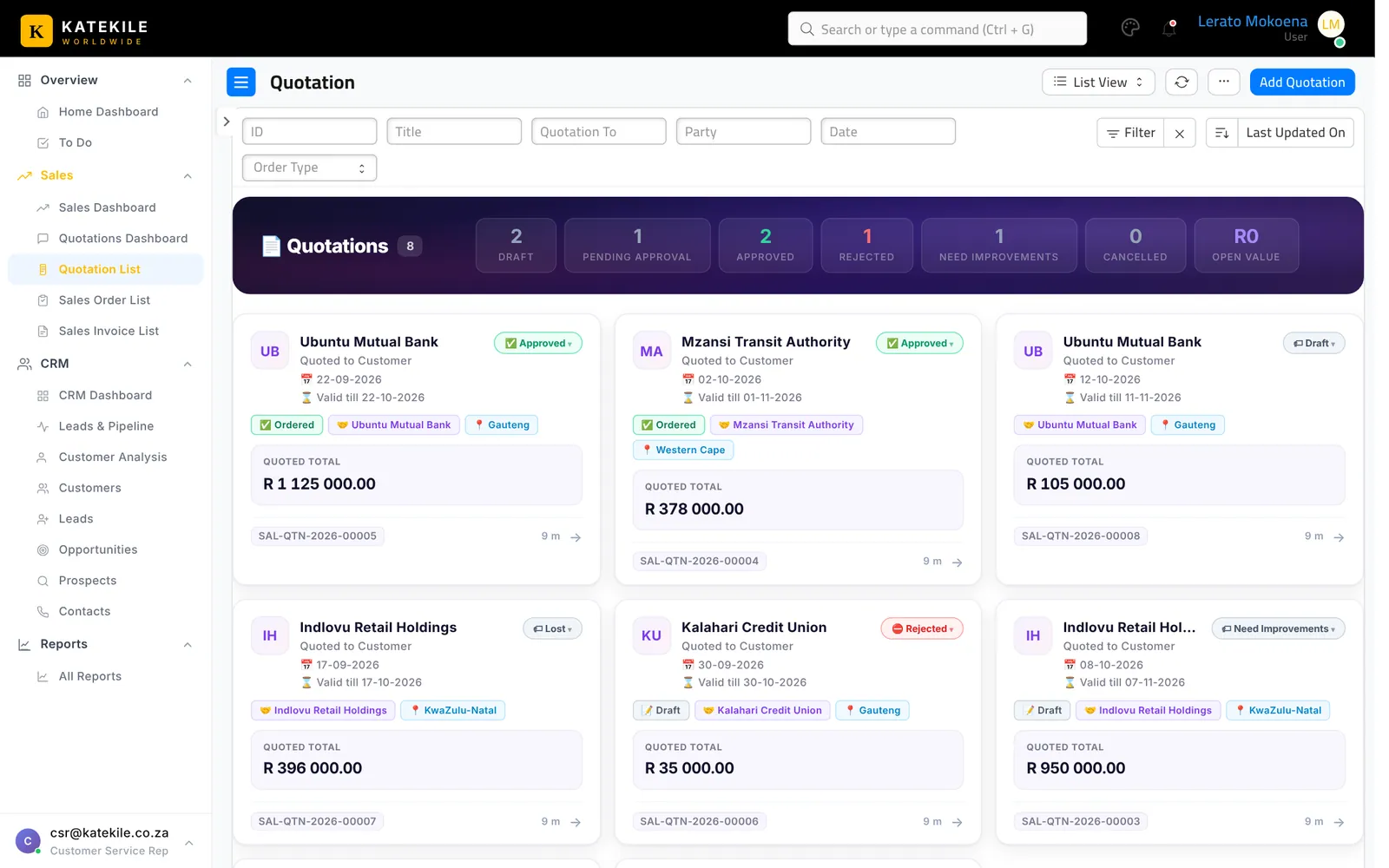
Step 1 — Create the quotation (Customer Service Rep)
- Sales → Quotation List → Add Quotation (or Create → Quotation from an Opportunity, or Quick Actions → Quotation on your Home Dashboard).
- Quotation To: Customer. Customer: pick an approved customer.
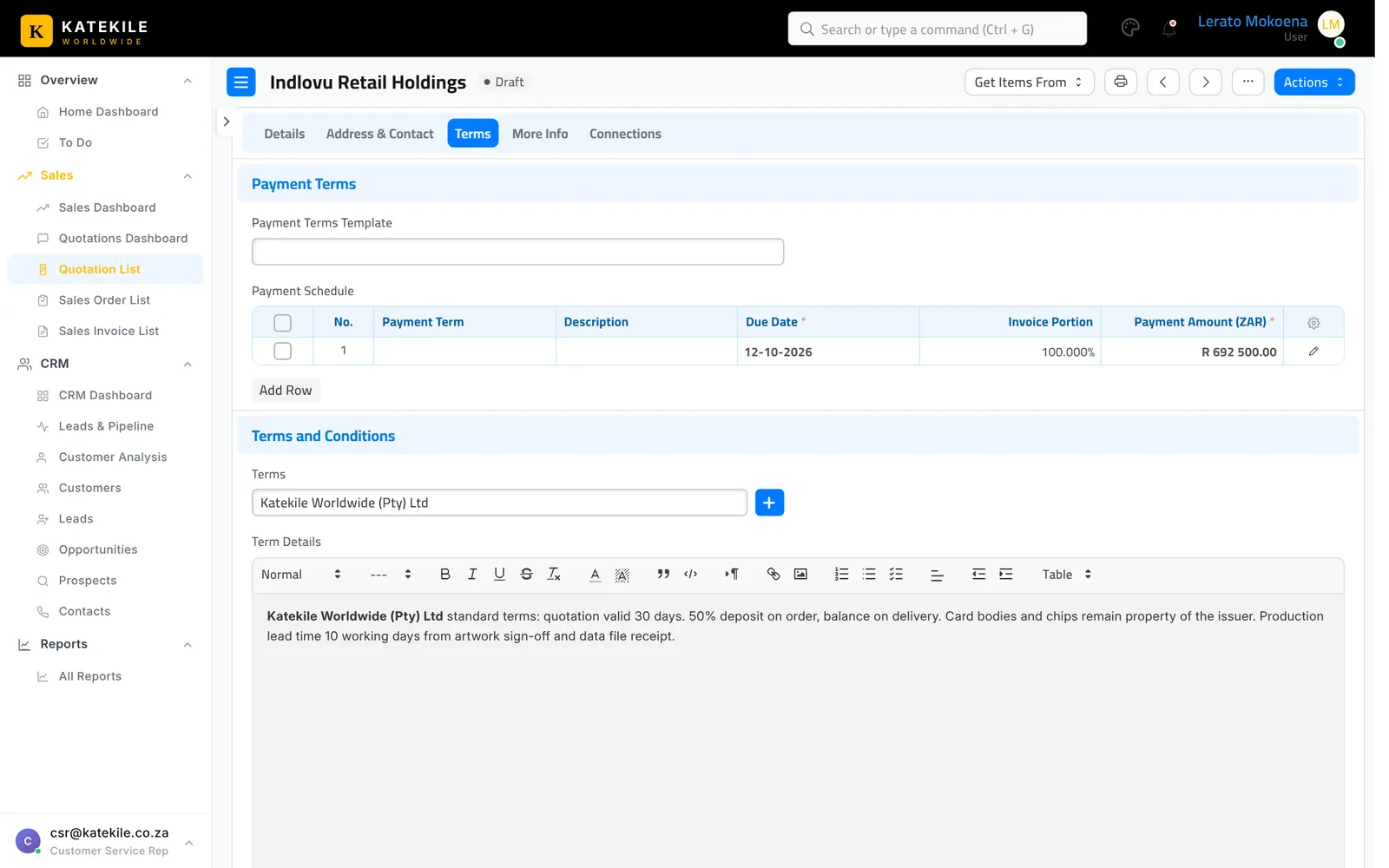
- Company: choose the Katekile company issuing the quote. The Terms are filled automatically from the Terms and Conditions record with the same name as the company. If none exists you see the alert “No matching Terms and Conditions found for …”.
- Sales Manager (mandatory): pick the manager who must approve. Only users with the Katekile Sales Manager role are listed.
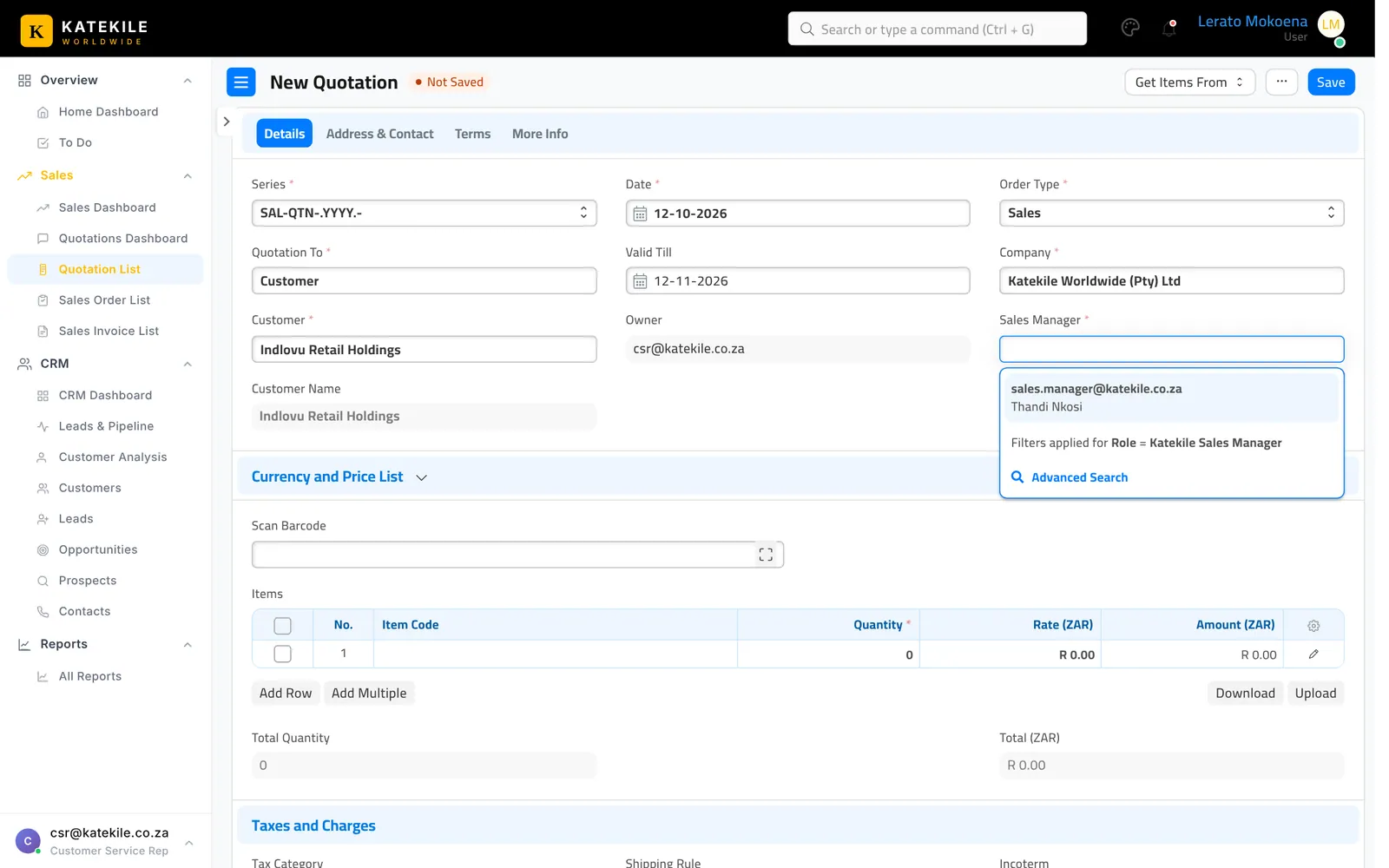
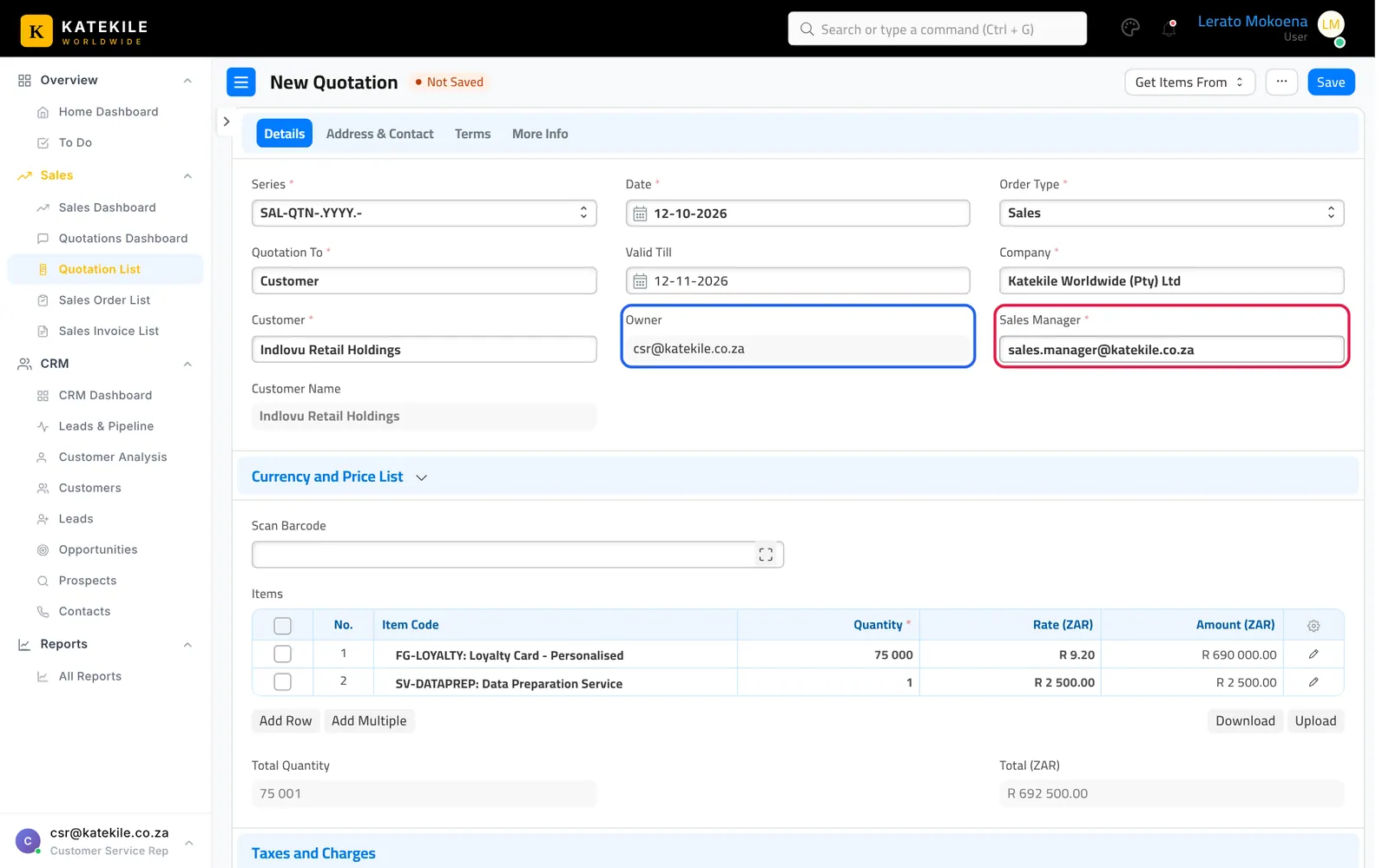
- Owner is filled with your user automatically — it decides who can send the quotation for approval.
- Add the Items — card products and services (e.g. Loyalty Card – Personalised, Data Preparation Service) with quantity and rate. Add taxes on Taxes and Charges if needed.
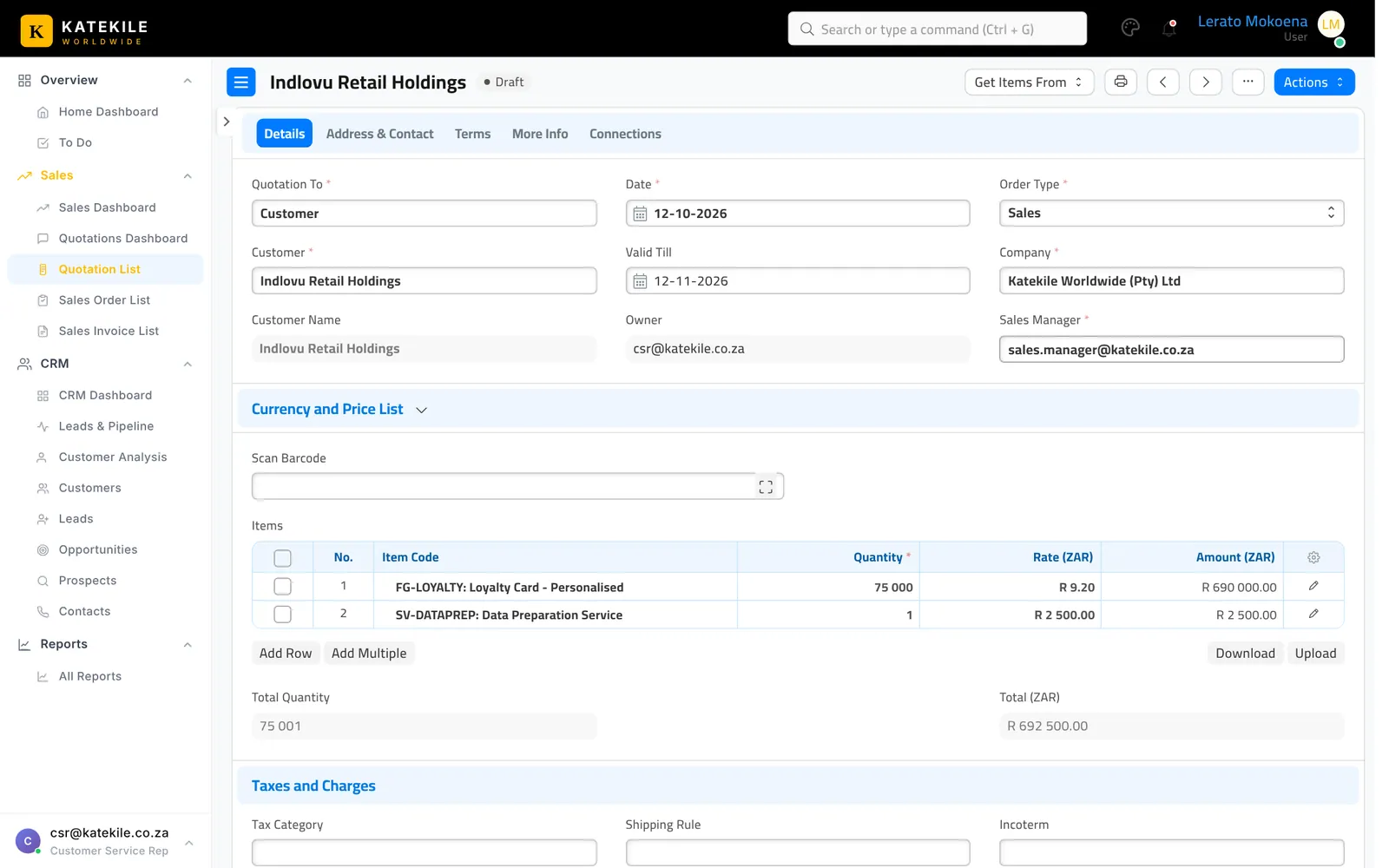
- Save (Ctrl + S). The quotation is now in Draft.
Step 2 — Send for approval
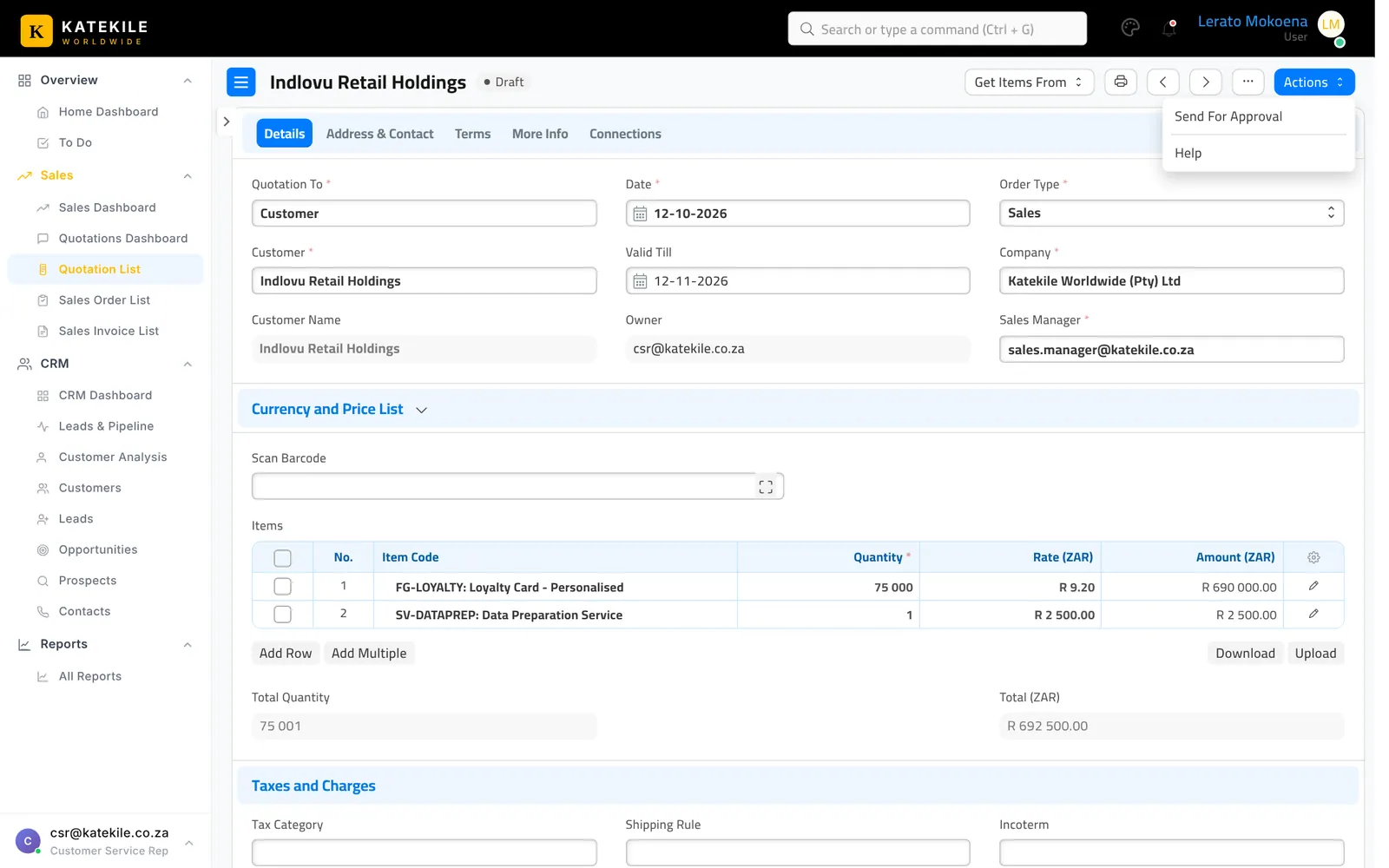
Click Actions → Send For Approval.
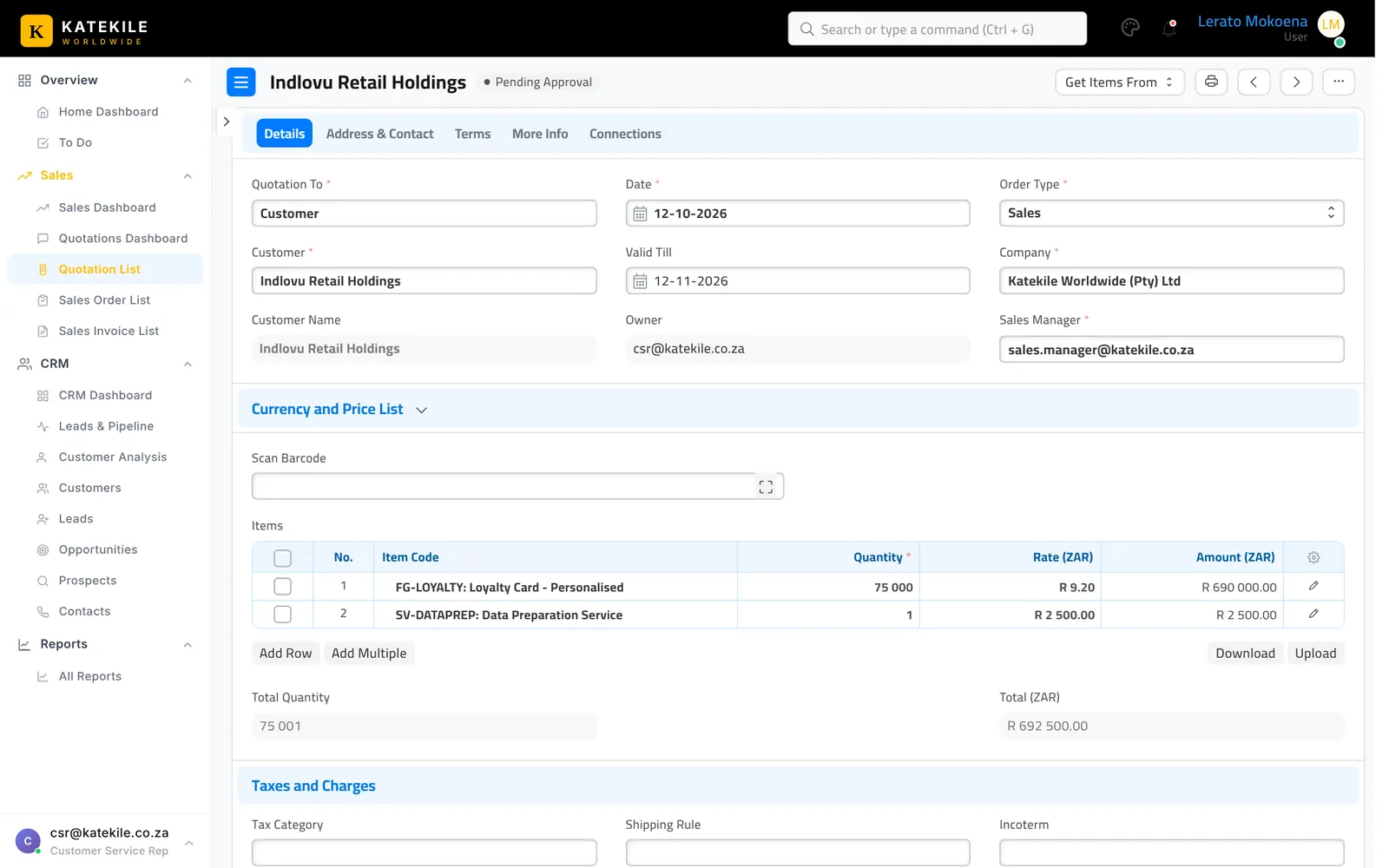
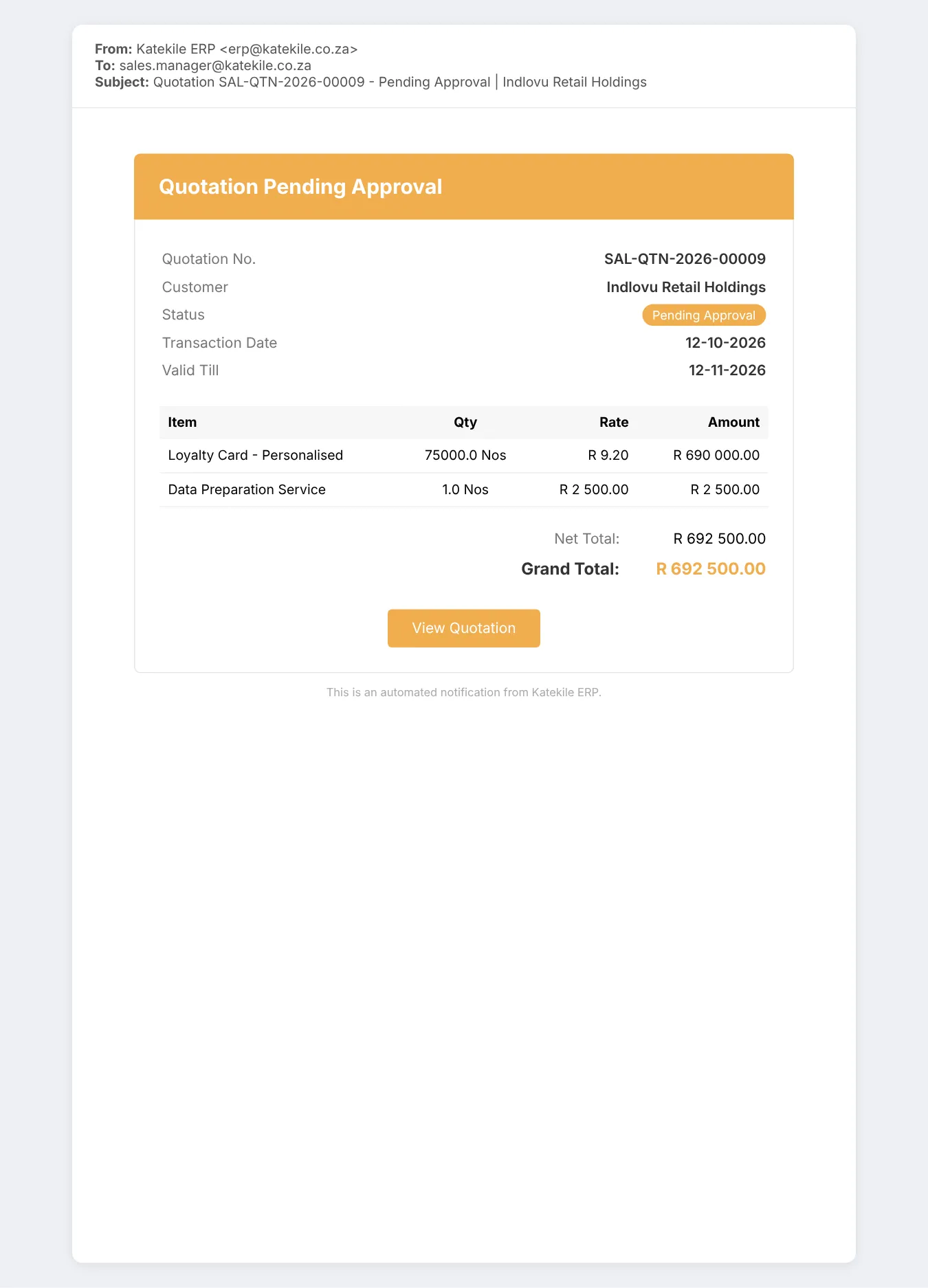
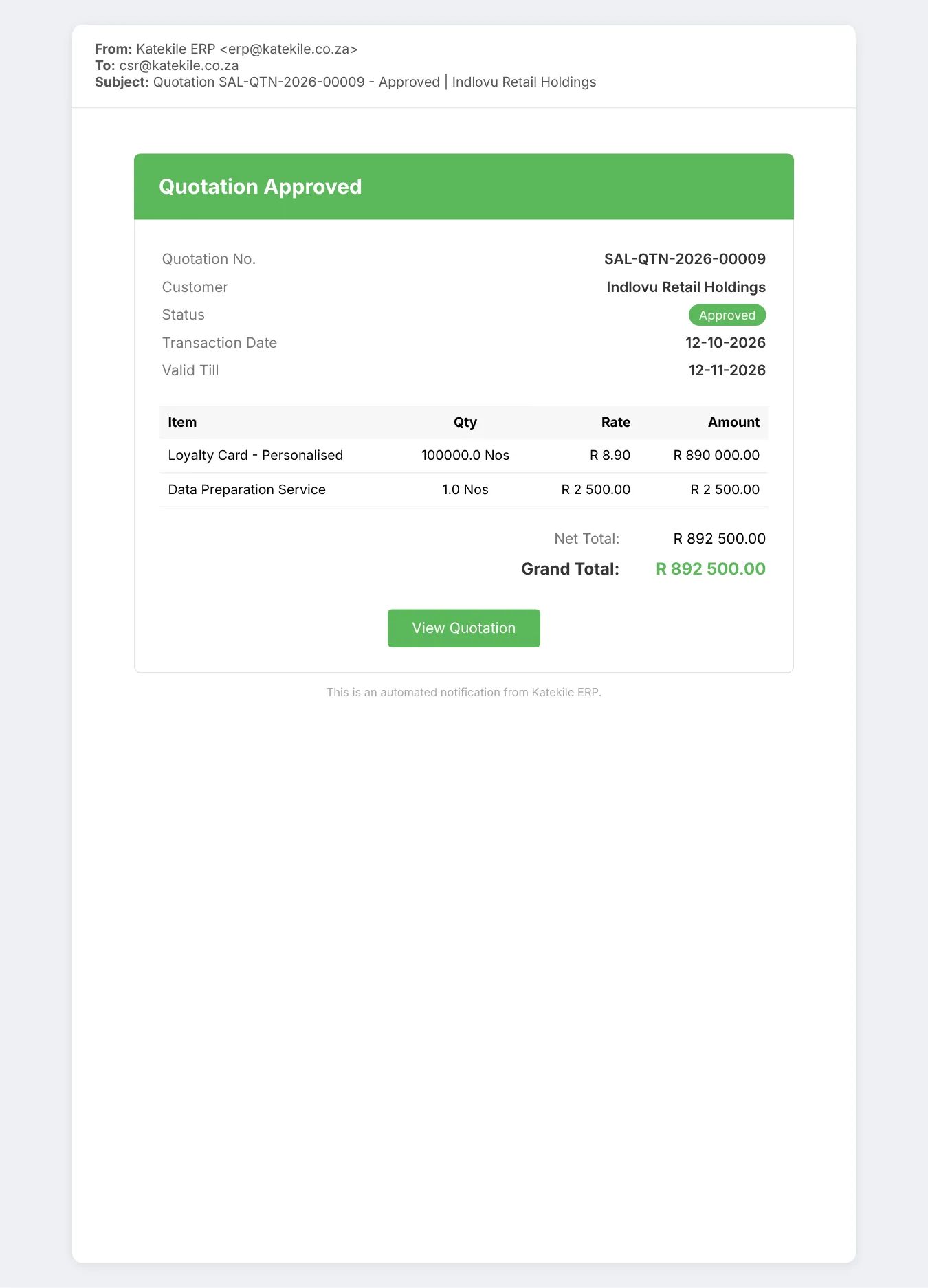
The state changes to Pending Approval and the Sales Manager receives an email with the items and totals and a View Quotation button. The rep now sees no actions — it is waiting on the manager.
Step 3 — Review (Sales Manager)
The Sales Manager opens the quotation from the email or the list and clicks Actions:
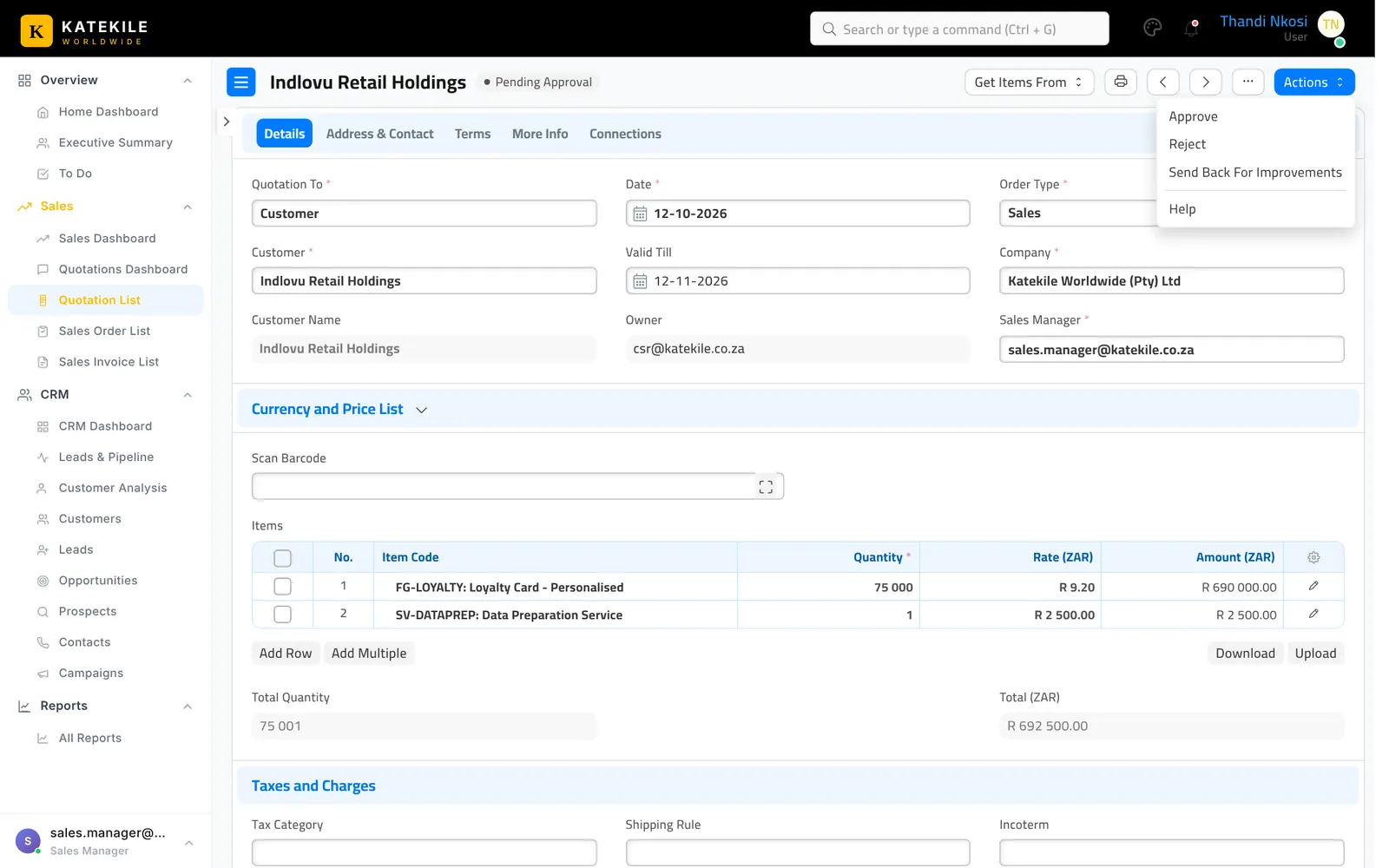
Send back for improvements
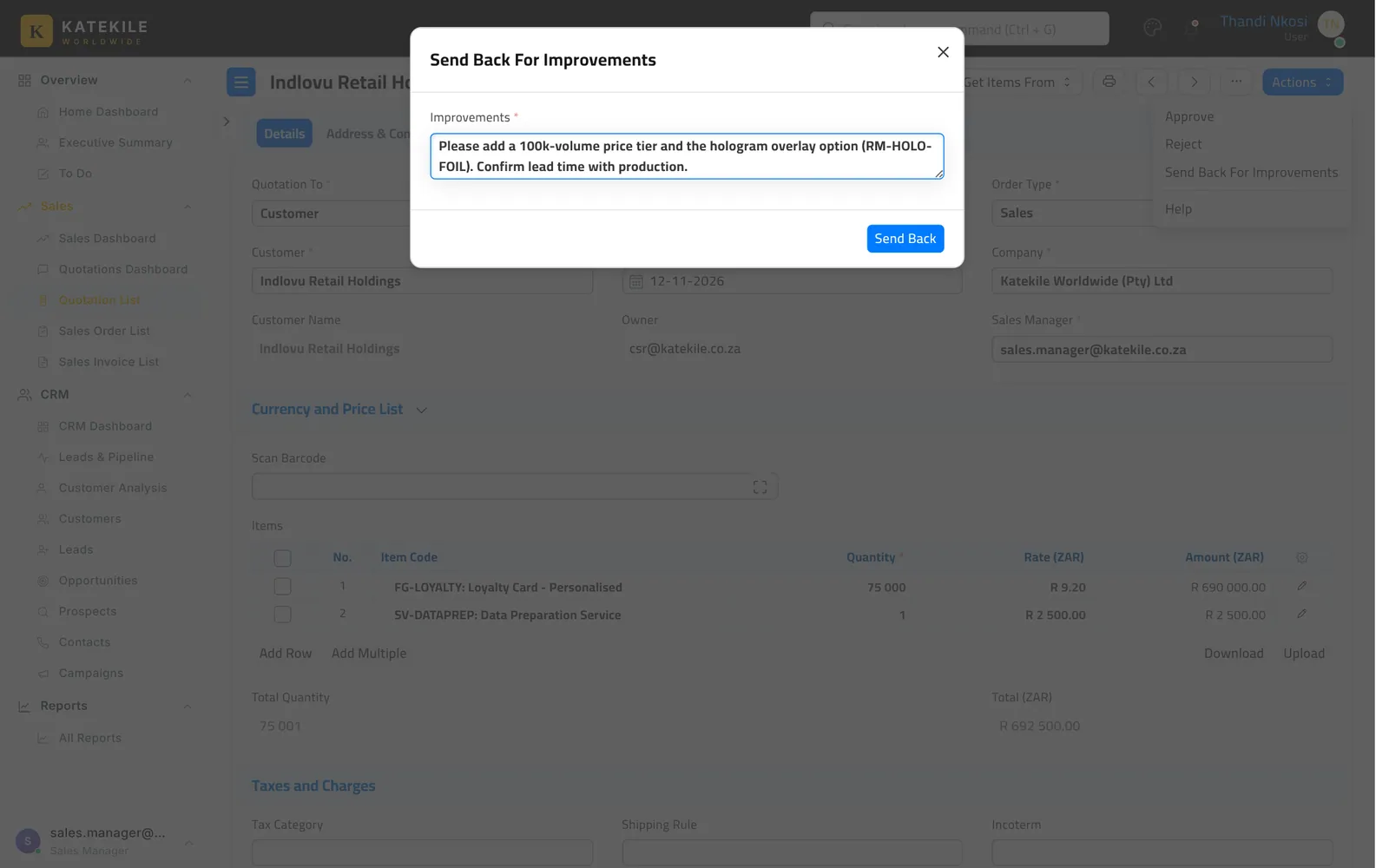
Choose Send Back For Improvements. A pop-up asks for the Improvements required — be specific. Click Send Back.
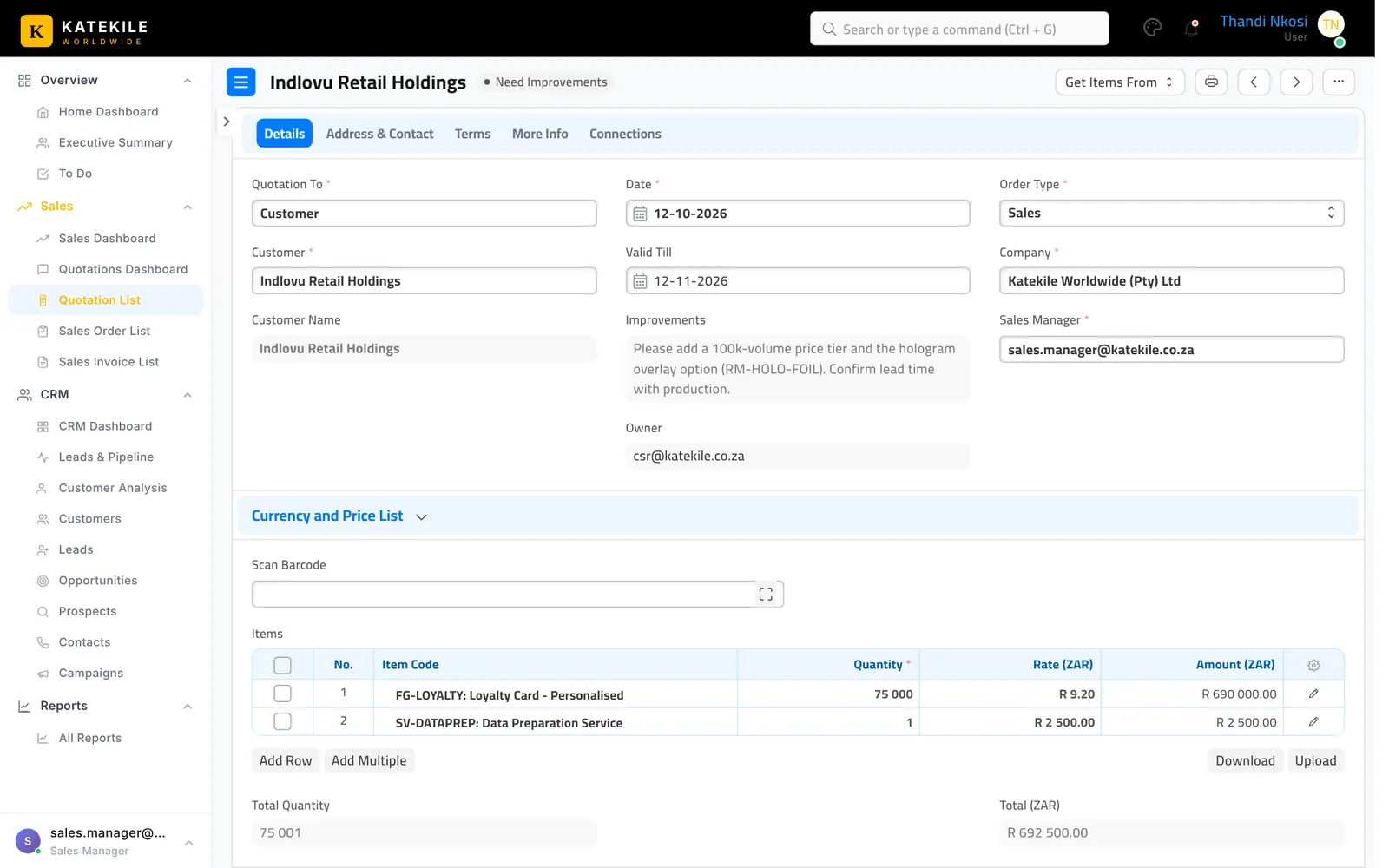
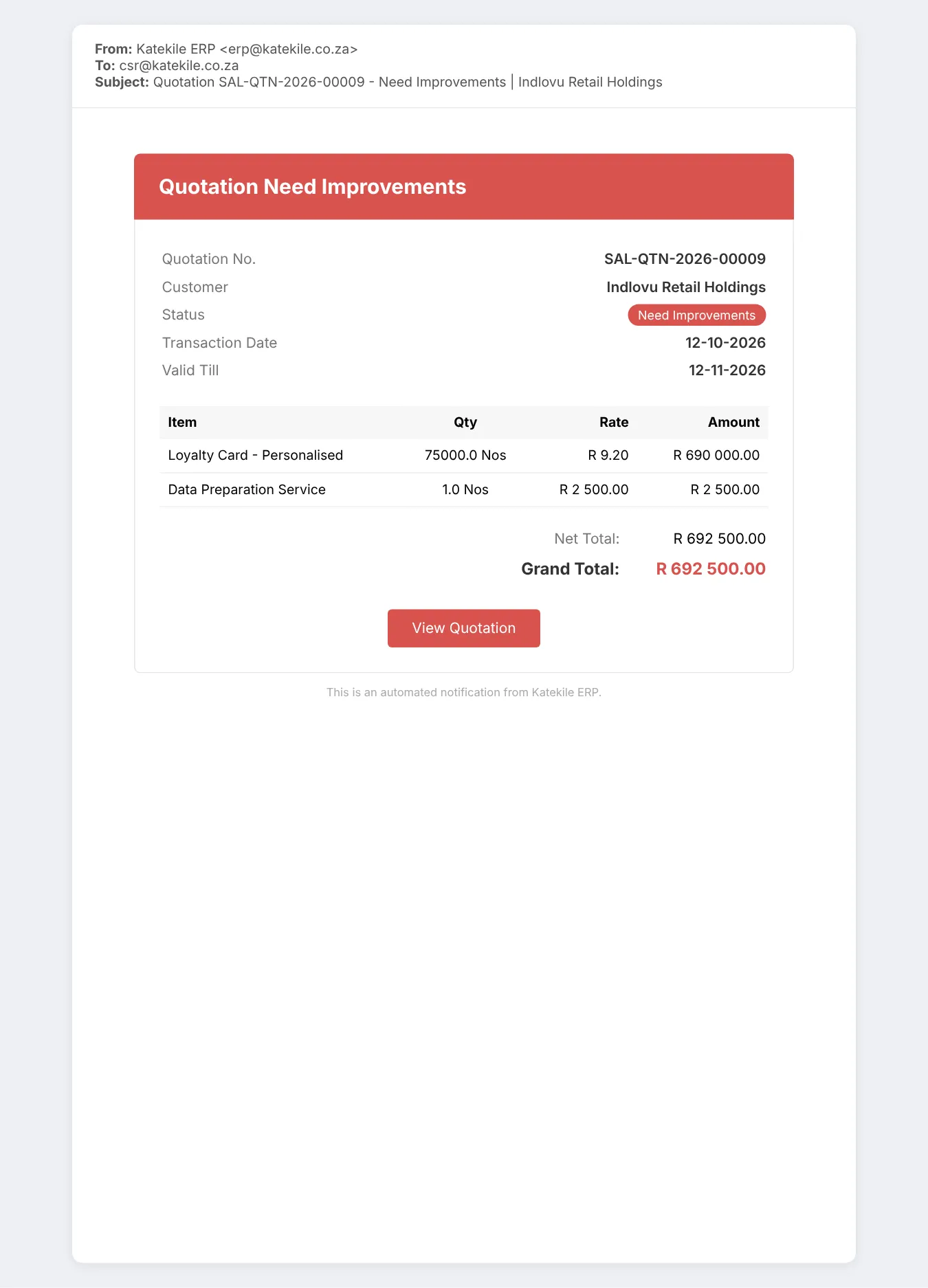
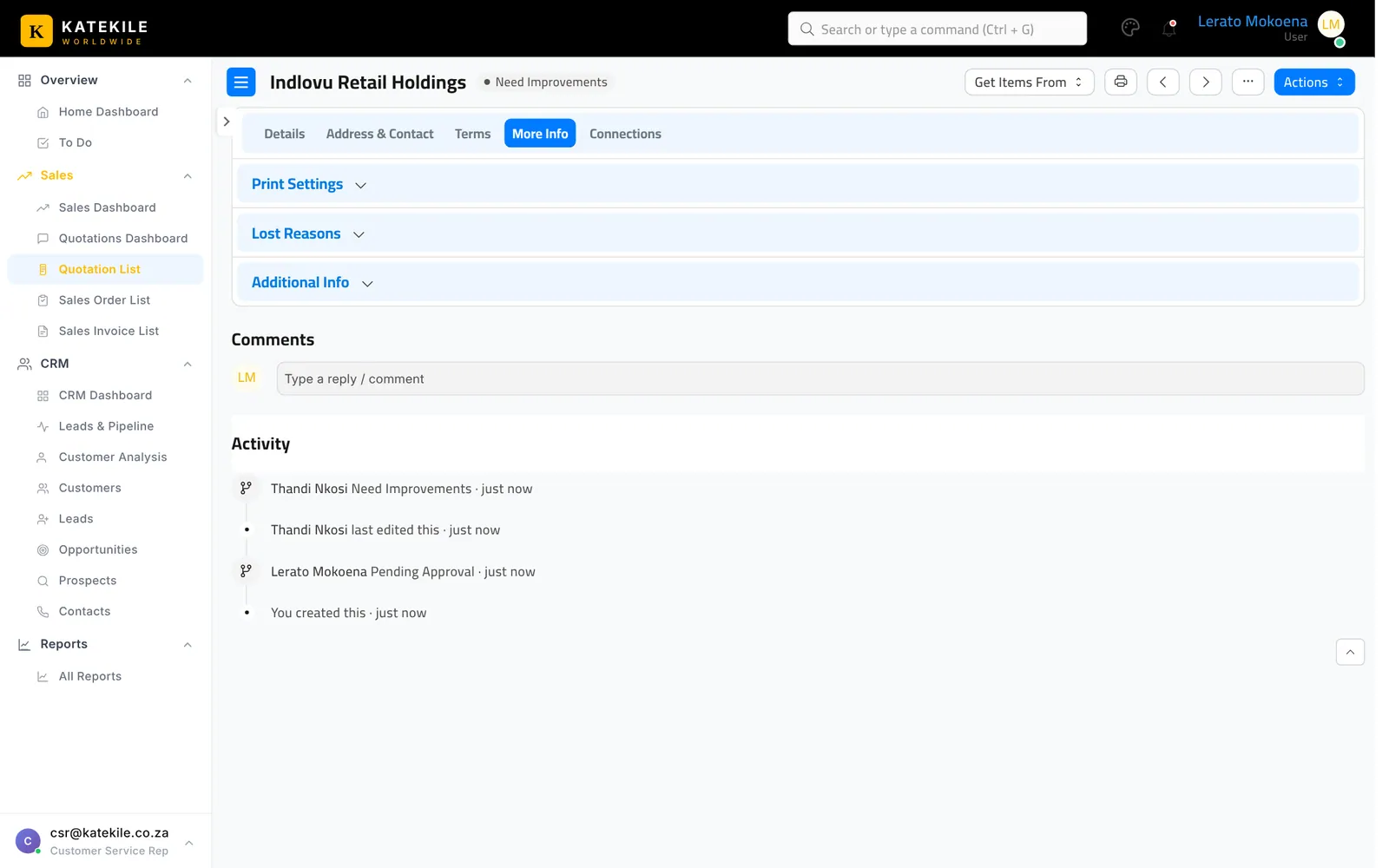
The quotation moves to Need Improvements, the text is stored in the Improvements field, and the rep is emailed.
Reject
Choose Reject when the quotation should not go ahead. It stays on file in the Rejected state. No email is sent on rejection — tell the rep directly.
Approve
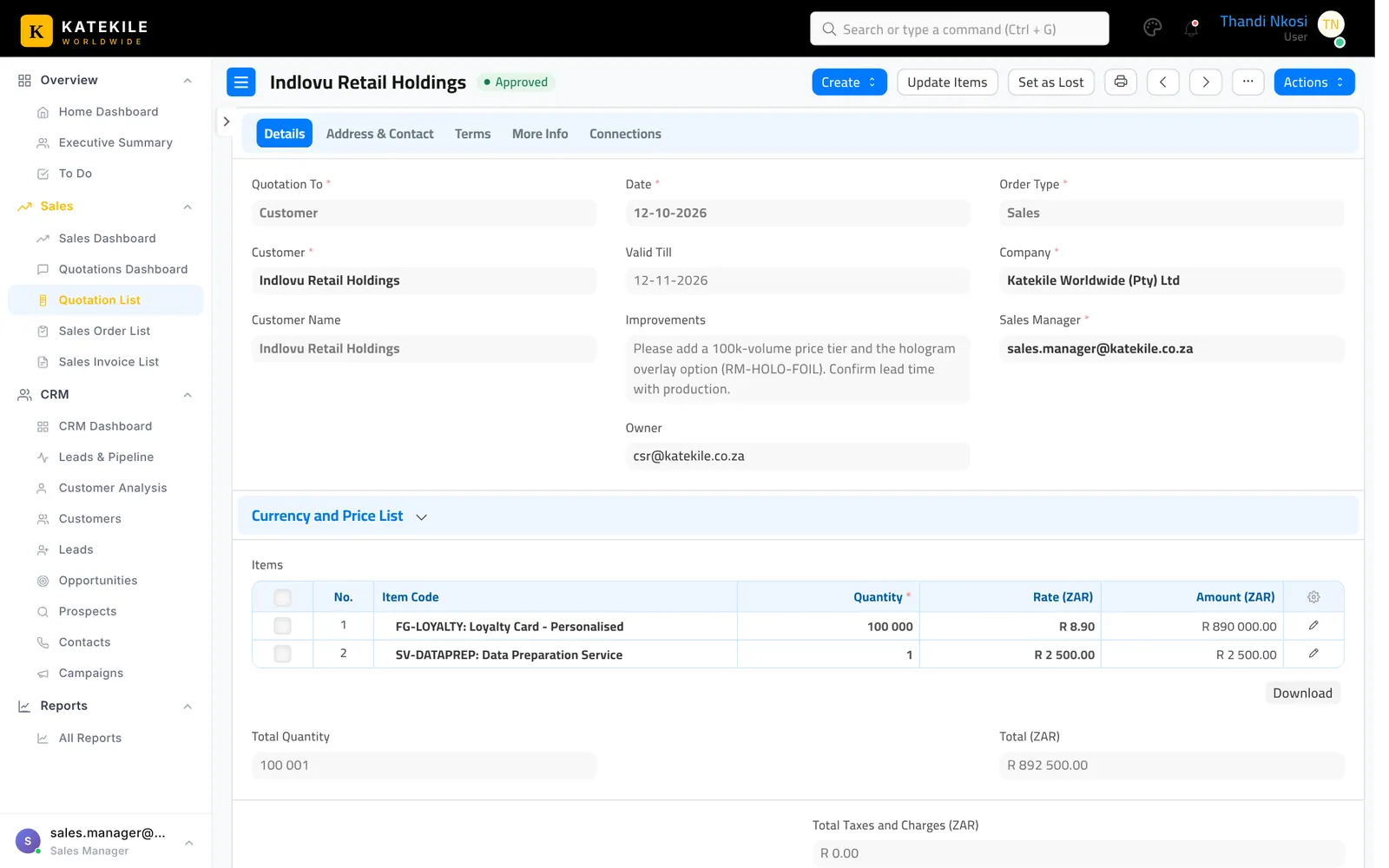
Choose Approve. The quotation is submitted and locked, and both the rep and the manager are emailed — the approval email attaches the quotation PDF in the Katekile Quotation Format, ready to forward to the customer.
Step 4 — Revise and re-send (Customer Service Rep)
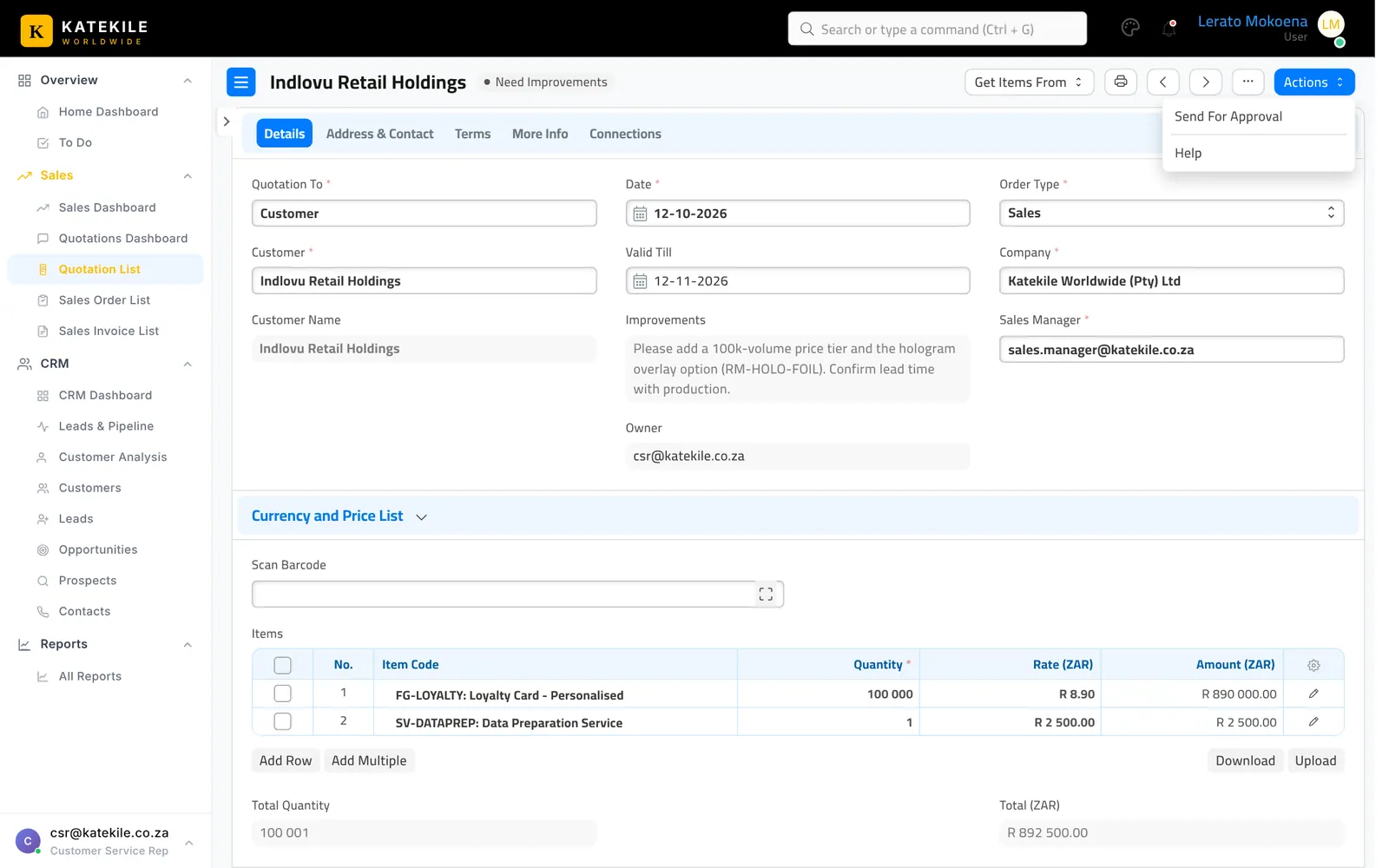
- Open the quotation in Need Improvements. The manager’s note is in the Improvements field on the Details tab, just below Valid Till.
- Make the changes and save.
- Actions → Send For Approval again — it returns to Pending Approval.
The Activity timeline at the bottom of the form records every workflow step and who took it.
Step 5 — After approval
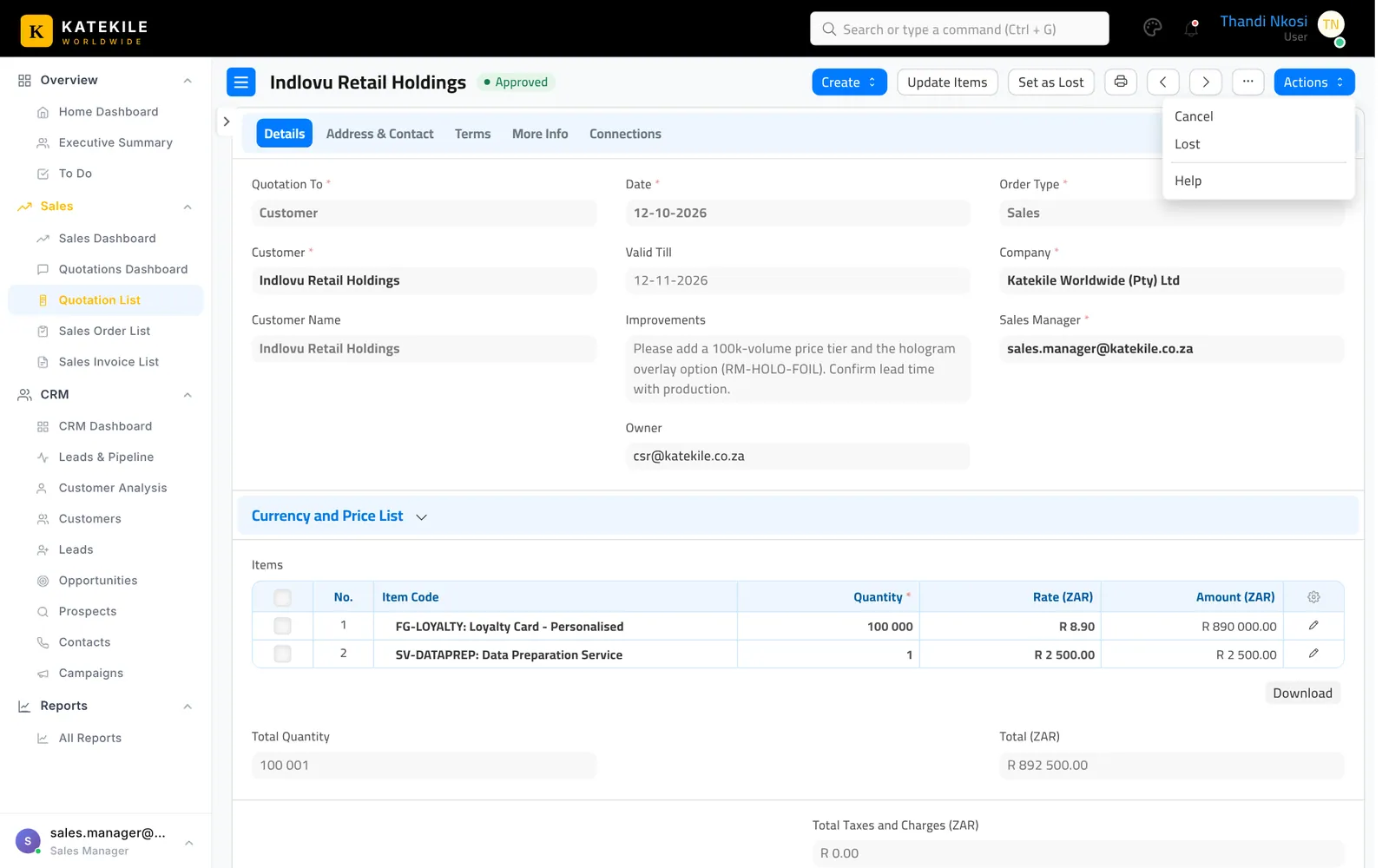
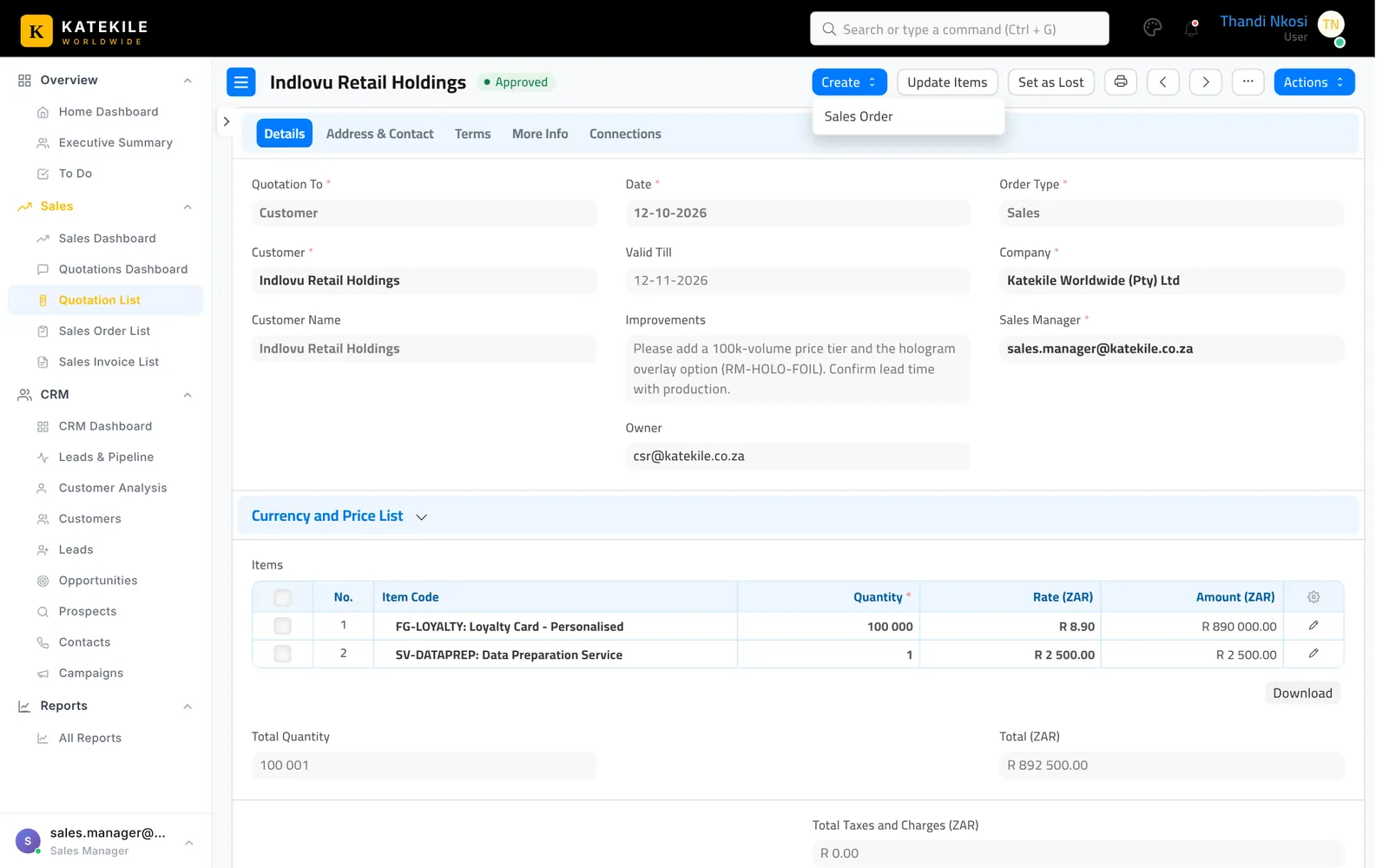
- Create → Sales Order turns the quotation into an order — see Sales Orders.
- Lost — the customer did not accept. You can also use the standard Set as Lost button to record lost reasons; the workflow moves to Lost automatically.
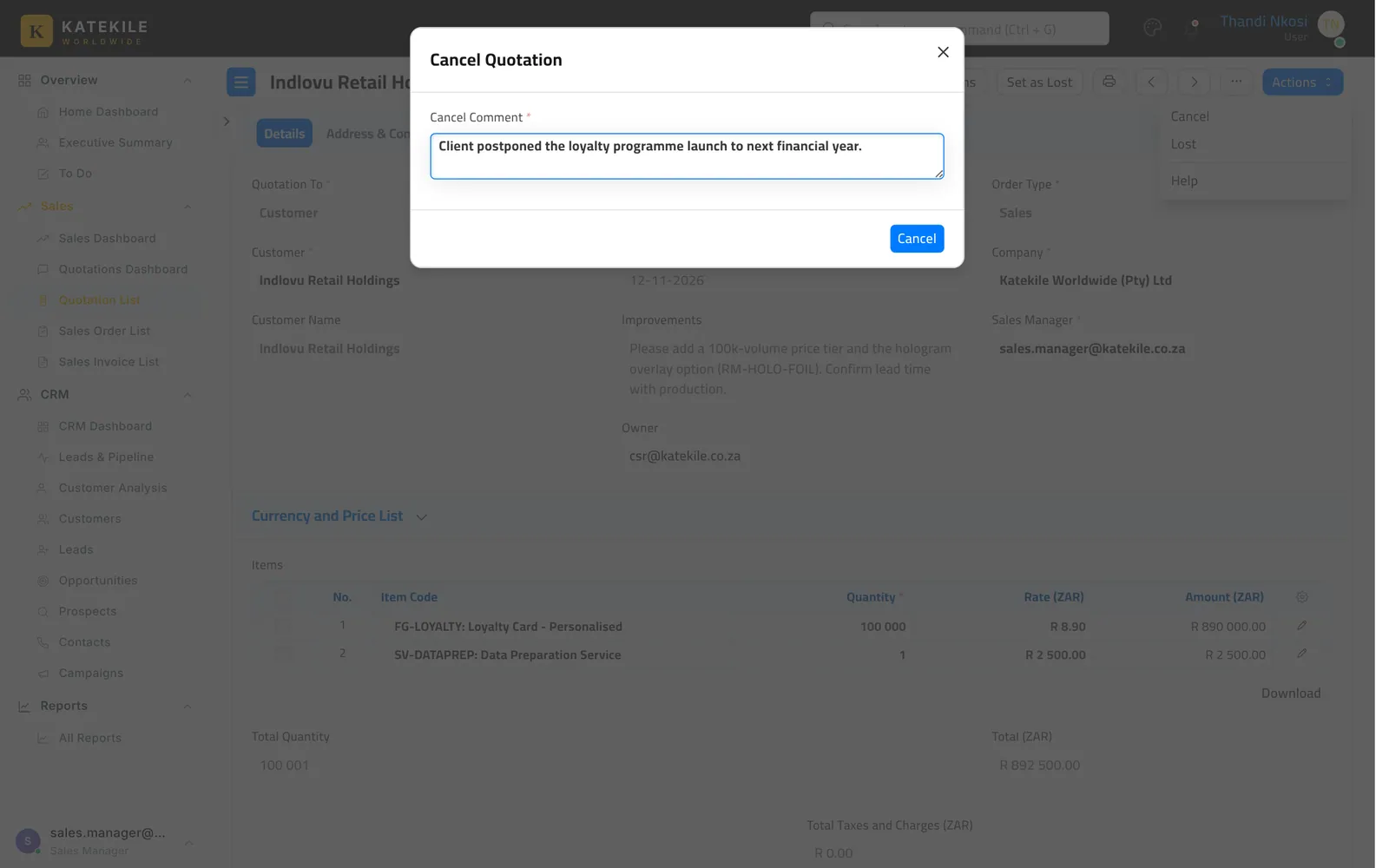
- Cancel — a pop-up asks for a Cancel Comment (mandatory), stored on the quotation, then cancels it.
Printing and emailing to the customer
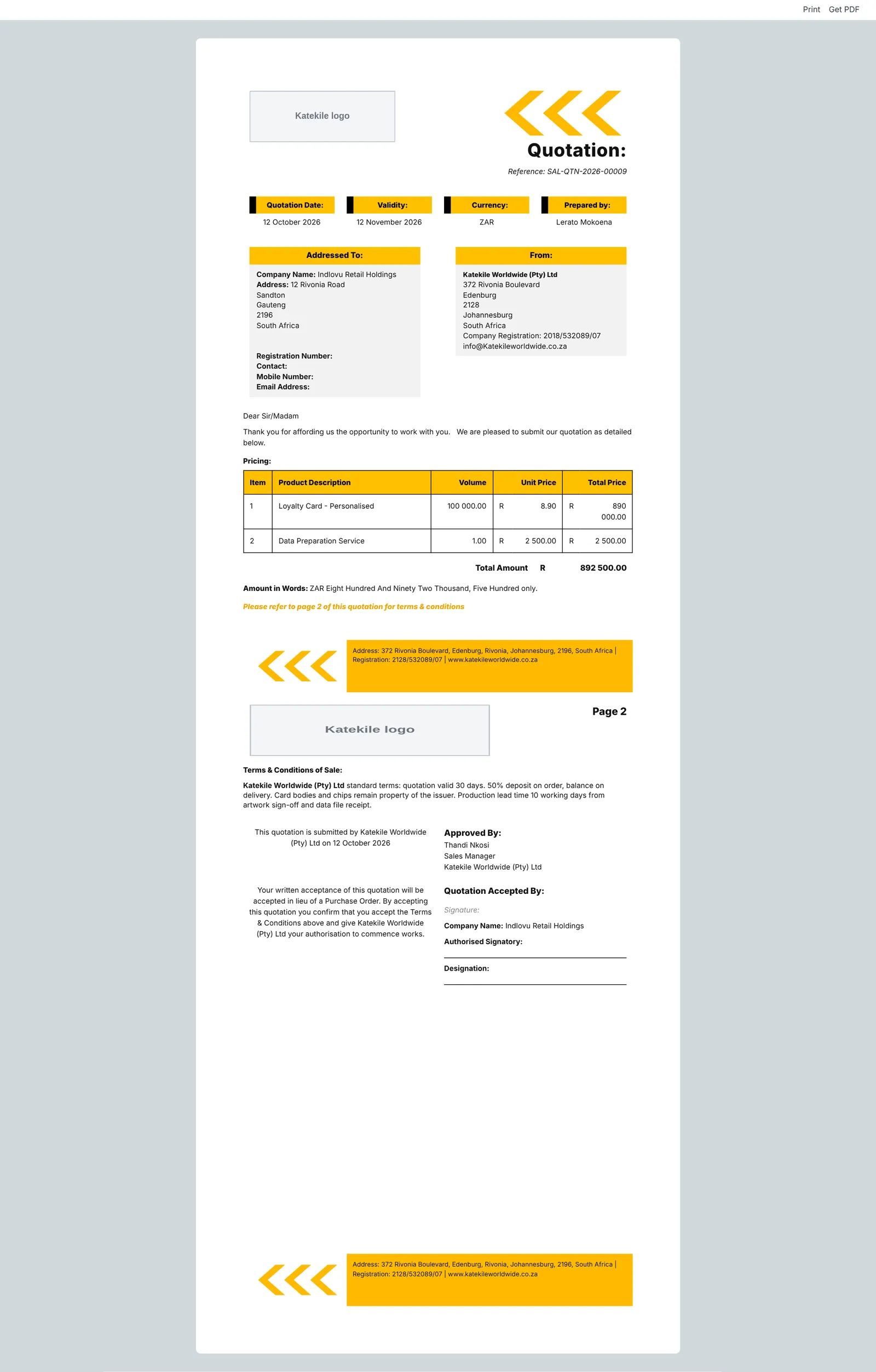
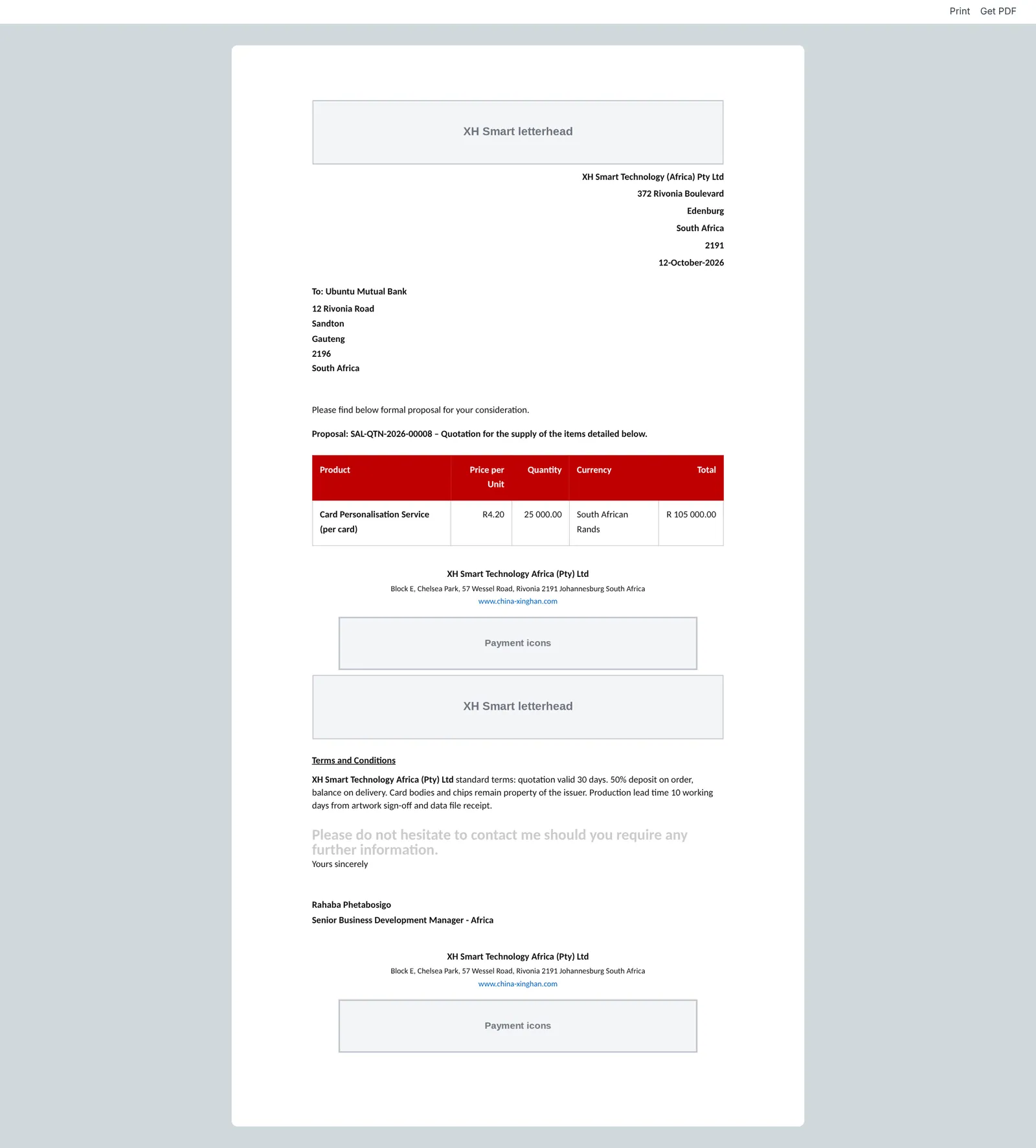
The default print format is Katekile Quotation Format. It changes layout by company: a boxed quotation for Katekile Worldwide and Afritech, and a letterhead-style proposal for XH Smart Technology Africa. Click the printer icon, then Download PDF or Email.
- No Actions button for you? Check you are the quotation’s Owner (to send) or the Sales Manager named on it (to approve).
- Customer not listed? The customer is not yet Approved — see Customers & KYC.
- No terms filled? Create a Terms and Conditions record named exactly like the company.
Last updated October 16, 2026