Home Dashboard
Your personal landing page — KPIs, quick actions and items waiting for you, tailored to your role.
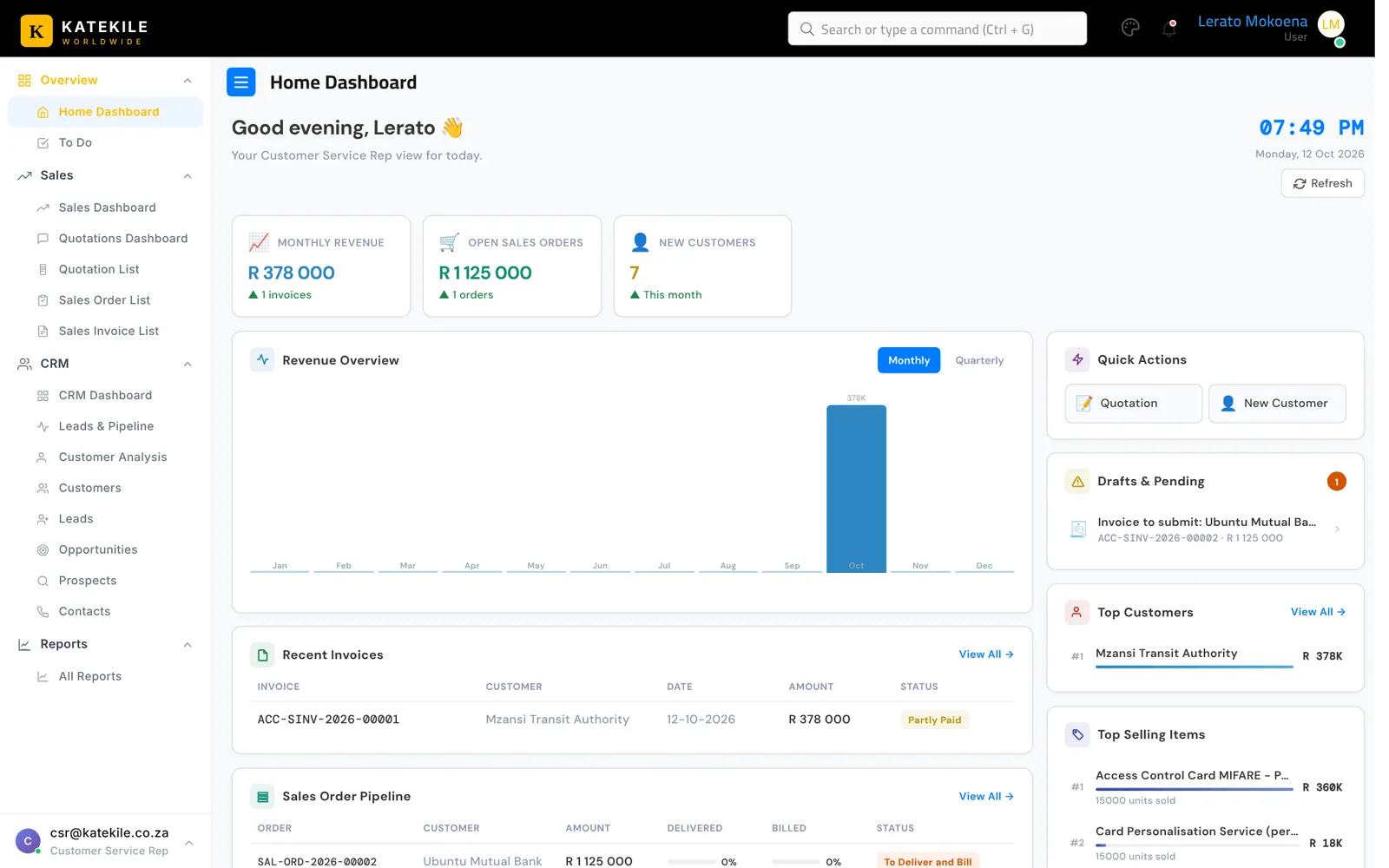
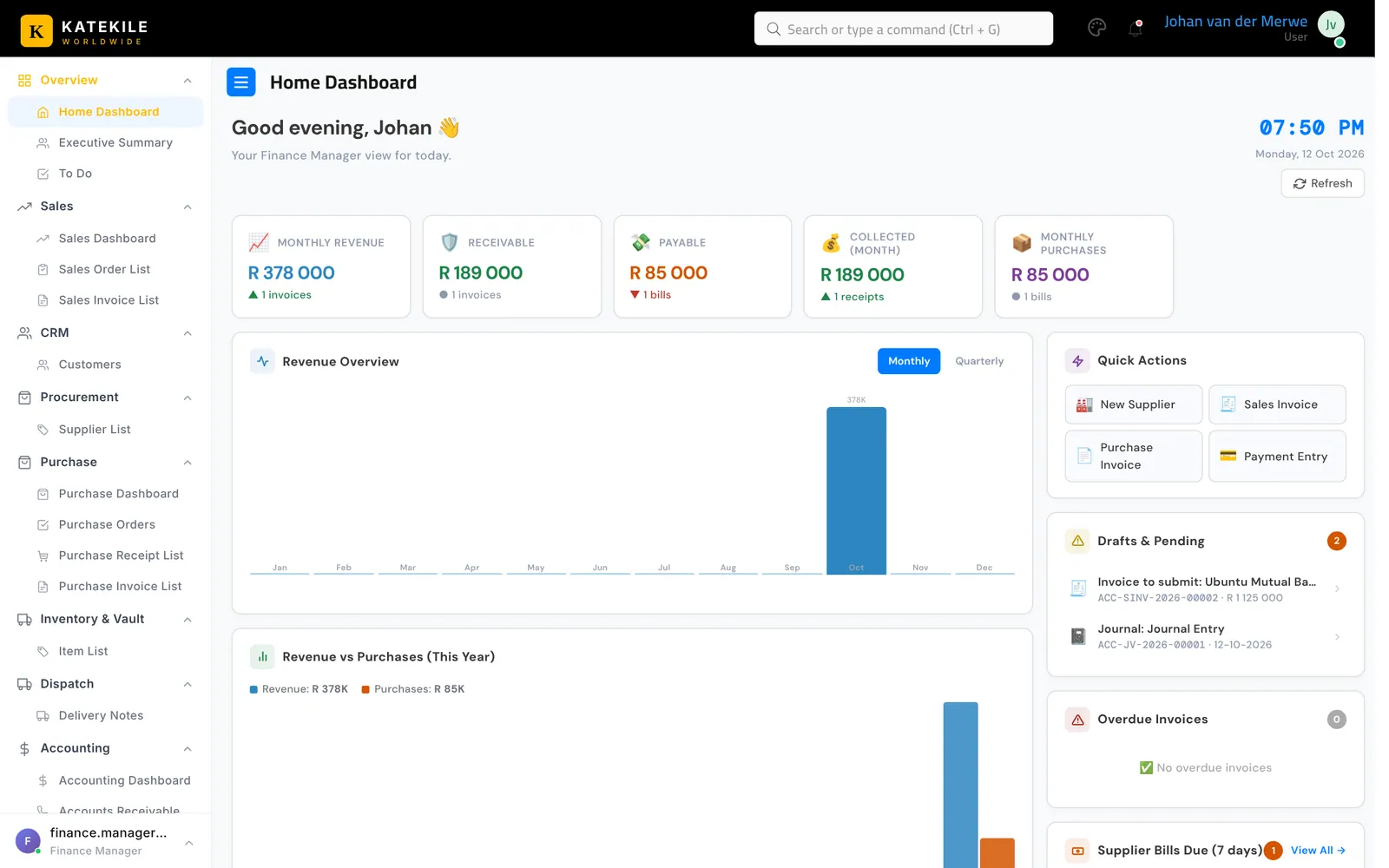
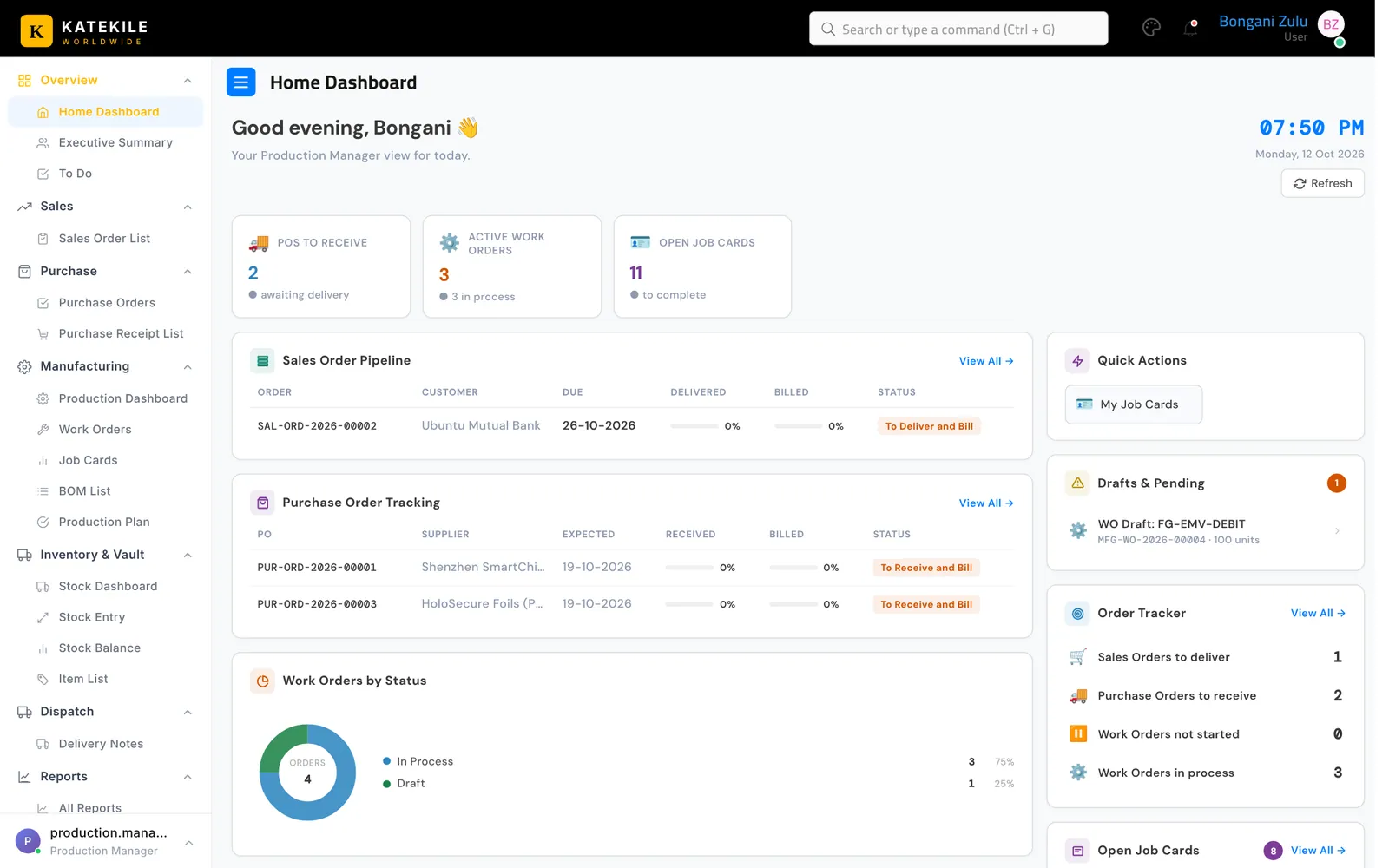
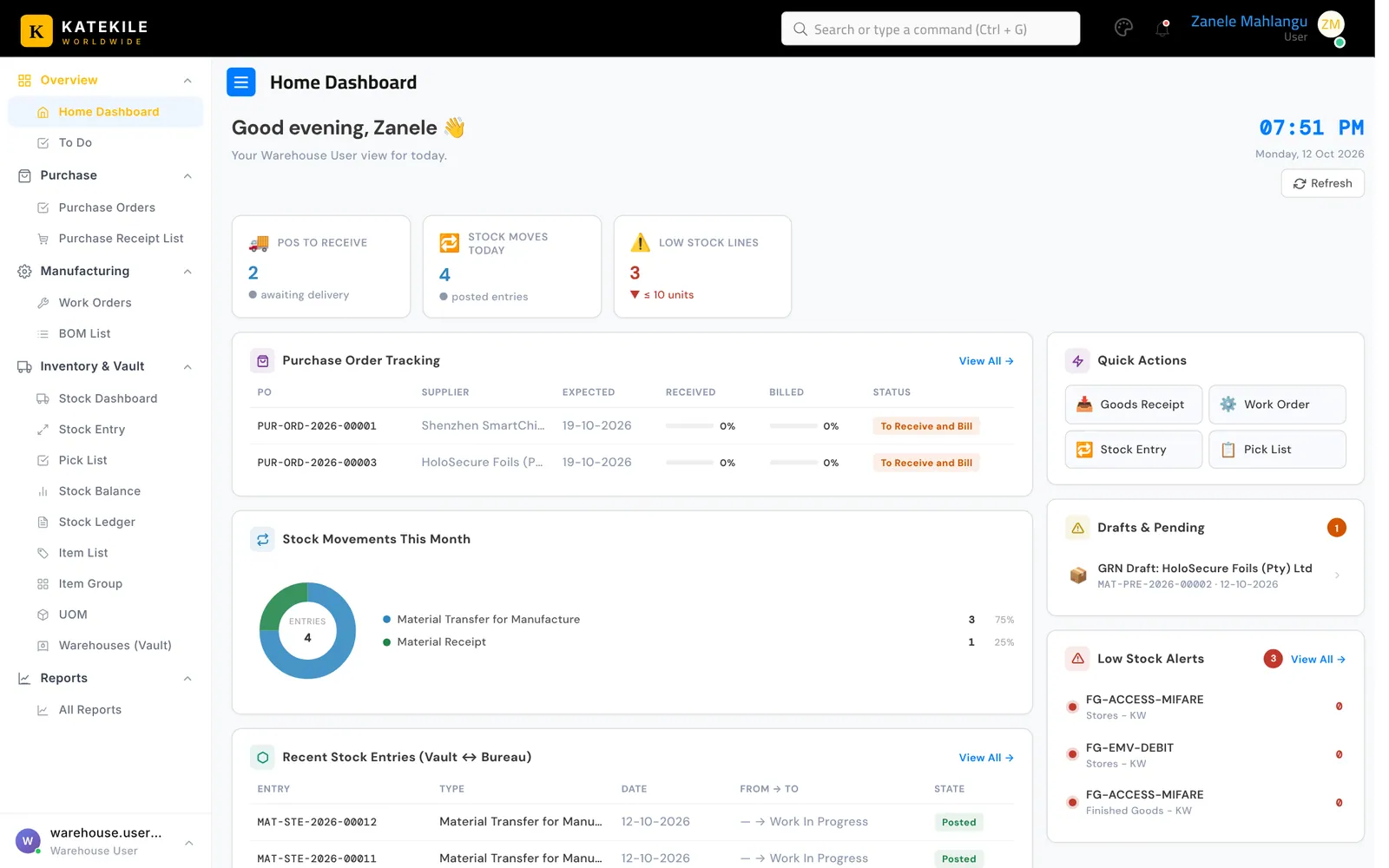
Everyone lands on the Home Dashboard after signing in (clicking Home always brings you back here). It greets you by name, shows the time and date, and adapts its tiles to your role.
What each role sees
| Role | Headline tiles | Quick actions | Lists |
|---|---|---|---|
| Customer Service Rep / Sales Manager | Monthly revenue, open sales orders, new customers | New Quotation, New Customer | Recent invoices, Sales Order pipeline, top customers, top-selling items, drafts & pending |
| Finance Manager / Finance User | Monthly revenue, receivable, payable, collected, monthly purchases | New Supplier, Sales Invoice, Purchase Invoice, Payment Entry | Revenue vs purchases, overdue invoices, supplier bills due in 7 days, drafts to submit |
| Production Manager | POs to receive, active work orders, open job cards | My Job Cards | Sales Order pipeline, PO tracking, work orders by status, order tracker |
| Warehouse User / Manager | POs to receive, stock moves today, low-stock lines | Goods Receipt, Work Order, Stock Entry, Pick List | PO tracking, stock movements this month, recent stock entries, low-stock alerts |
| Technical Consultant | New items this month | New Item | Recently created items, system info |
Using the dashboard
- Refresh (top right) reloads all figures.
- Monthly / Quarterly switches the revenue chart period.
- Drafts & Pending lists documents you or your team still need to finish — click one to open it.
- View All → on any panel opens the full list.
Note
Figures respect your permissions: if your role cannot read a document type, it is not counted on your dashboard.
Last updated October 16, 2026