Signing In
Sign in, reset a forgotten password and request access.
Katekile ERP has its own branded sign-in page. Open your Katekile ERP address in Chrome, Edge, Safari or Firefox.
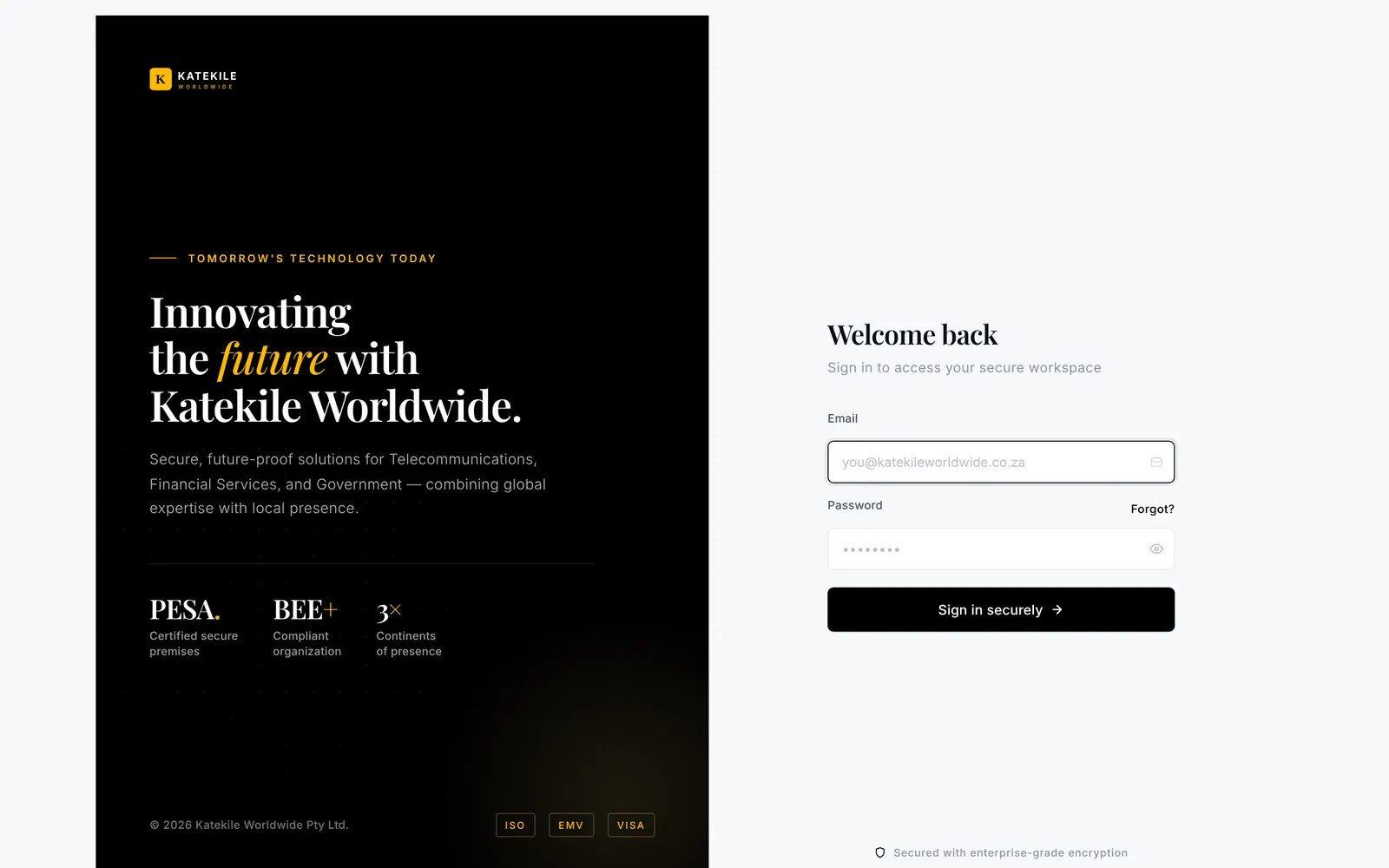
Sign in
- Enter your Email — your Katekile work email address.
- Enter your Password. Click the eye icon to show what you typed.
- Click Sign in securely.
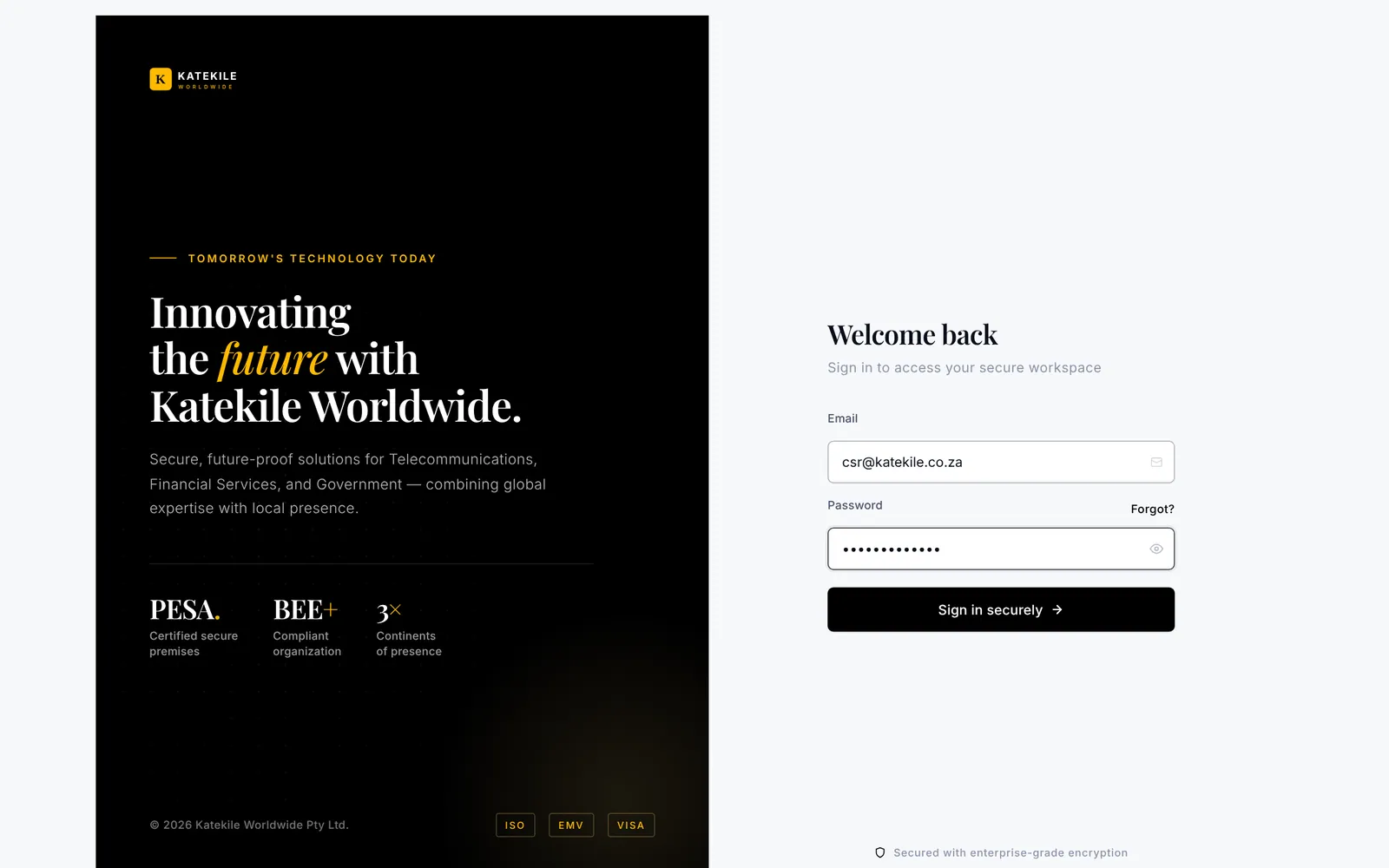
You land on your Home Dashboard. The menus in the left sidebar depend on your role — see Roles & Permissions.
Forgot your password
- On the sign-in page click Forgot?.
- Enter your work email and submit.
- Open the reset email and choose a new password.
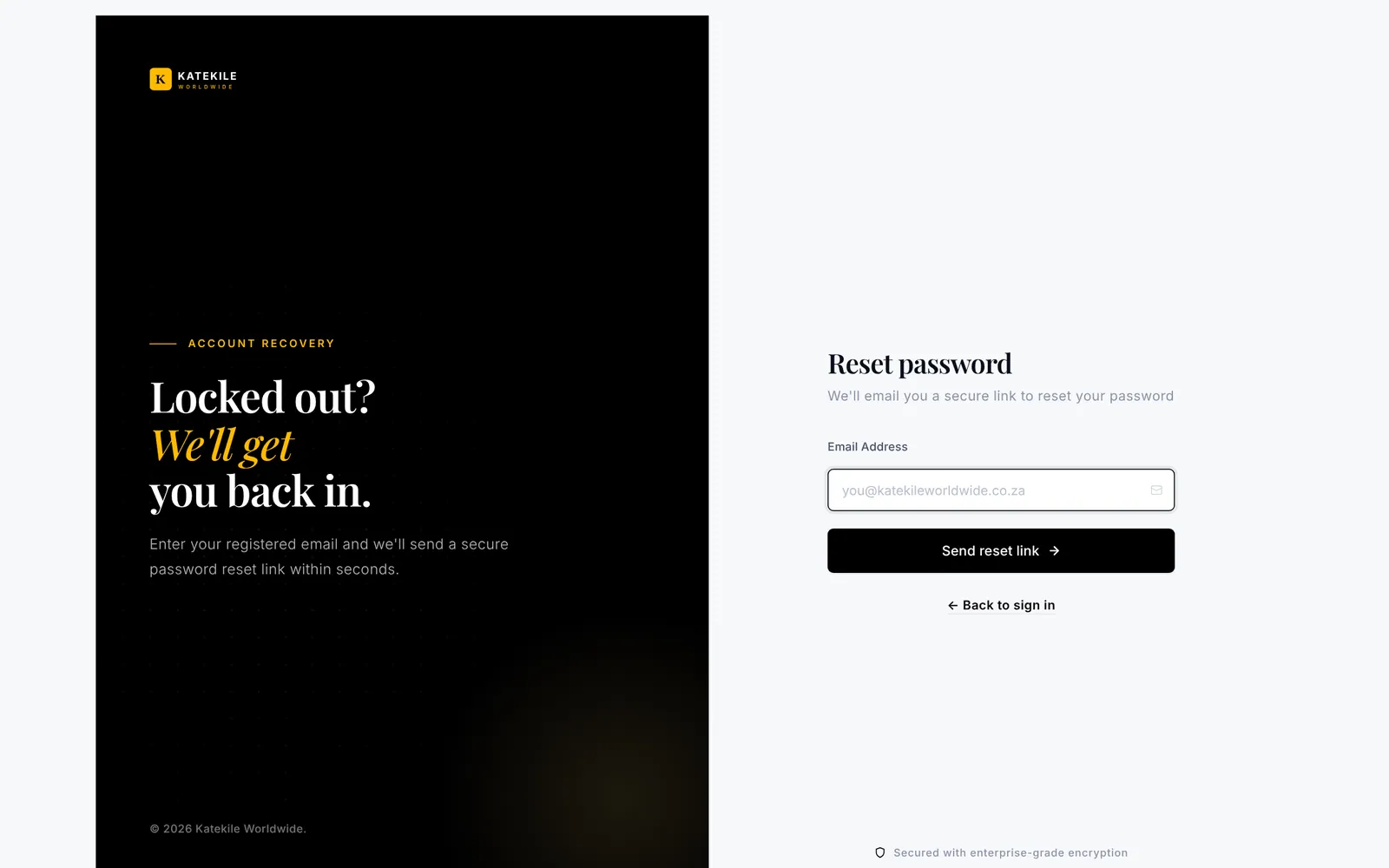
The reset email is sent from the ERP’s outgoing email account. If it does not arrive within a few minutes, check your junk folder, then ask your system administrator to confirm your user is enabled.
Request access
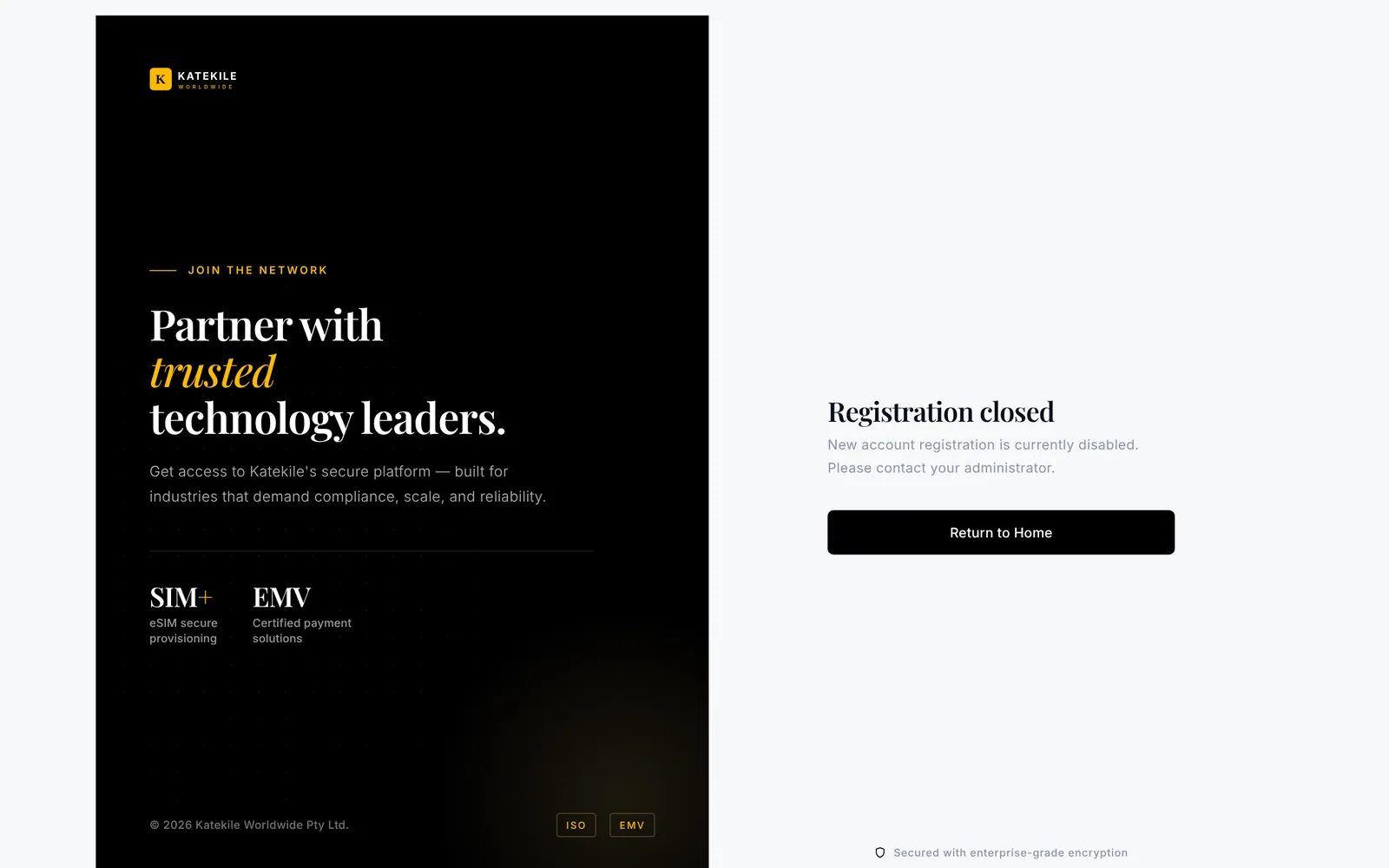
New staff can click Request access to send a sign-up request. An administrator must still create the user properly and assign the correct Katekile role before the account is useful — see Users & Roles.
Signing out
Click your name or avatar at the bottom of the left sidebar (or top right) and choose Log out. Always sign out on shared shop-floor terminals.
Last updated October 16, 2026