Shop Floor App
Run job cards step by step — start, pause, record quantities, add notes and submit — on a PC, tablet or phone.
Used byOperatorProd. Mgr
The Katekile Shop Floor app is a simple, touch-friendly screen for operators. Open it at /katekile (it is also on the /apps screen), from Open on shop floor on a Work Order or Job Card, or by scanning the QR on the printed Manufacturing Order.
Who: Katekile Production User (operators) and Production Manager. Operators also need the standard Manufacturing User role and read access to Employee for the operator picker. Linking the operator’s user to their Employee record pre-selects them as the operator.
Work orders
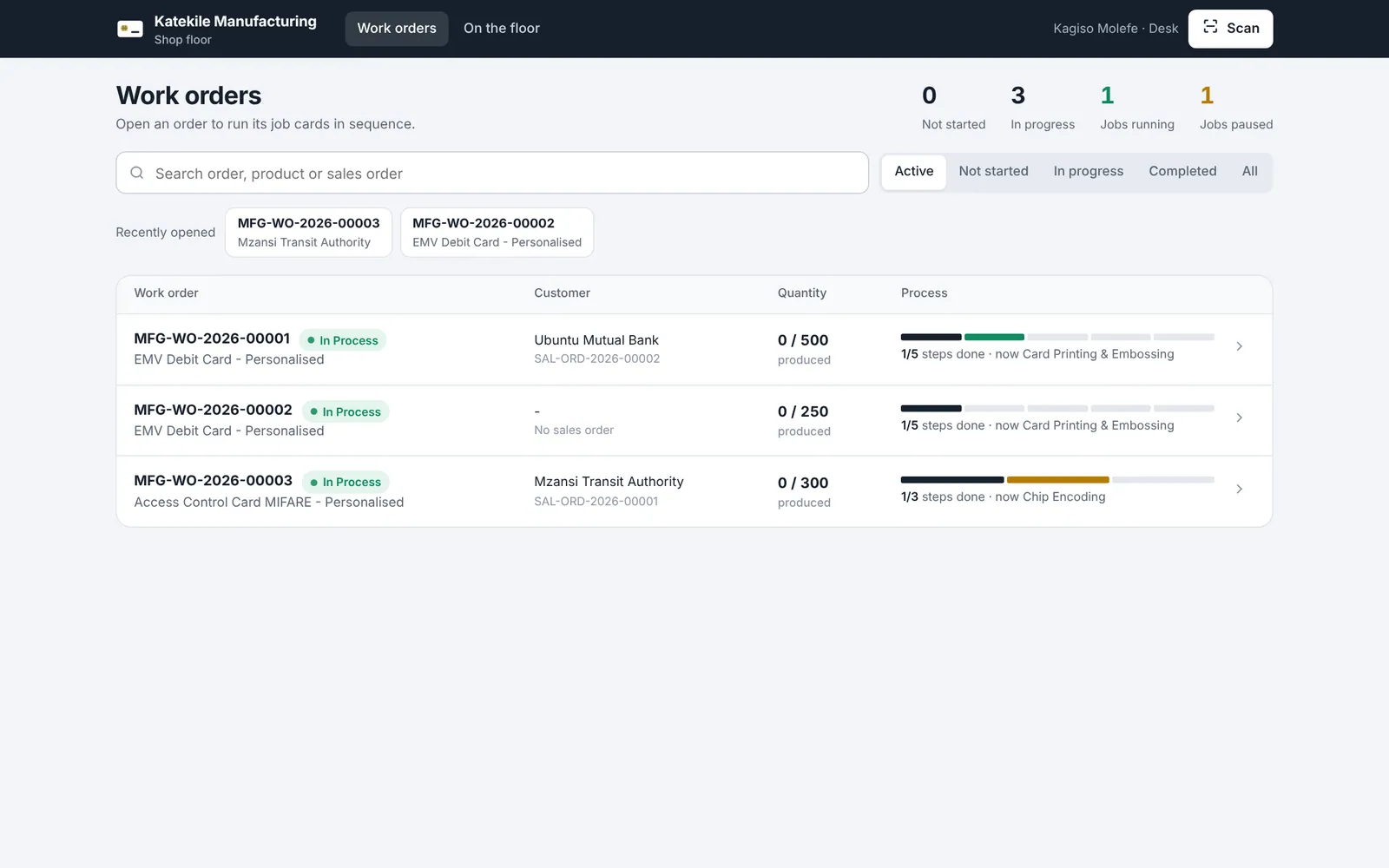
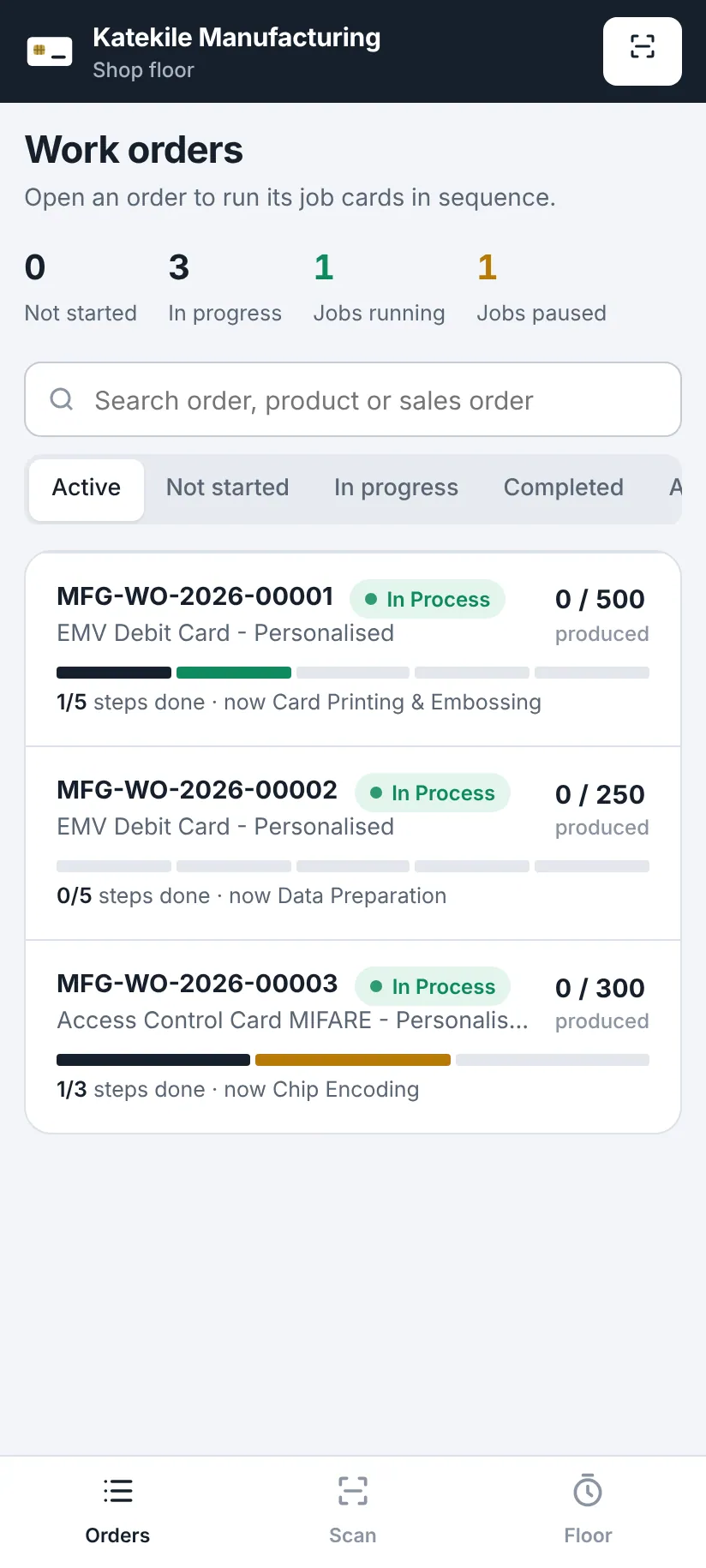
- Counters at the top: Not started, In progress, Jobs running, Jobs paused.
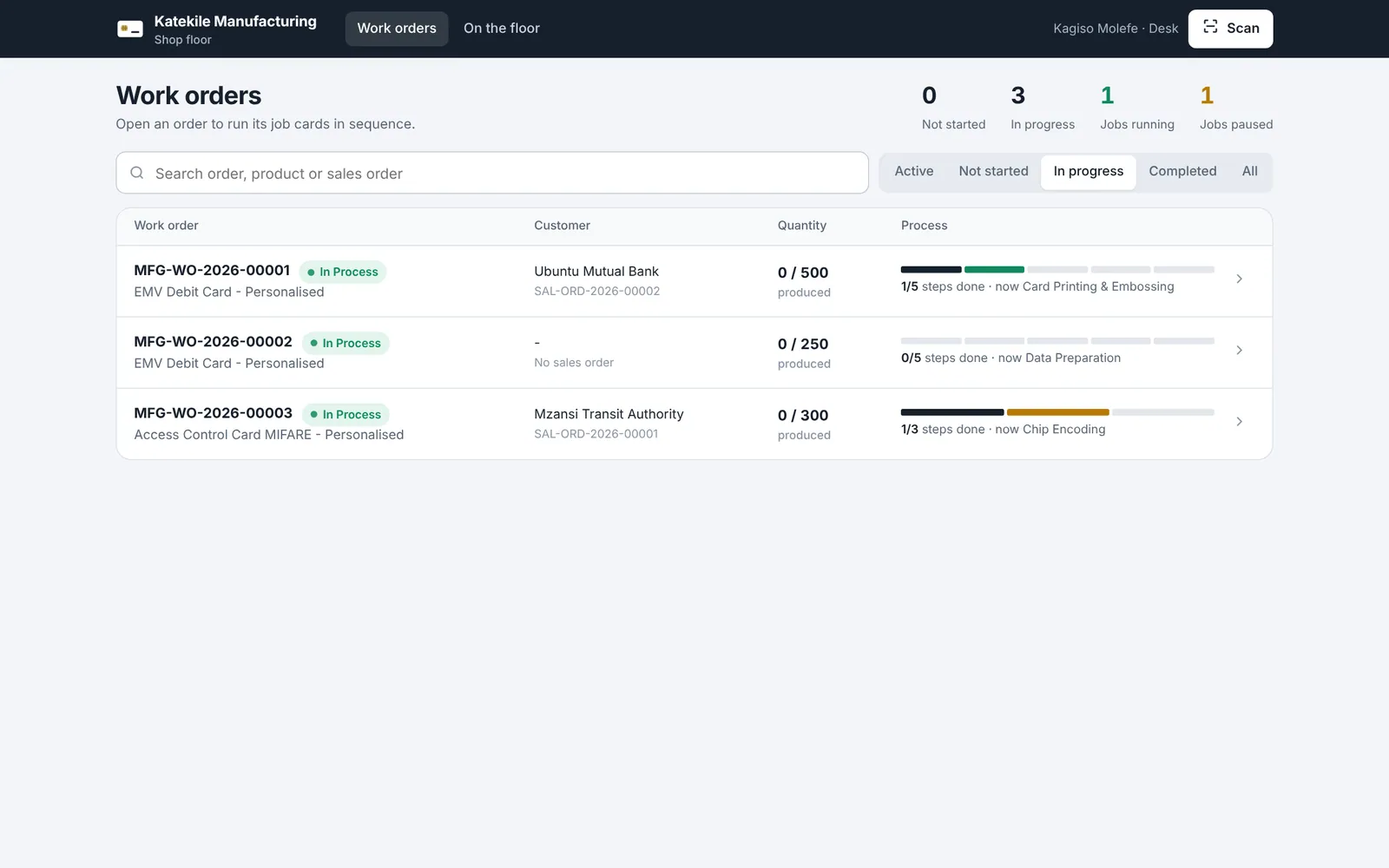
- Filter with Active, Not started, In progress, Completed (completed orders from the last 30 days by default) or All.
- Search by work order, product or sales order.
- Recently opened shows the last orders you looked at.
- Each row shows the customer, quantity produced and a step rail — 1/5 steps done · now Card Printing & Embossing.
Inside a work order
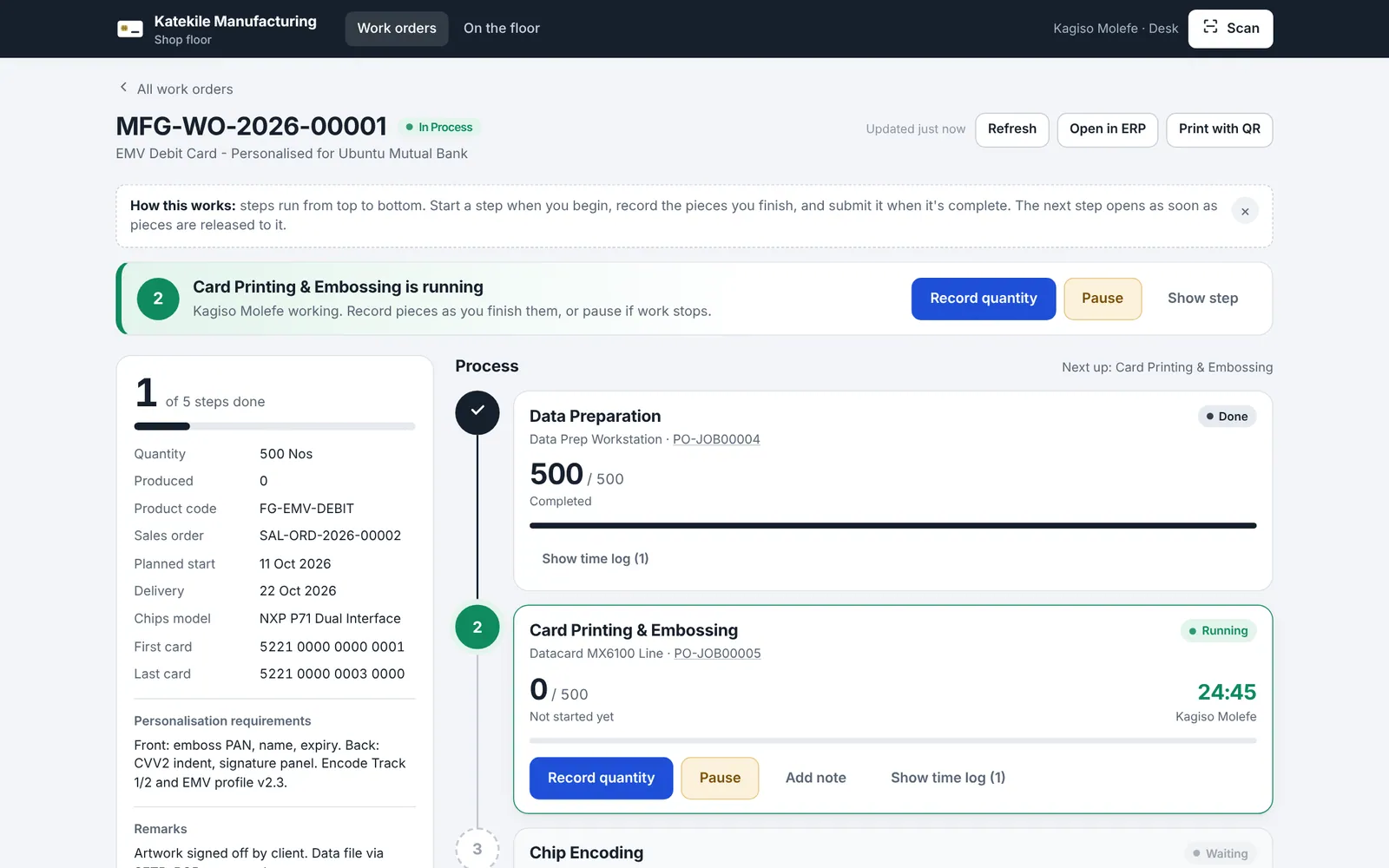
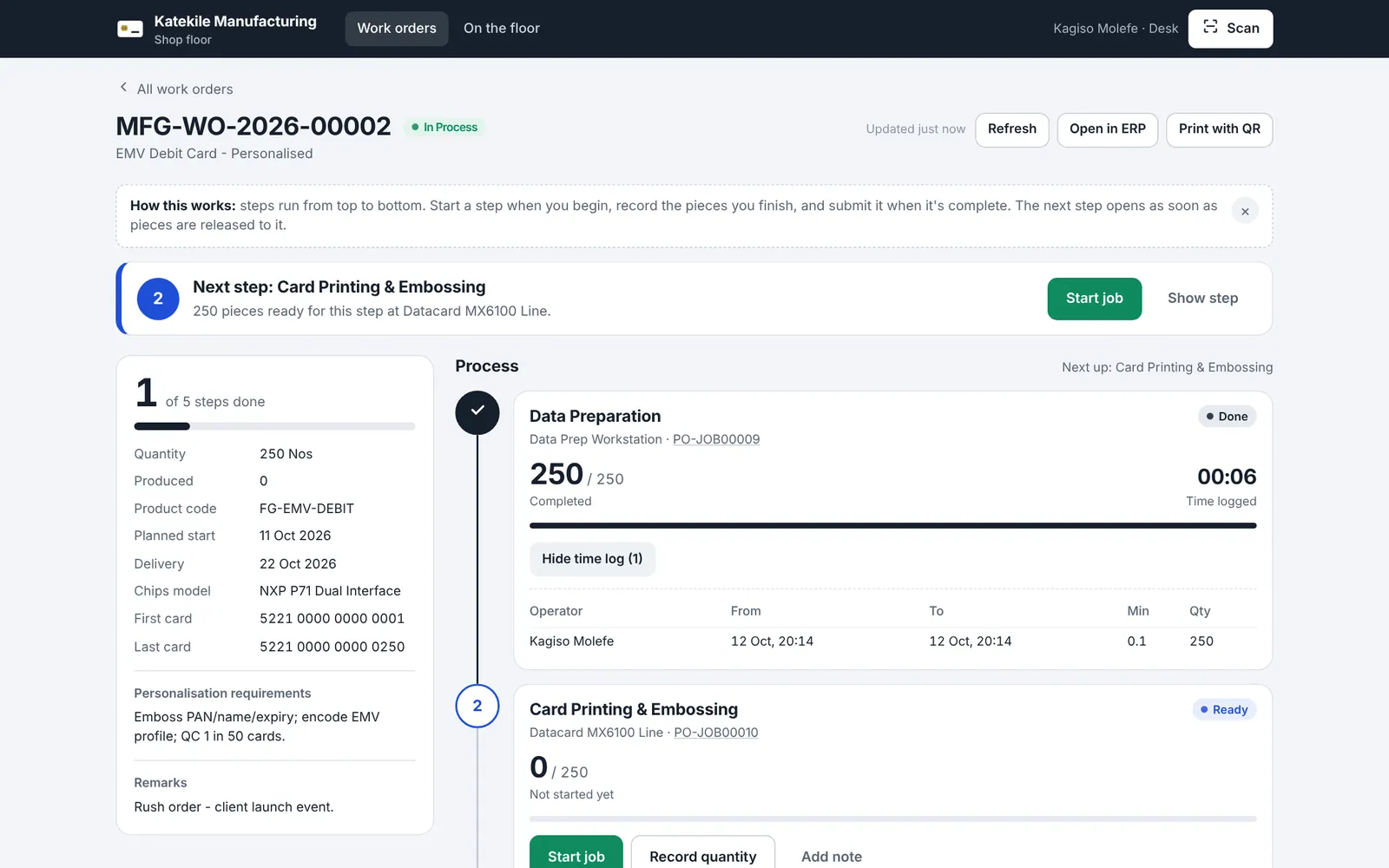
- Left panel — steps done, quantity, produced, product code, sales order, planned start, delivery, chips model, first/last card, personalisation requirements and remarks.
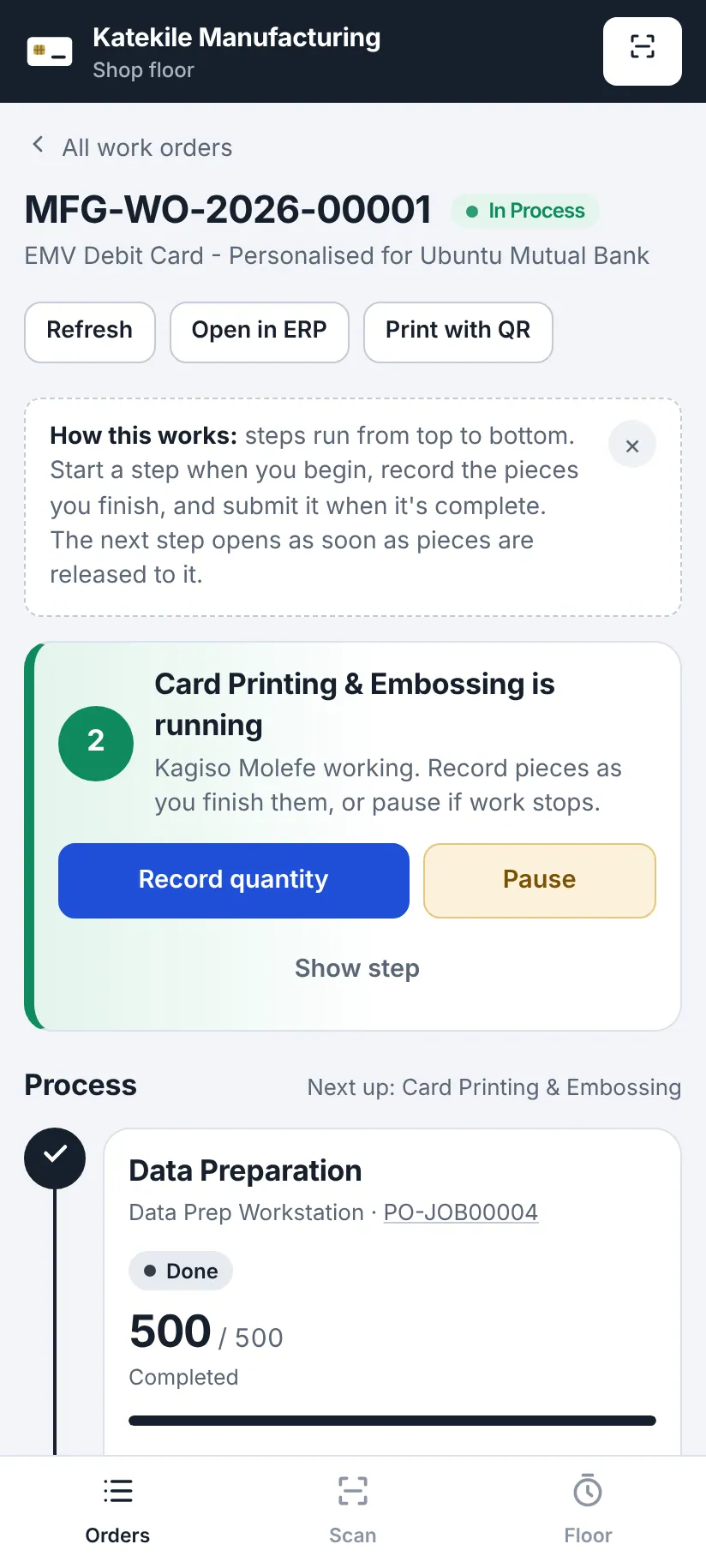
- Process — every job card in sequence with its workstation, quantity done and state: Done, Running, Paused, Ready or Waiting.
- Top banner — the next thing to do (Next step: …, … is running, … is paused) with the right buttons.
- Refresh, Open in ERP and Print with QR at the top right.
Steps run top to bottom. A step is Waiting (locked) until the previous step releases quantity to it, and you can only record up to the quantity released.
- When the BOM operations have Sequence IDs (the Katekile card routings do), Katekile ERP only counts the previous step once its job card is submitted — so the next step opens when the previous step is fully completed and submitted.
- Without Sequence IDs, the next step can start as soon as the previous step has recorded some quantity.
The production manager can switch the lock off in Manufacturing Settings.
1. Start a job
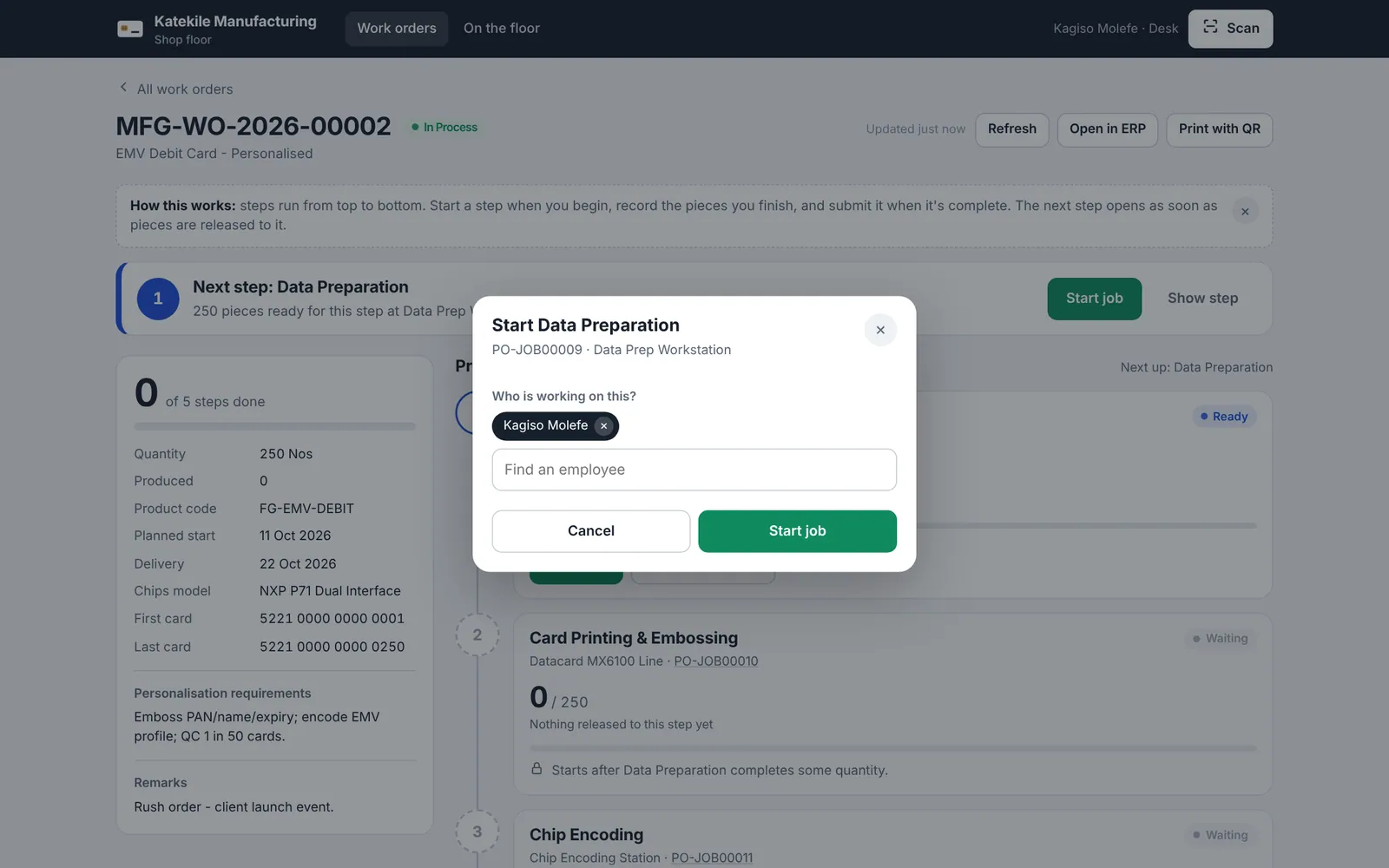
- On the step that is Ready, click Start job.
- Choose who is working on this — your name is pre-selected if your user is linked to an employee. Type to add more operators.
- Click Start job. A live timer starts.
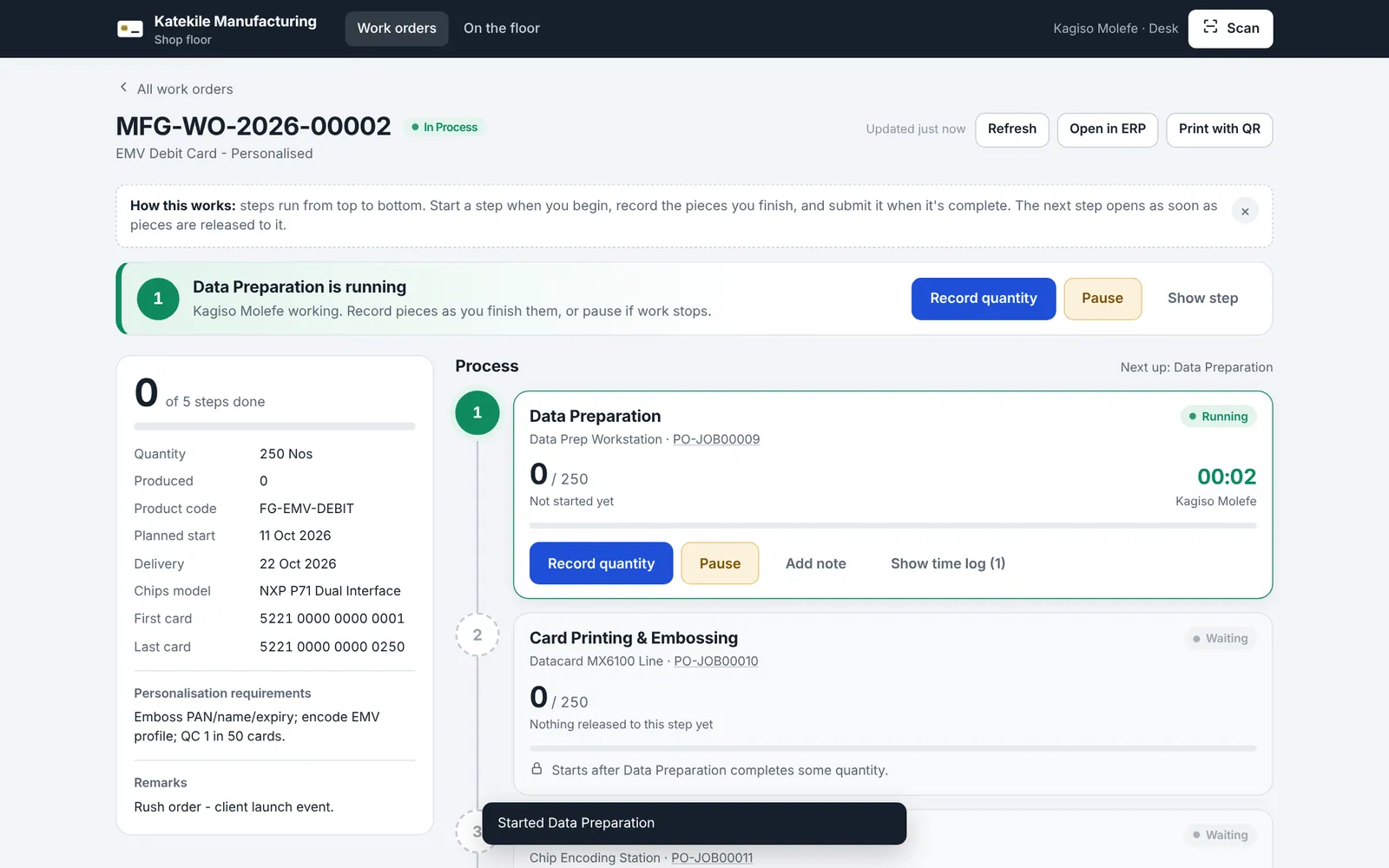
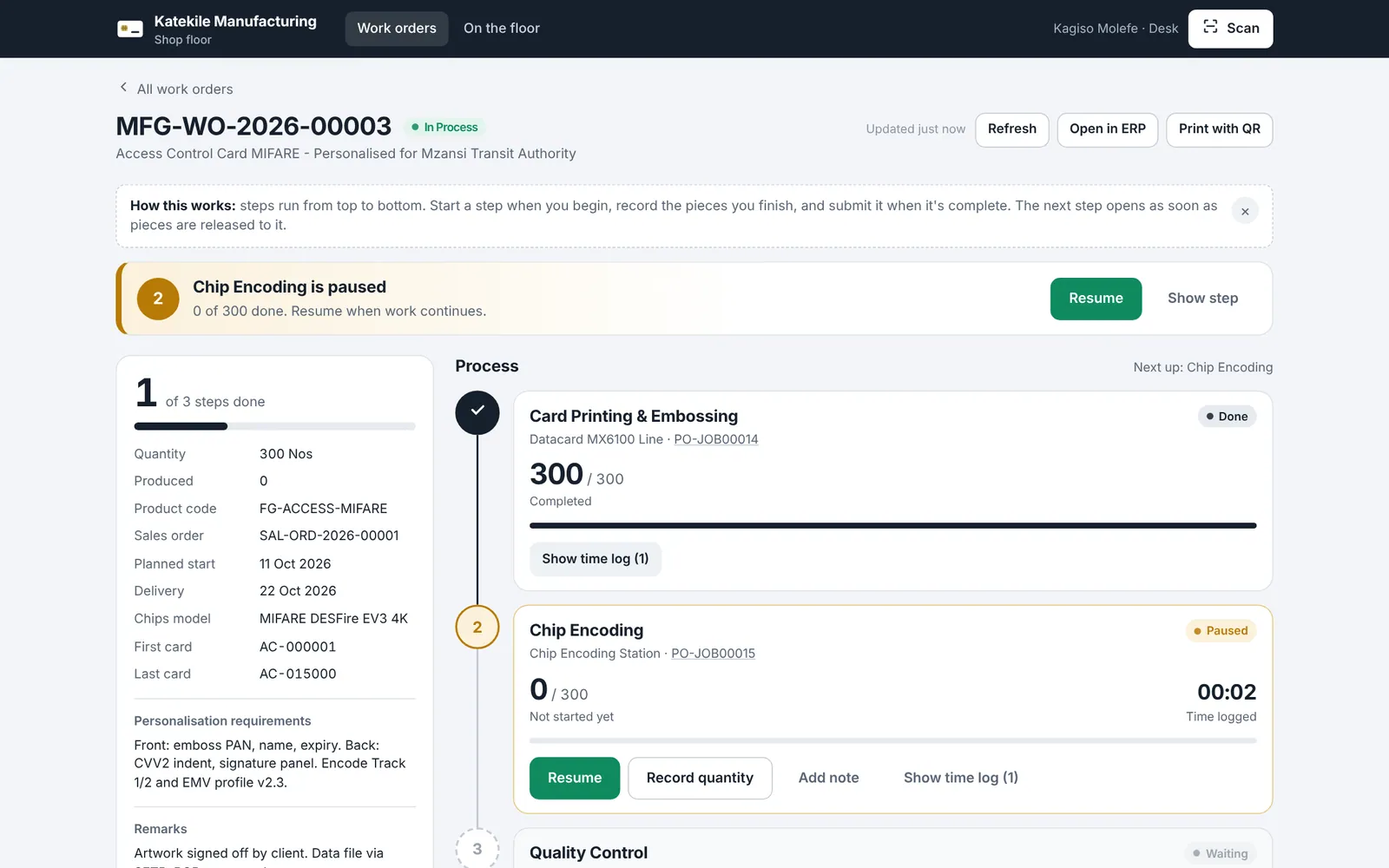
2. Pause and resume
Click Pause if work stops (break, machine issue). The step shows Paused and the time is kept. Click Resume to continue.
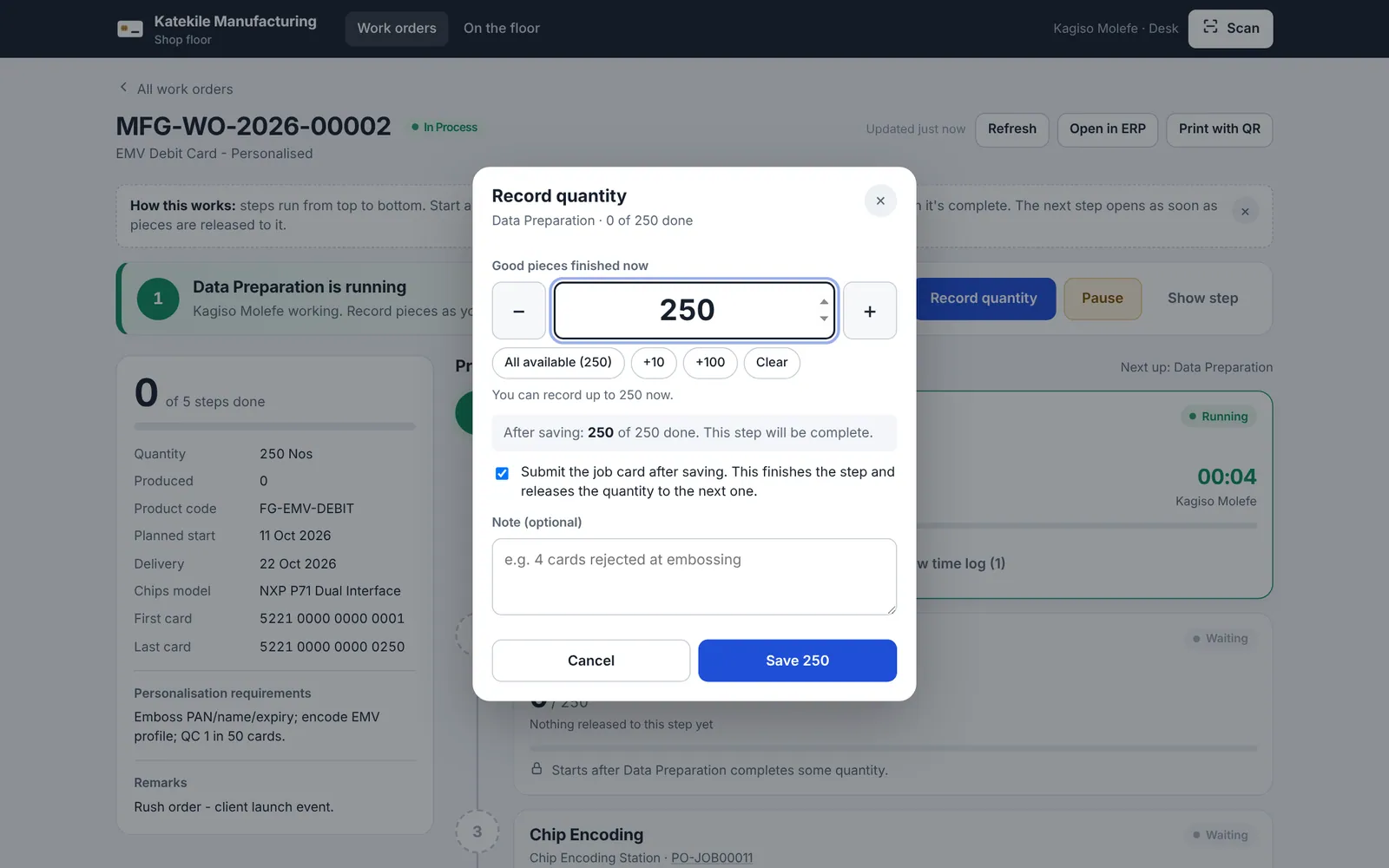
3. Record quantity
- Click Record quantity.
- Enter the good pieces finished now — use All available, +10, +100 or type it.
- When the quantity you enter completes the step, a Submit the job card after saving box appears (ticked by default when Auto-submit is on in settings). Leave it ticked to finish the step and release the quantity to the next step.
- Add an optional note, e.g. 4 cards rejected at embossing.
- Click Save.
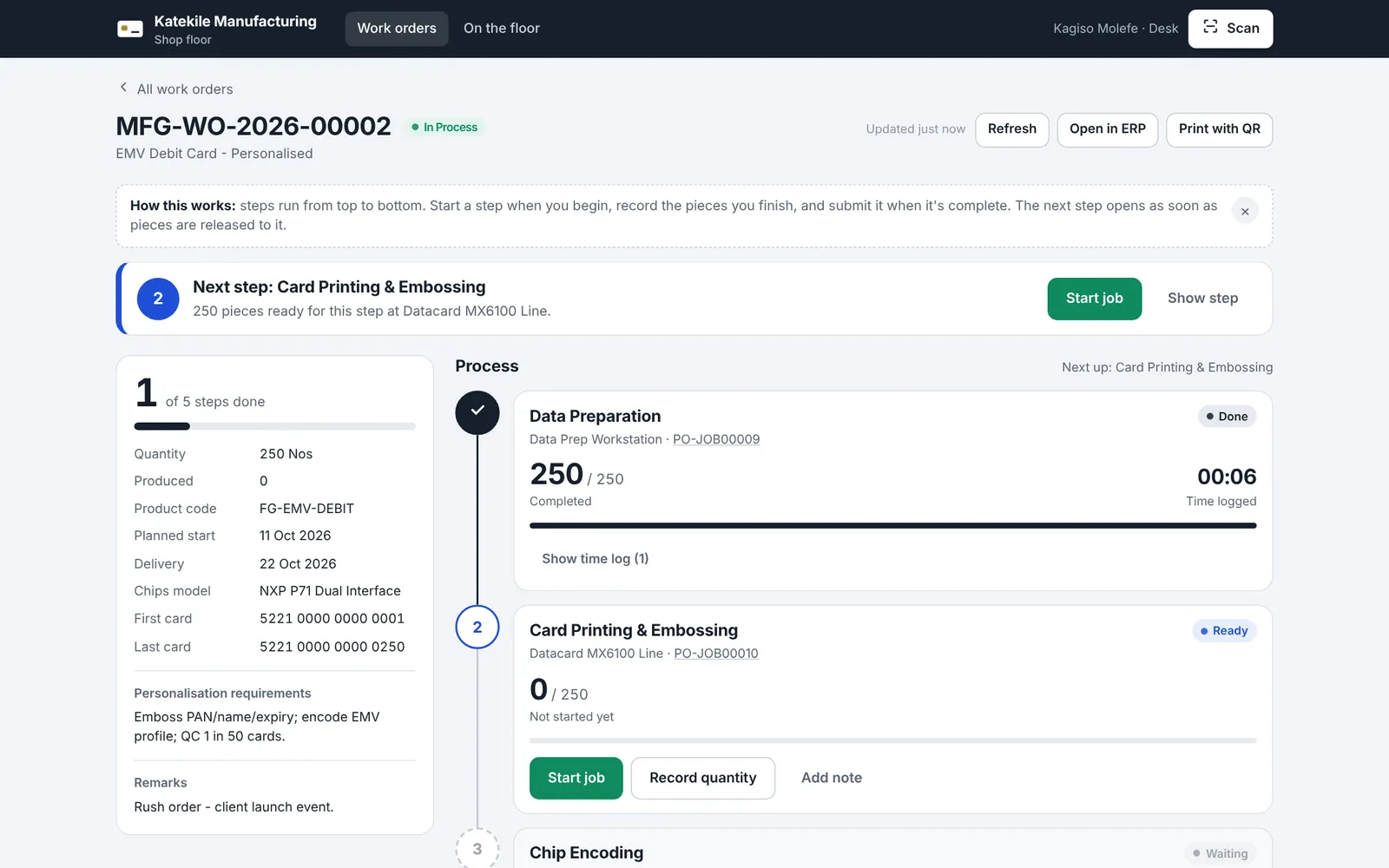
You can record part quantities as you go (e.g. per tray). With Sequence IDs, the next step opens once this step’s full quantity is recorded and the job card is submitted.
4. Notes and time log
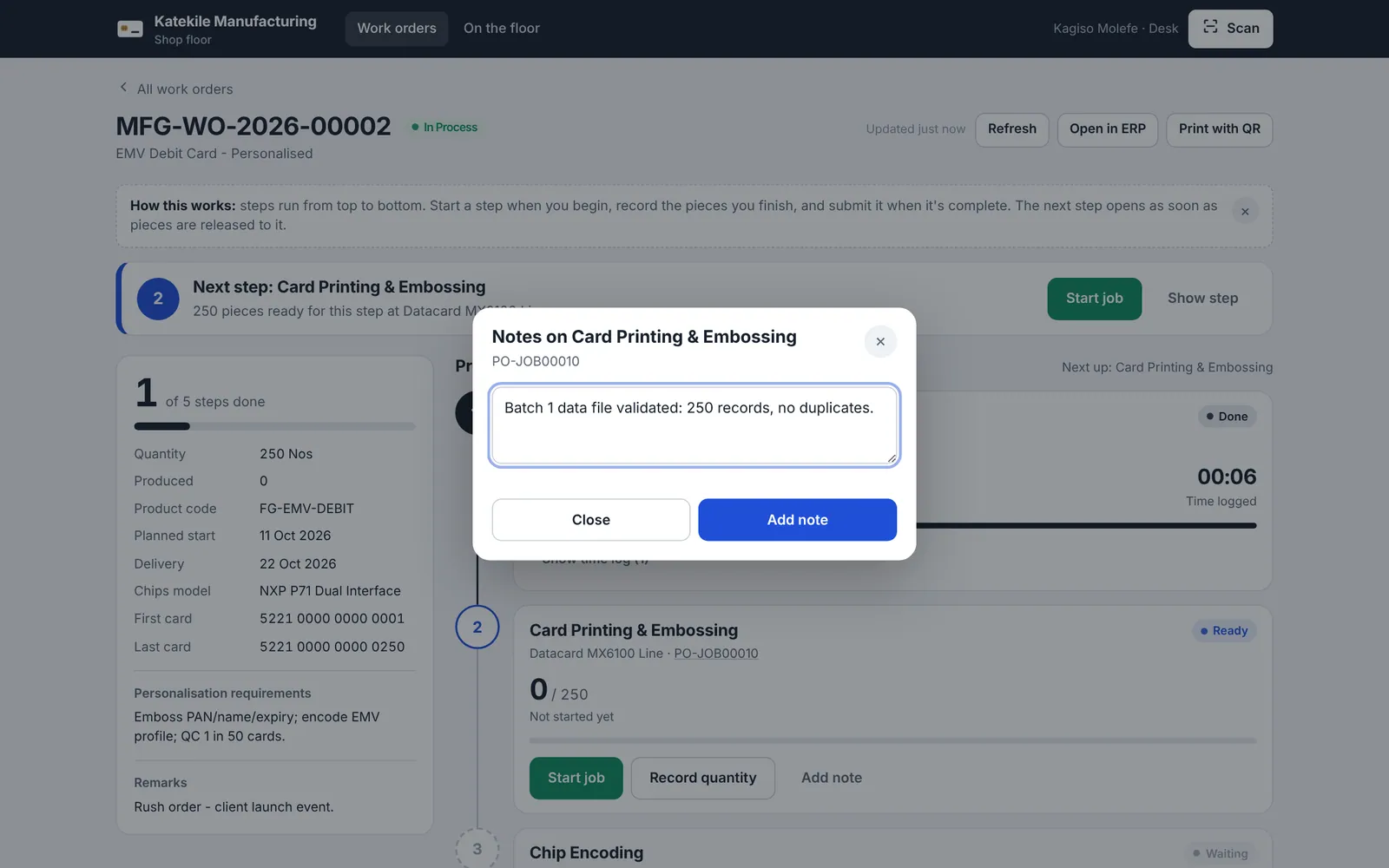
- Add note records a comment on the job card (also visible on the job card in the Katekile ERP desk).
- Show time log lists every start/stop with operator, minutes and quantity.
On the floor
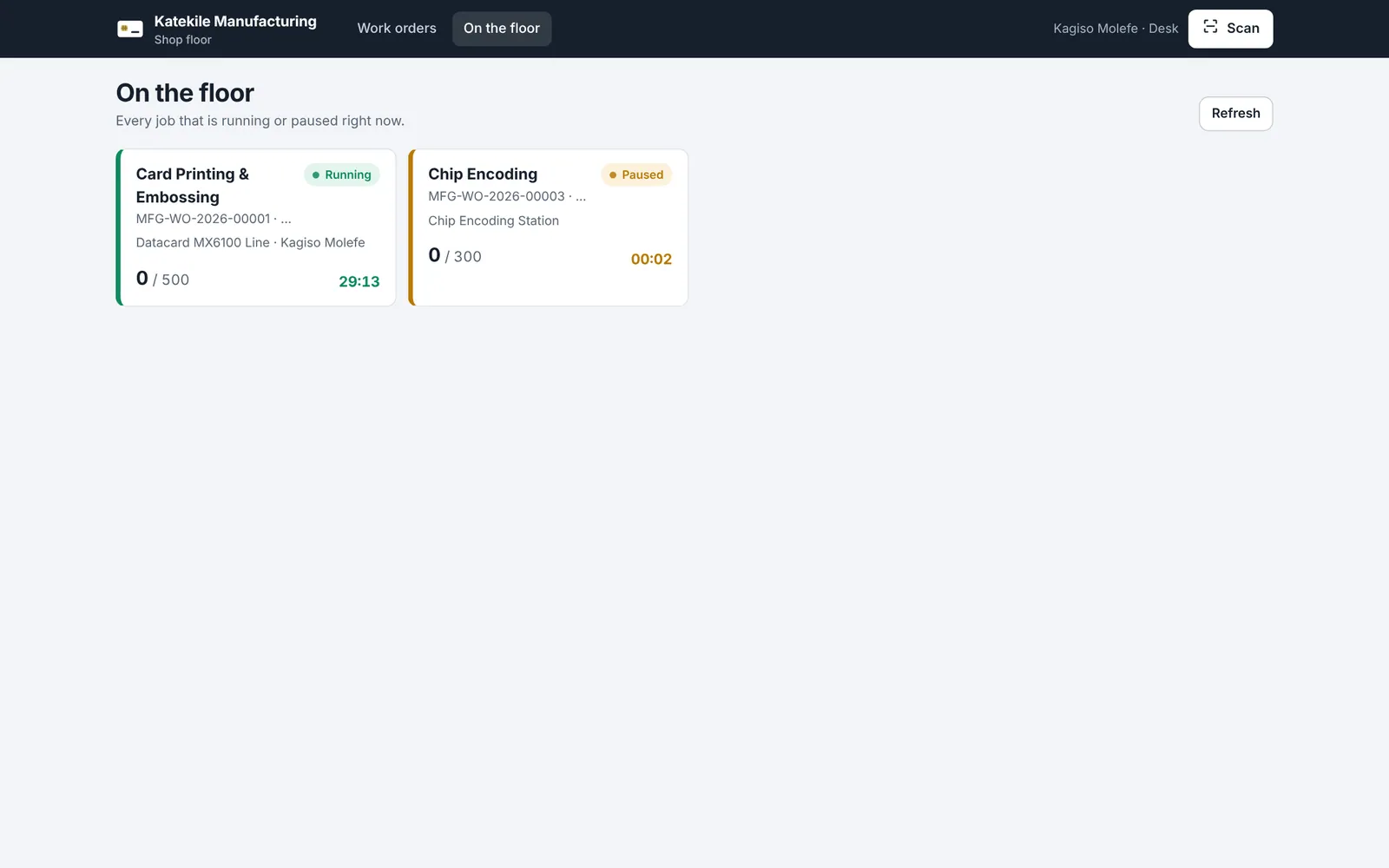
On the floor shows every job that is running or paused right now, across all work orders, with live timers — ideal on a supervisor’s screen.
Scan
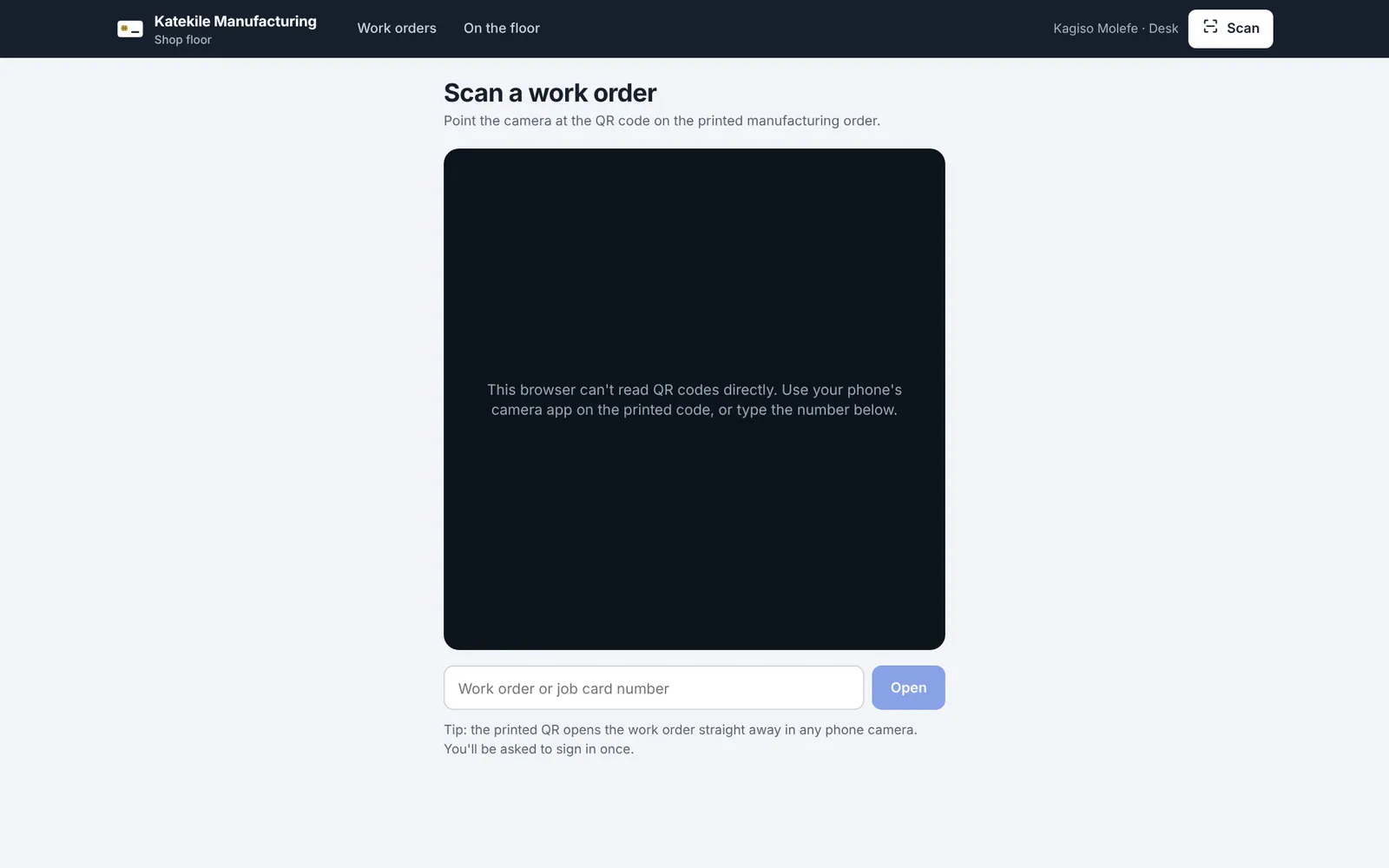
Scan opens the camera to read the QR on the printed Manufacturing Order (Chrome on Android). On other browsers, use your phone’s camera app, or type the work order or job card number and click Open.
On a phone or tablet
The app works on phones and tablets, with Orders / Scan / Floor tabs at the bottom.
If materials are transferred against the job card, Katekile ERP will not submit it until the transfer is done. The app keeps the recorded quantity and shows the reason so you can fix it and submit later.
Last updated October 16, 2026