Work Orders
Create a personalisation work order with the card job details, transfer materials and track progress.
Used byWhse UserProd. MgrProcurementWhse Mgr
Who: Warehouse User creates Work Orders; Production Manager, Procurement and Warehouse Manager read them. Submitting a Work Order and starting production needs a user with manufacturing posting rights (the standard Manufacturing User/Manager role). Menu: Manufacturing → Work Orders.
The Work Order list
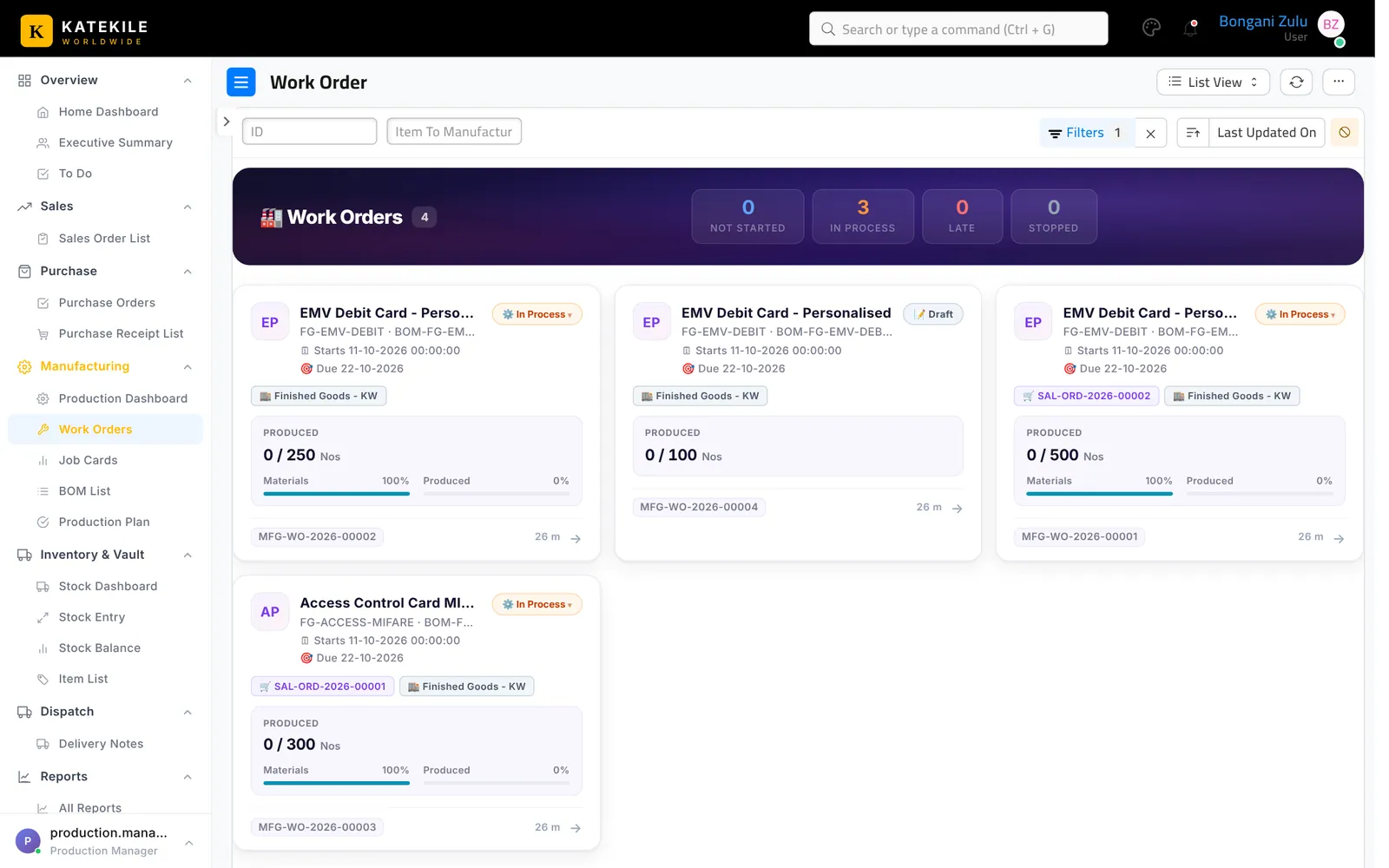
Create a Work Order
- Add Work Order (or Create → Work Order from the Sales Order).
- Item To Manufacture — e.g. FG-EMV-DEBIT – EMV Debit Card – Personalised. The default BOM fills in, with its operations.
- Qty To Manufacture, Sales Order, Planned Start Date and Expected Delivery Date.
- Warehouses: Source (Stores – KW), Work-in-Progress (Work In Progress – KW), Target (Finished Goods – KW).
- Complete the Katekile job details section (same fields as on the Sales Order):
| Field | Example |
|---|---|
| File | Customer data file |
| Chips Model | NXP P71 Dual Interface |
| Layout Requirements | Signed-off artwork (attachment) |
| Personalisation Requirements | Emboss PAN/name/expiry; encode EMV profile; QC 1 in 50 cards |
| First Card / Last Card | 5221 0000 0000 0001 – 5221 0000 0000 0500 |
| Remarks | Rush order – client launch event |
- Save, then Submit. Katekile ERP creates one Job Card per operation.
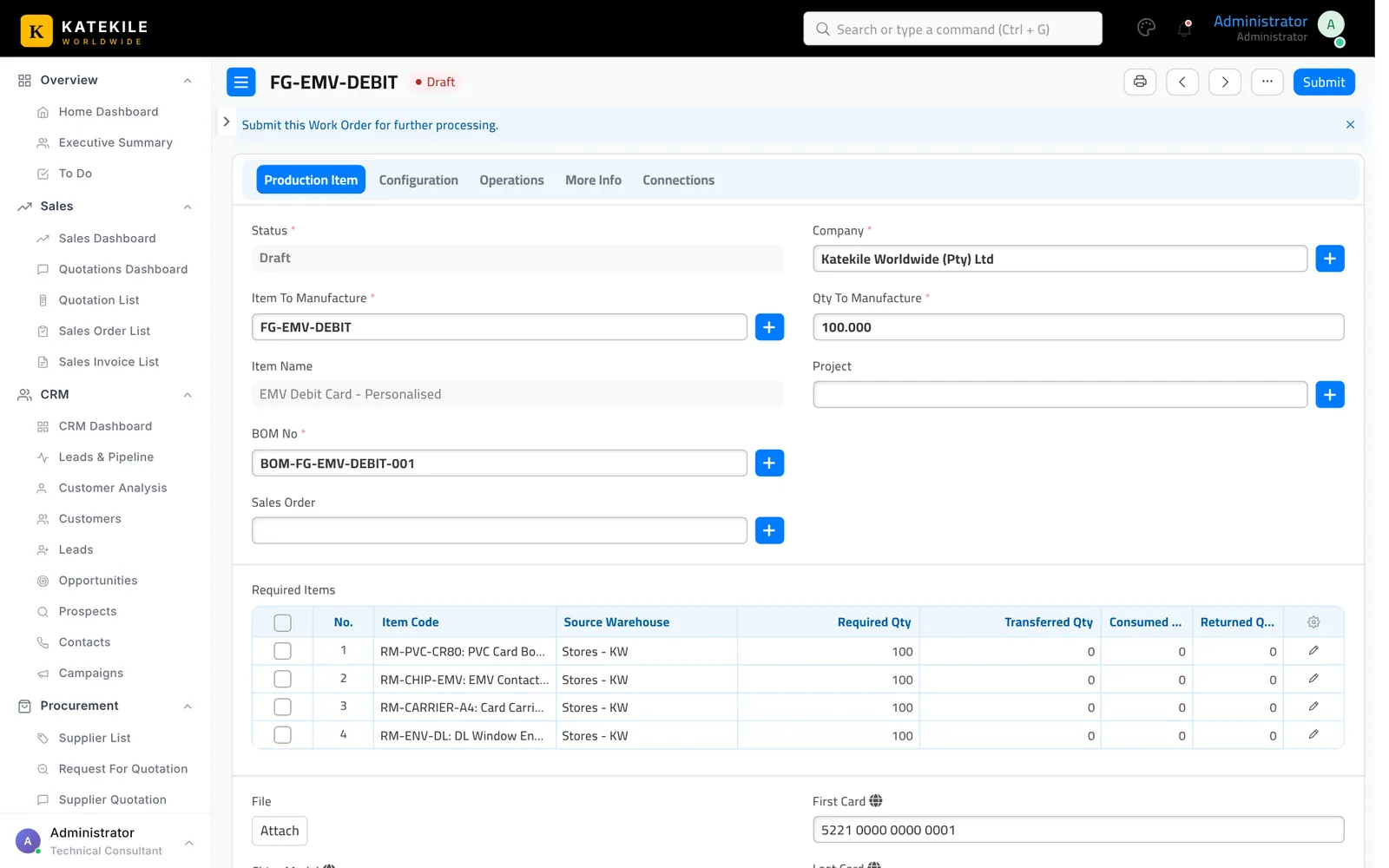
Start production — transfer materials
On the submitted Work Order click Start to transfer the raw materials (card bodies, chips, carriers, envelopes) from Stores to Work-in-Progress. This creates a Material Transfer for Manufacture Stock Entry.
The submitted Work Order
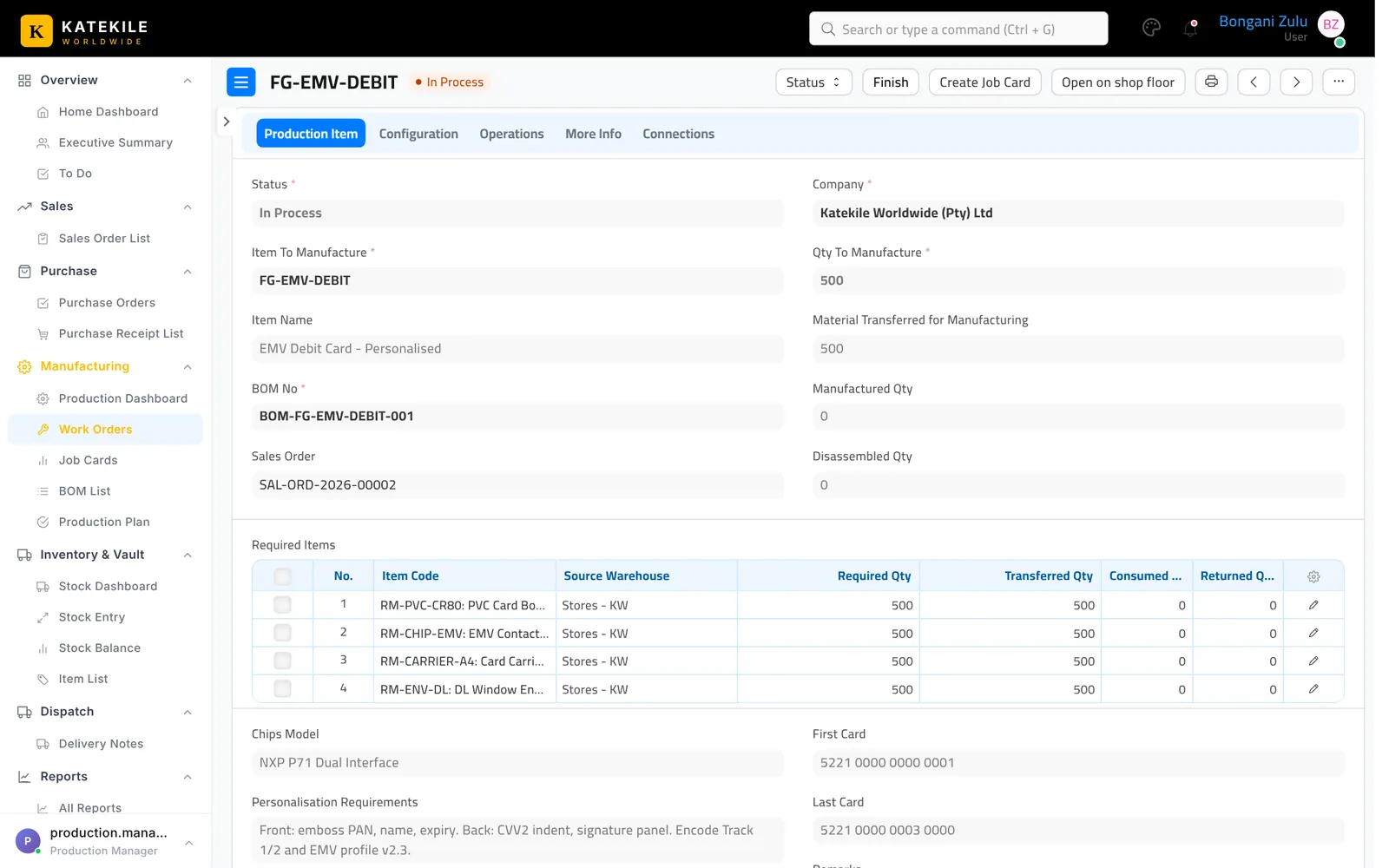
| Button | Use it to |
|---|---|
| Open on shop floor | Open this work order in the Shop Floor app in a new tab. |
| Create Job Card | Create job cards for operations that do not have one yet. |
| Finish | Book finished goods into the target warehouse when production is complete. |
| Status → Stop / Re-open | Pause or re-open the order. |
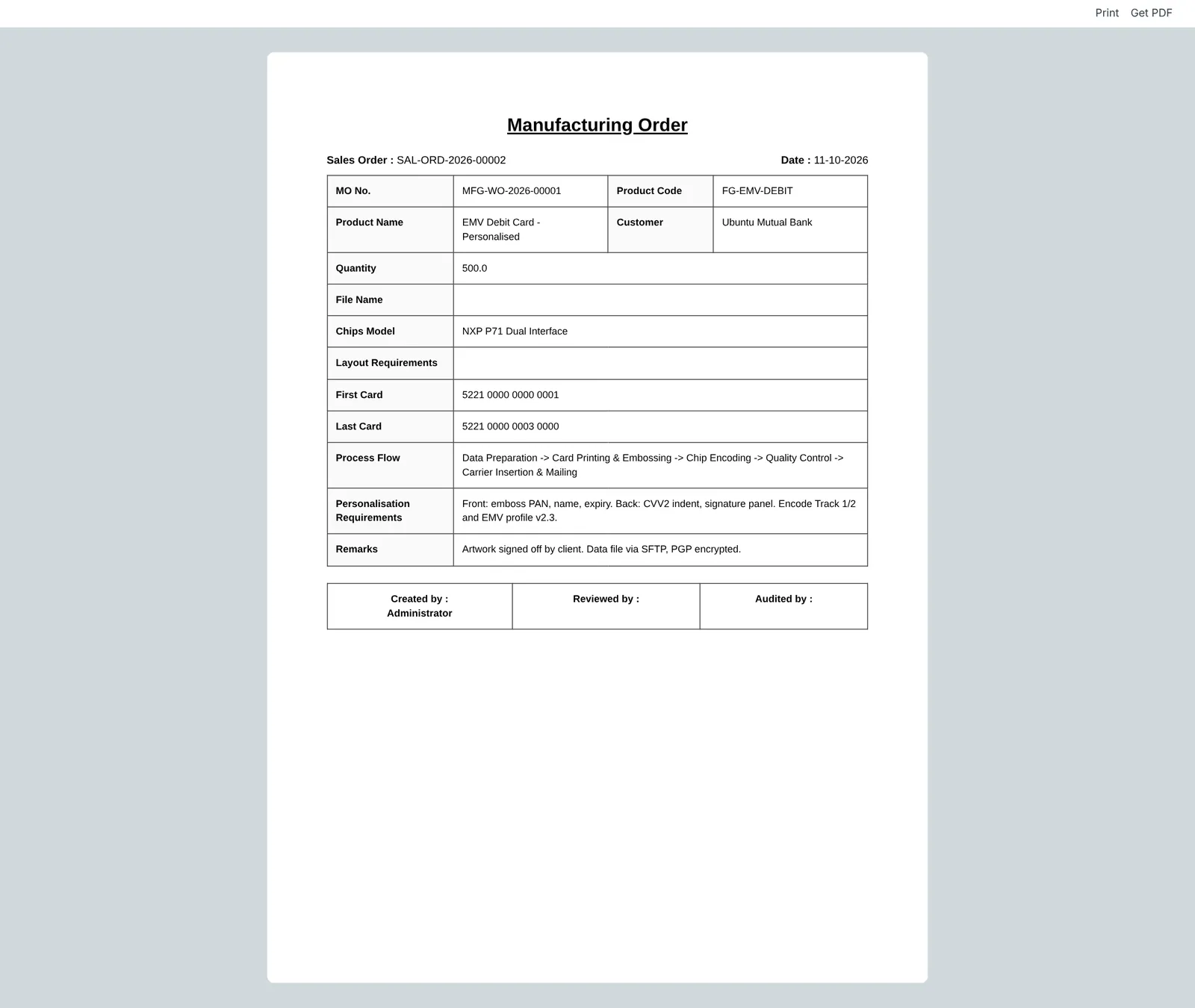
Print the Manufacturing Order with QR code
Print the work order with Katekile Manufacturing Order (or Print with QR in the Shop Floor app). The QR code opens the work order directly on the shop floor — operators scan it with a phone or tablet.
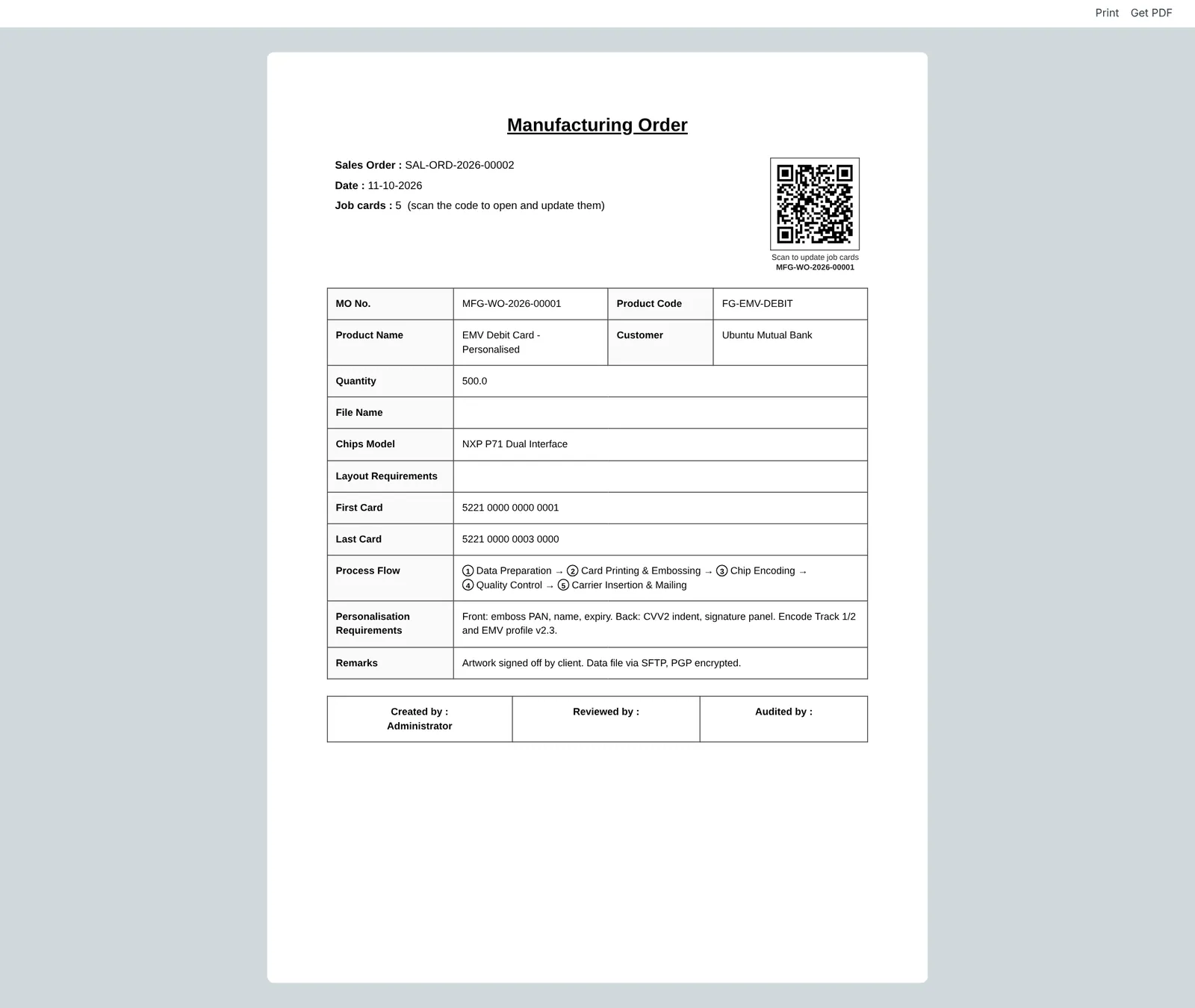
The Katekile Work Order Format is the default work order print without the QR.
Last updated October 16, 2026