Supplier Onboarding & B-BBEE
Create a supplier with B-BBEE details, send it for verification, and approve, reject or place it on hold.
Used byProcurementFinanceFinance Mgr
Suppliers are verified before Katekile buys from them. A new supplier is disabled until it is Approved, and the Purchase Order supplier picker only lists Approved suppliers.
Who: Procurement Team creates and sends for verification; Katekile Finance verifies (Approve / Not Compliant / Expired-Discrepancy); Administrator can place an approved supplier on Compliance Hold. Finance Managers are emailed when a supplier is sent for verification, approved or put on hold; the Katekile Finance verifier is not emailed, so check the list for Pending Verification regularly. Menu: Procurement → Supplier List.
States and what they mean
| State | Document status | Effect |
|---|---|---|
| Draft | Saved (draft) | Record disabled |
| Pending Verification | Saved (draft) | Record disabled |
| Approved | Saved (draft) | Record enabled |
| Not Compliant | Saved (draft) | Record disabled |
| Expired/ Discrepancy | Saved (draft) | Record disabled |
| Incomplete Data | Saved (draft) | |
| Compliance Hold | Saved (draft) | Record disabled |
The supplier list
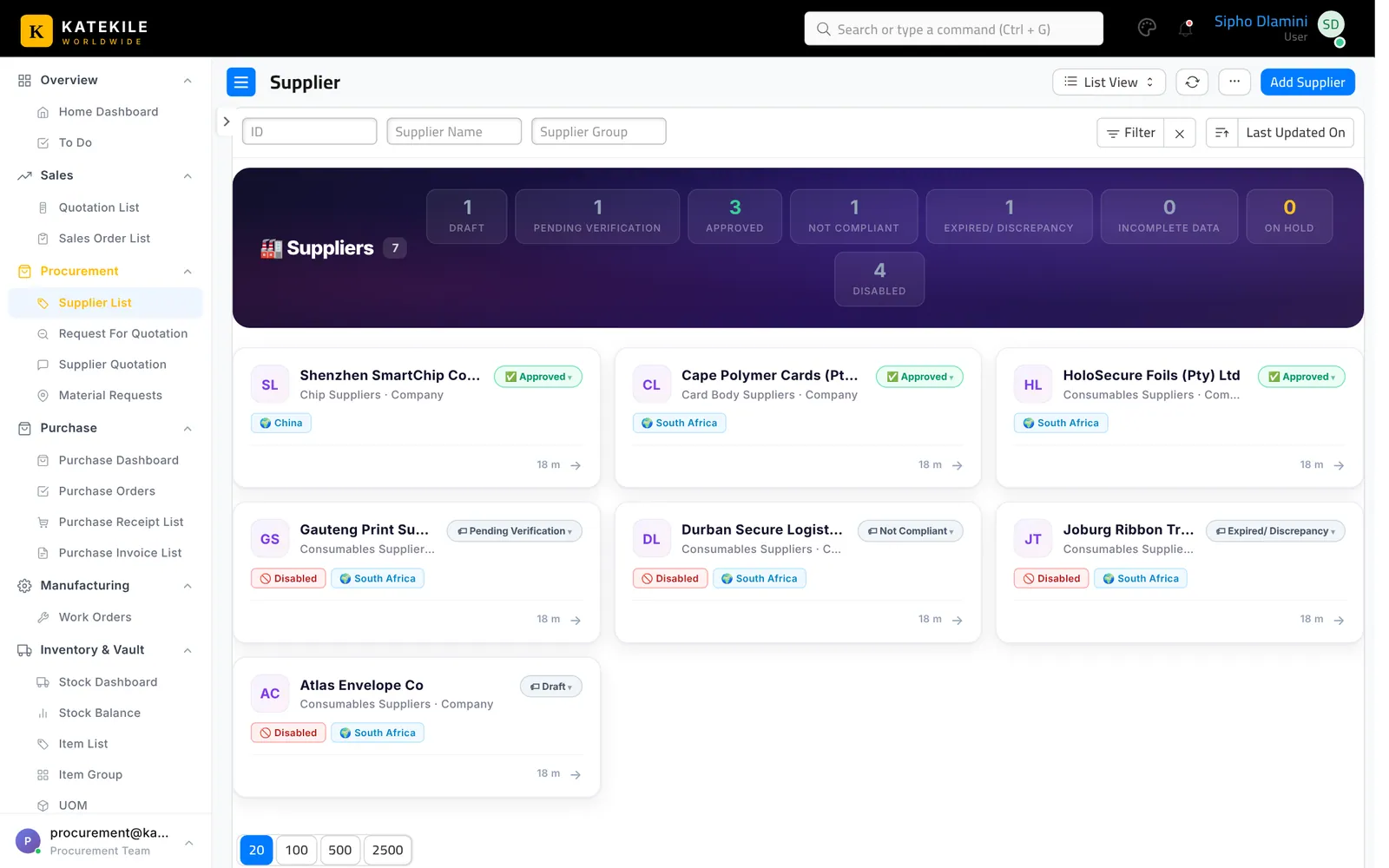
Step 1 — Create the supplier (Procurement Team)
- Procurement → Supplier List → Add Supplier.
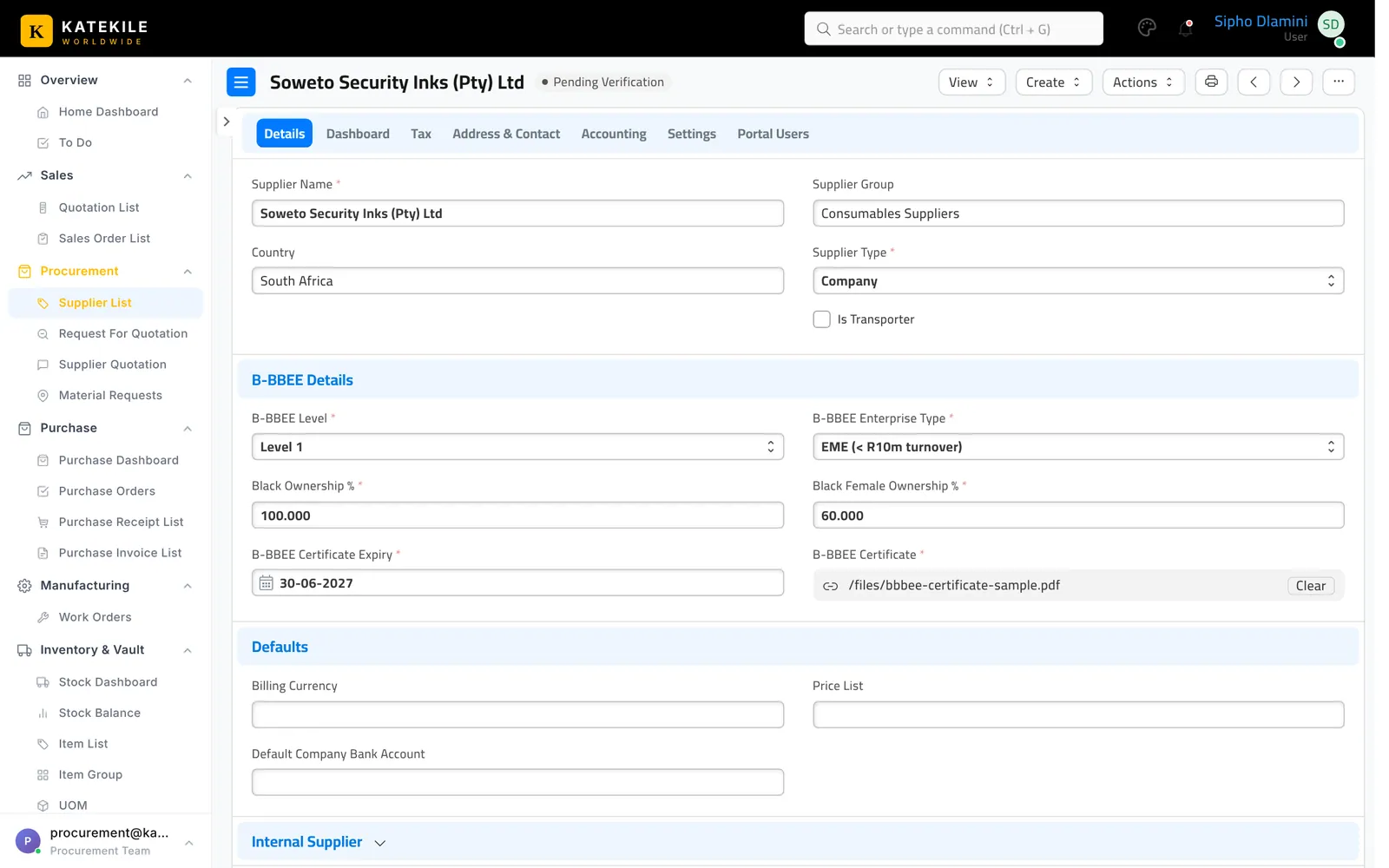
- Enter Supplier Name, Supplier Group (e.g. Chip Suppliers, Card Body Suppliers, Consumables Suppliers), Country and Supplier Type.
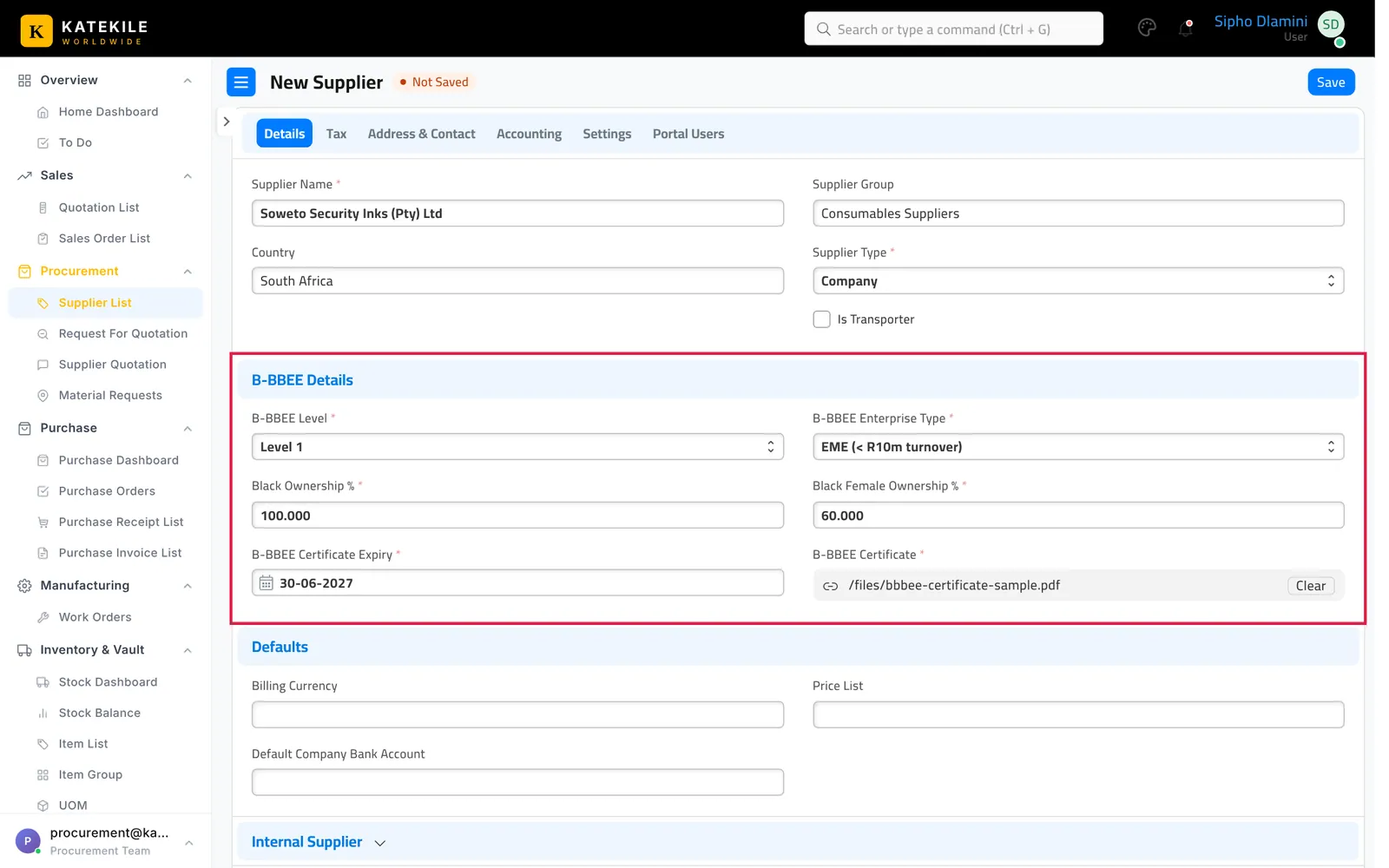
- Complete the B-BBEE Details section. It appears, and every field in it is mandatory, when Country is South Africa (foreign suppliers skip it):
| Field | Notes |
|---|---|
| B-BBEE Level | Level 1 – Level 8, or Non-Compliant |
| B-BBEE Enterprise Type | EME (< R10m turnover), QSE (R10m–R50m), Generic (> R50m) |
| Black Ownership % | From the certificate / affidavit |
| Black Female Ownership % | From the certificate / affidavit |
| B-BBEE Certificate Expiry | Expiry date of the certificate |
| B-BBEE Certificate | Attach the certificate or sworn affidavit |
- Save. The supplier is in Draft and disabled.
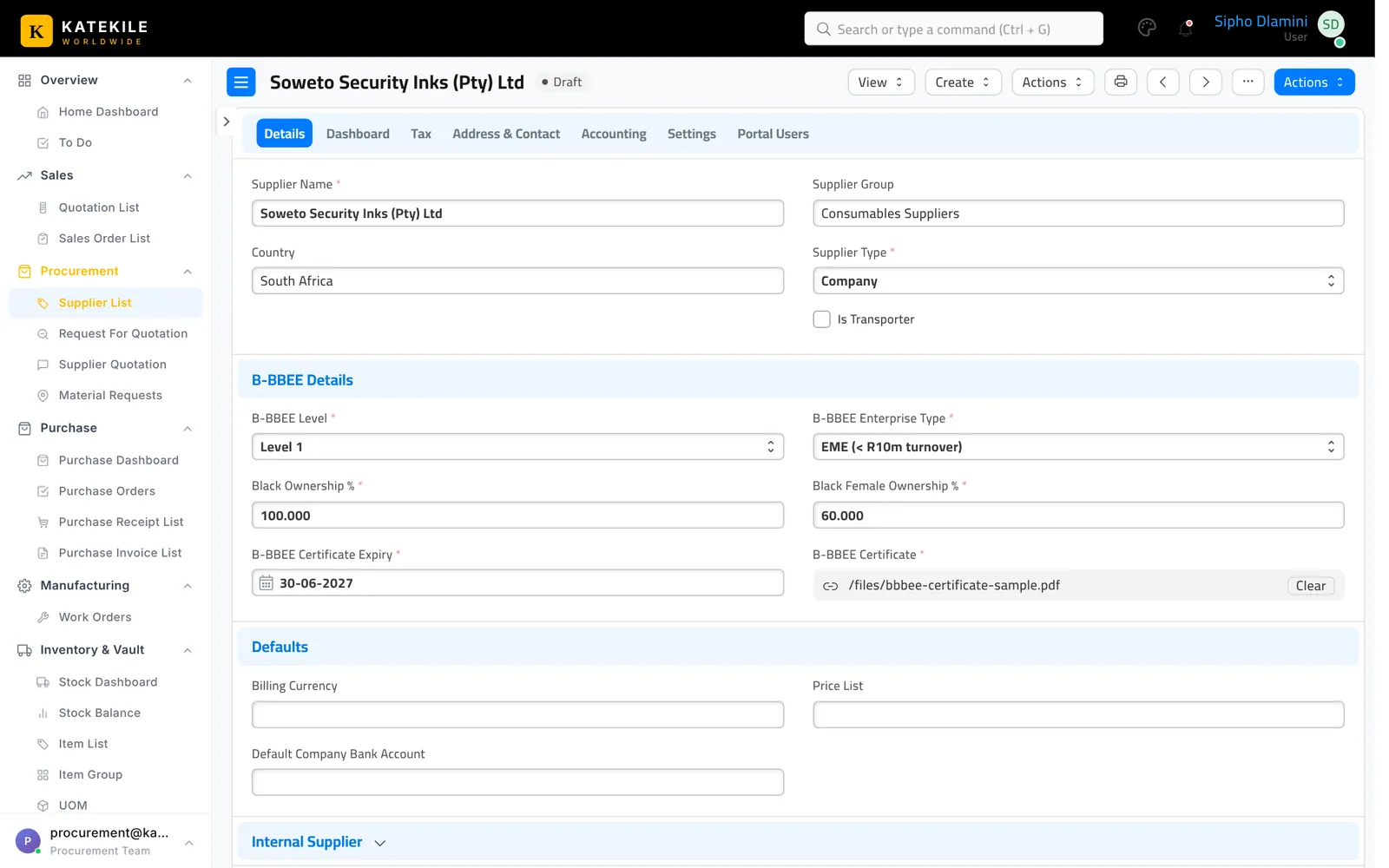
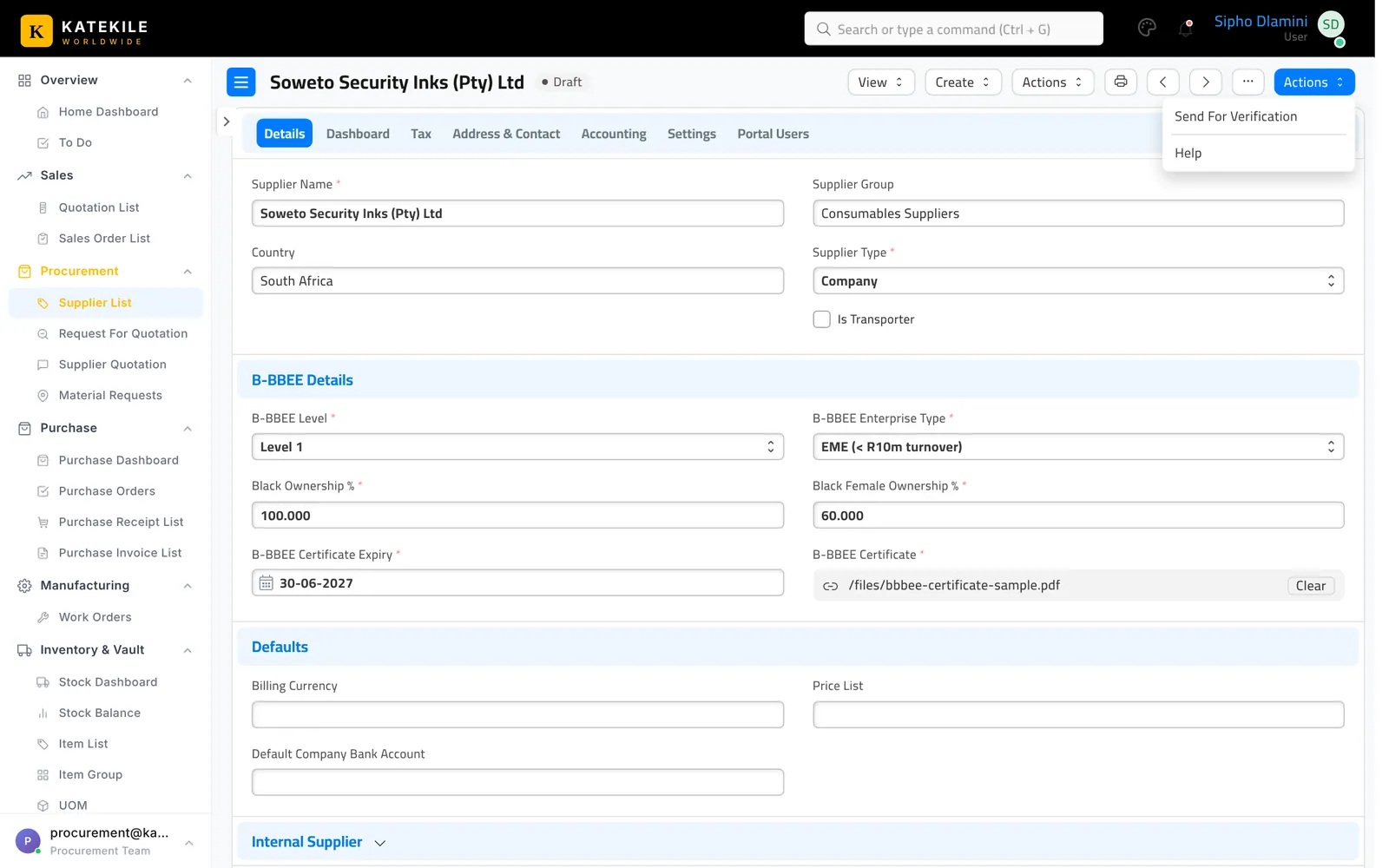
Step 2 — Send for verification
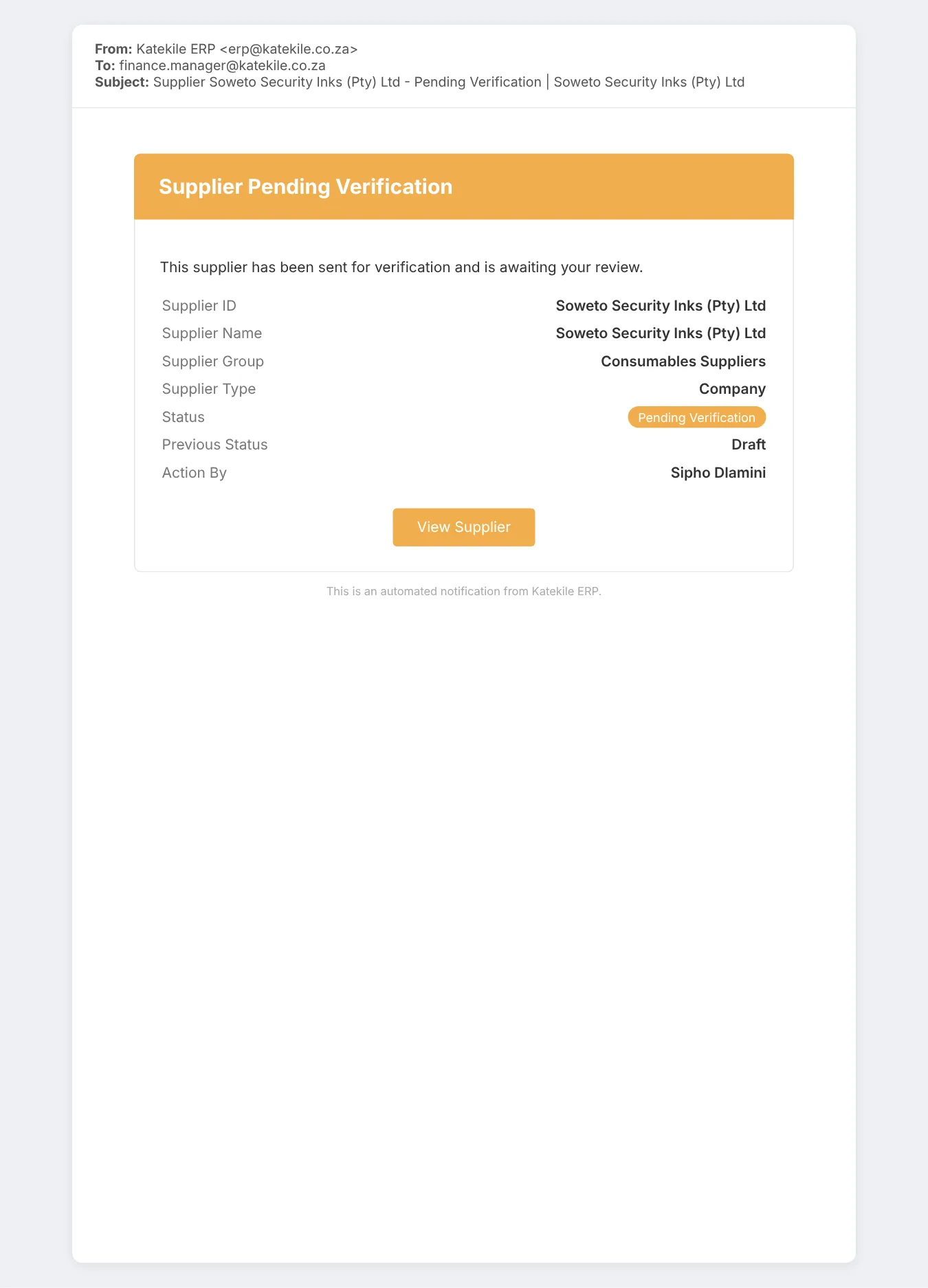
Actions → Send For Verification. The state becomes Pending Verification and the Finance Managers and the supplier’s creator are emailed.
Step 3 — Verify (Katekile Finance)
Check the certificate, bank confirmation, tax compliance and company registration, then use Actions:
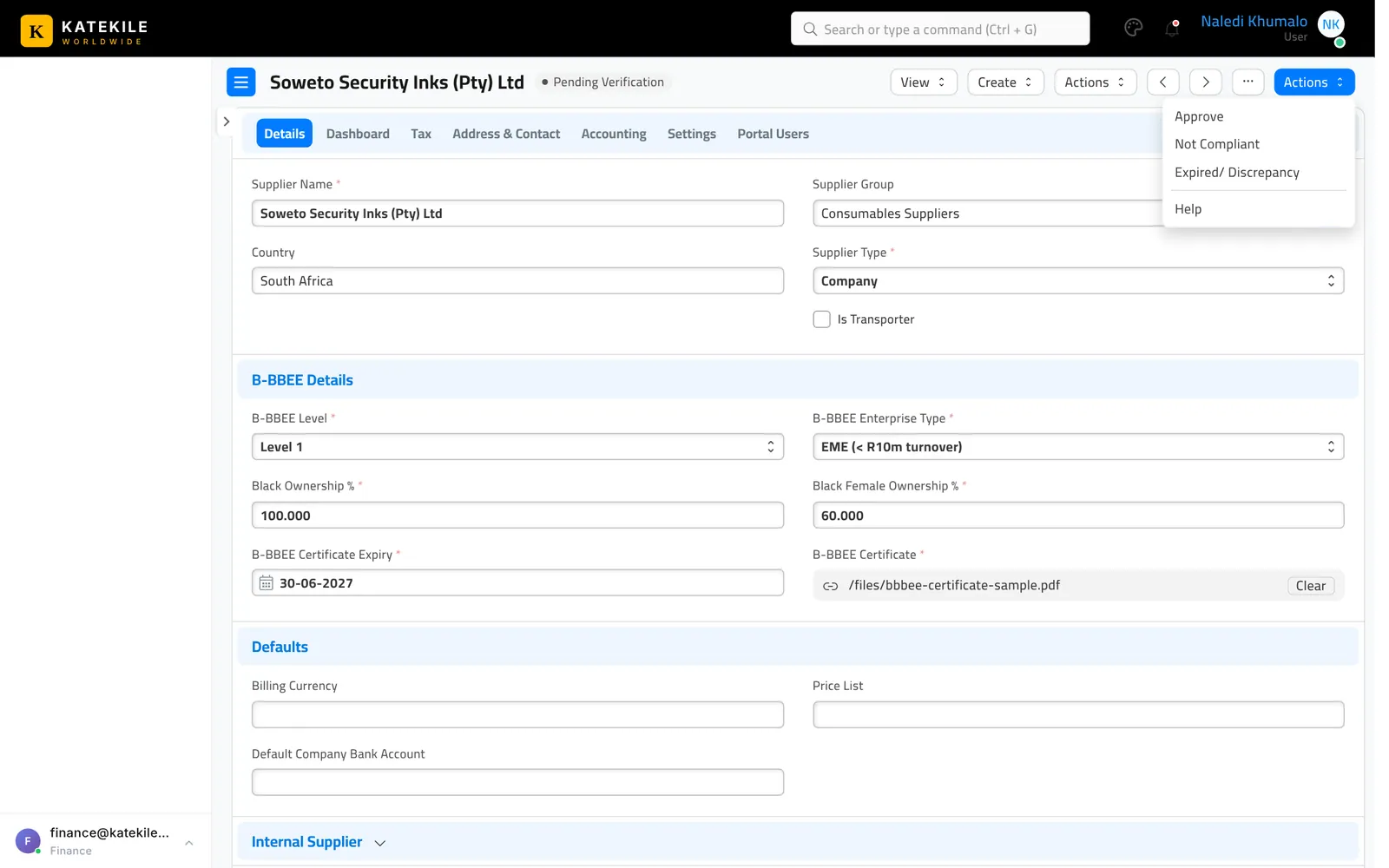
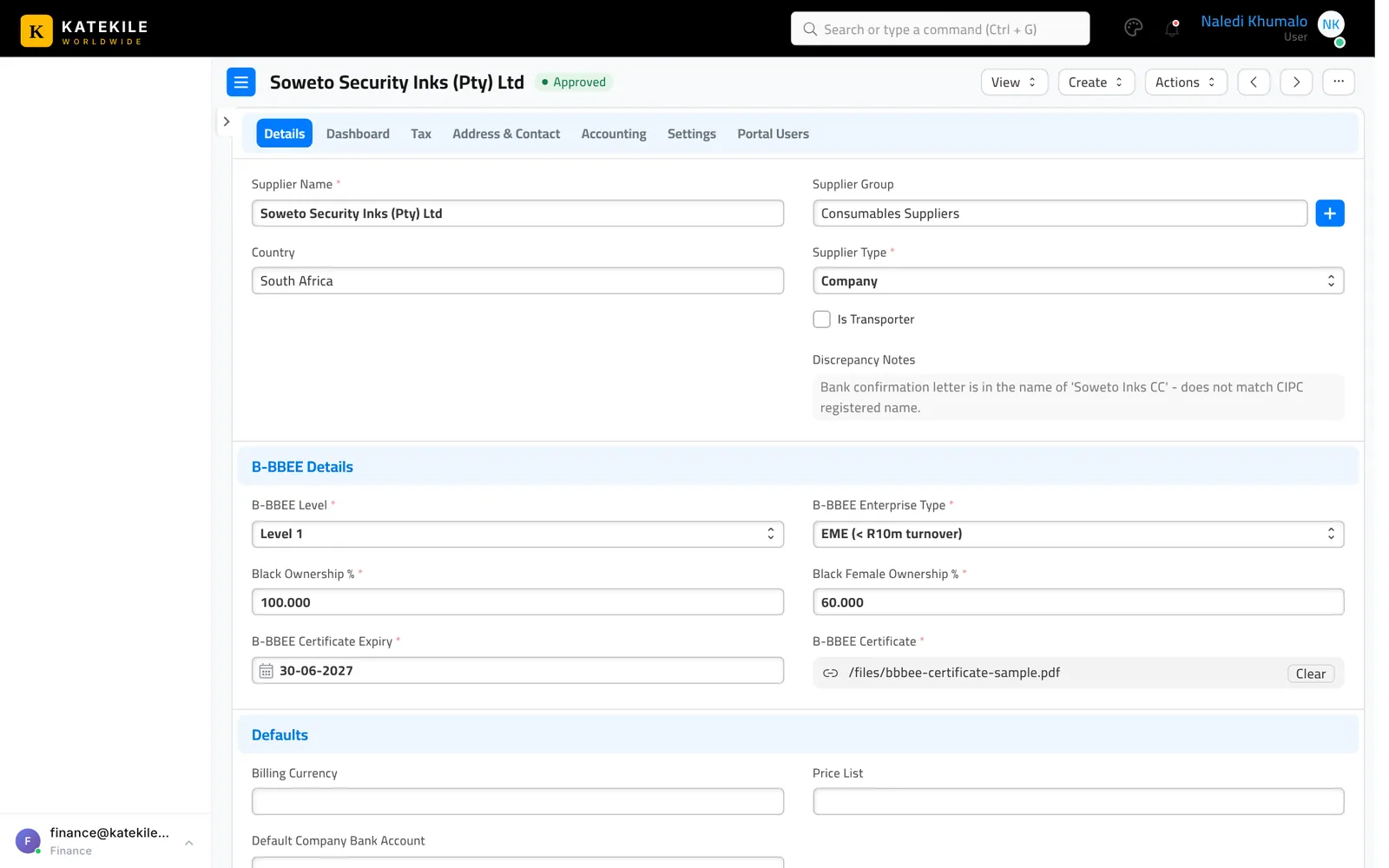
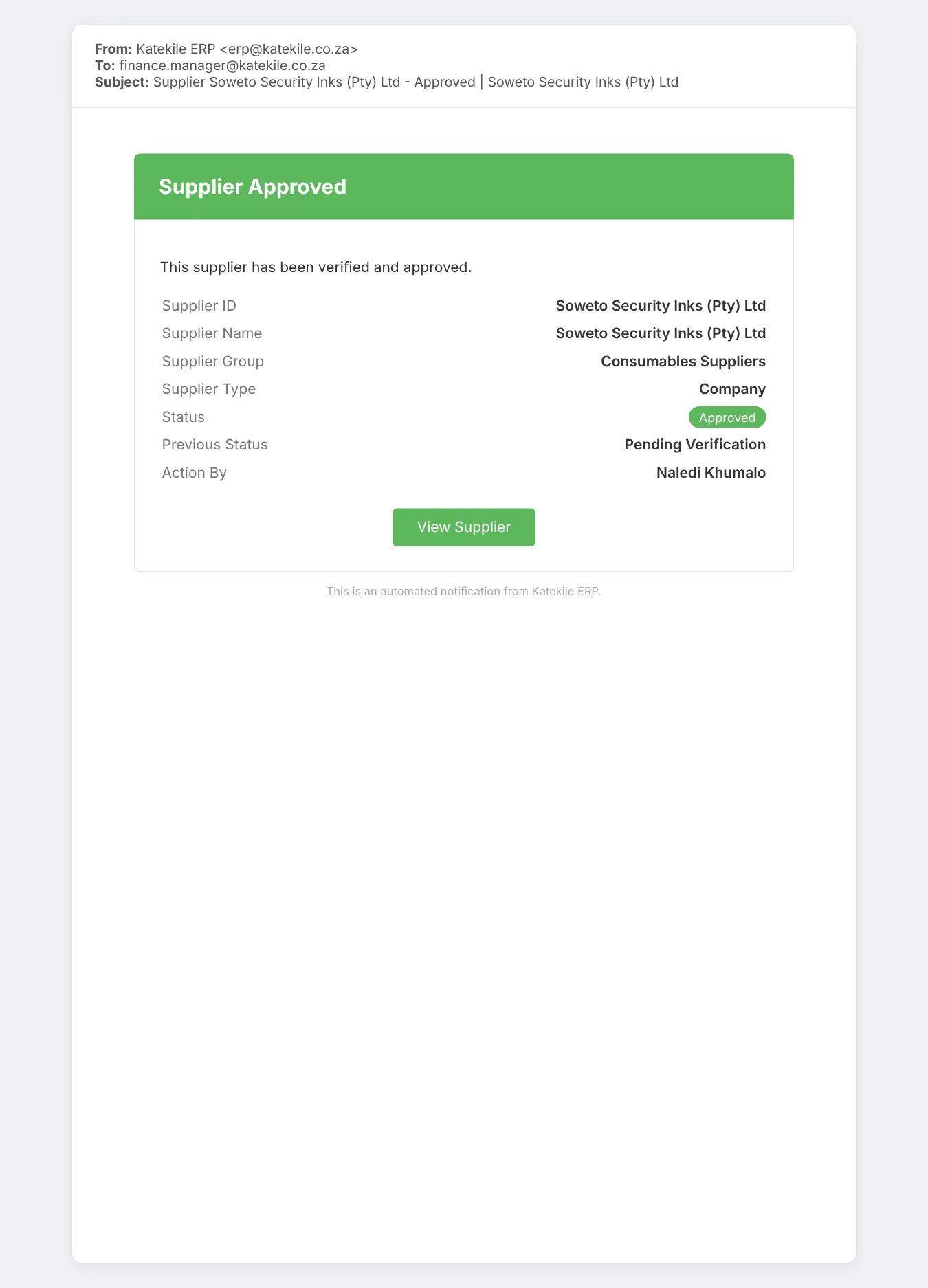
- Approve — the supplier becomes Approved and enabled; Procurement and Finance Manager are emailed.
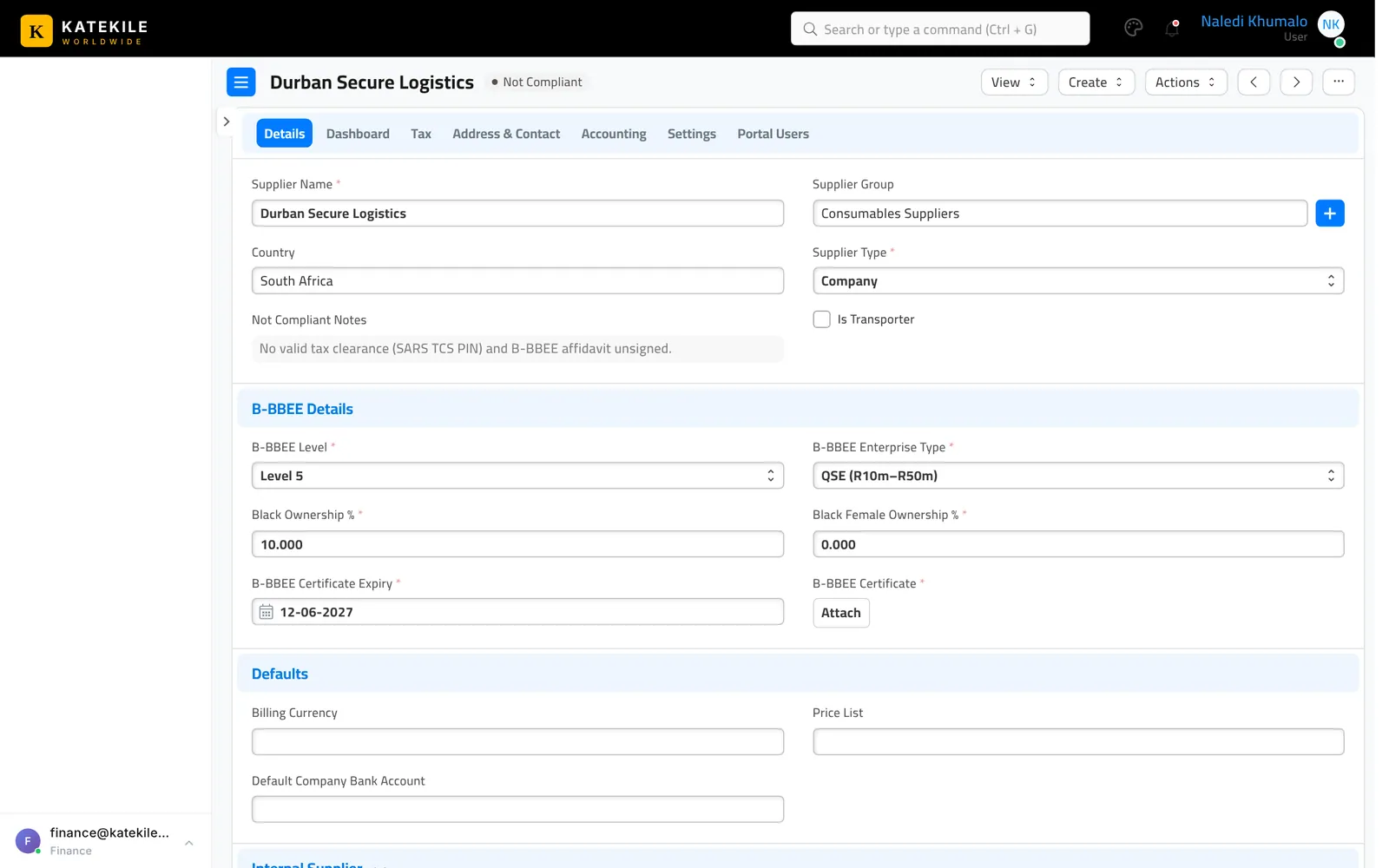
- Not Compliant — a pop-up asks for a note (saved in Not Compliant Notes). The supplier stays disabled, and the workflow has no further action from this state — use it only for suppliers Katekile will not use.
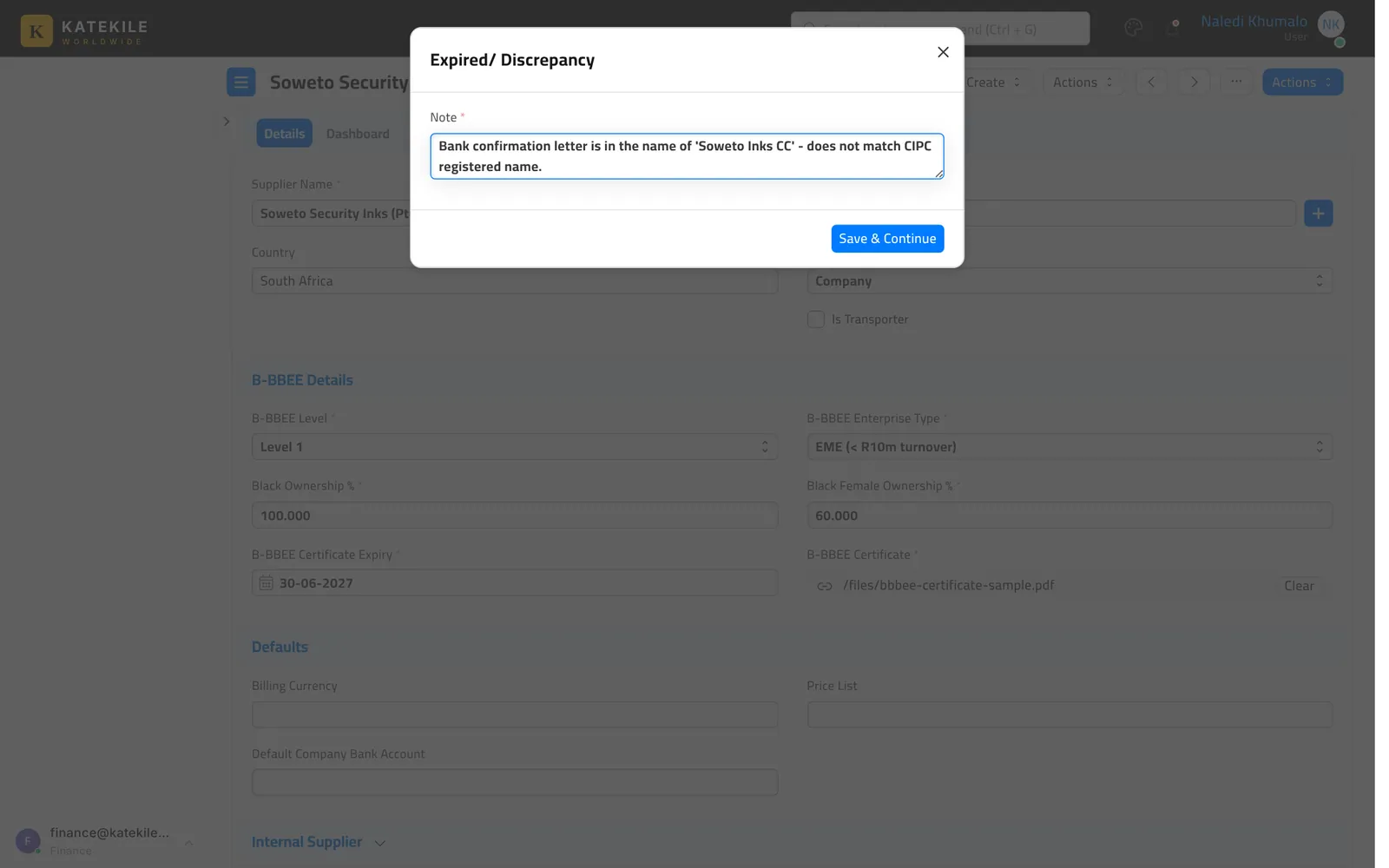
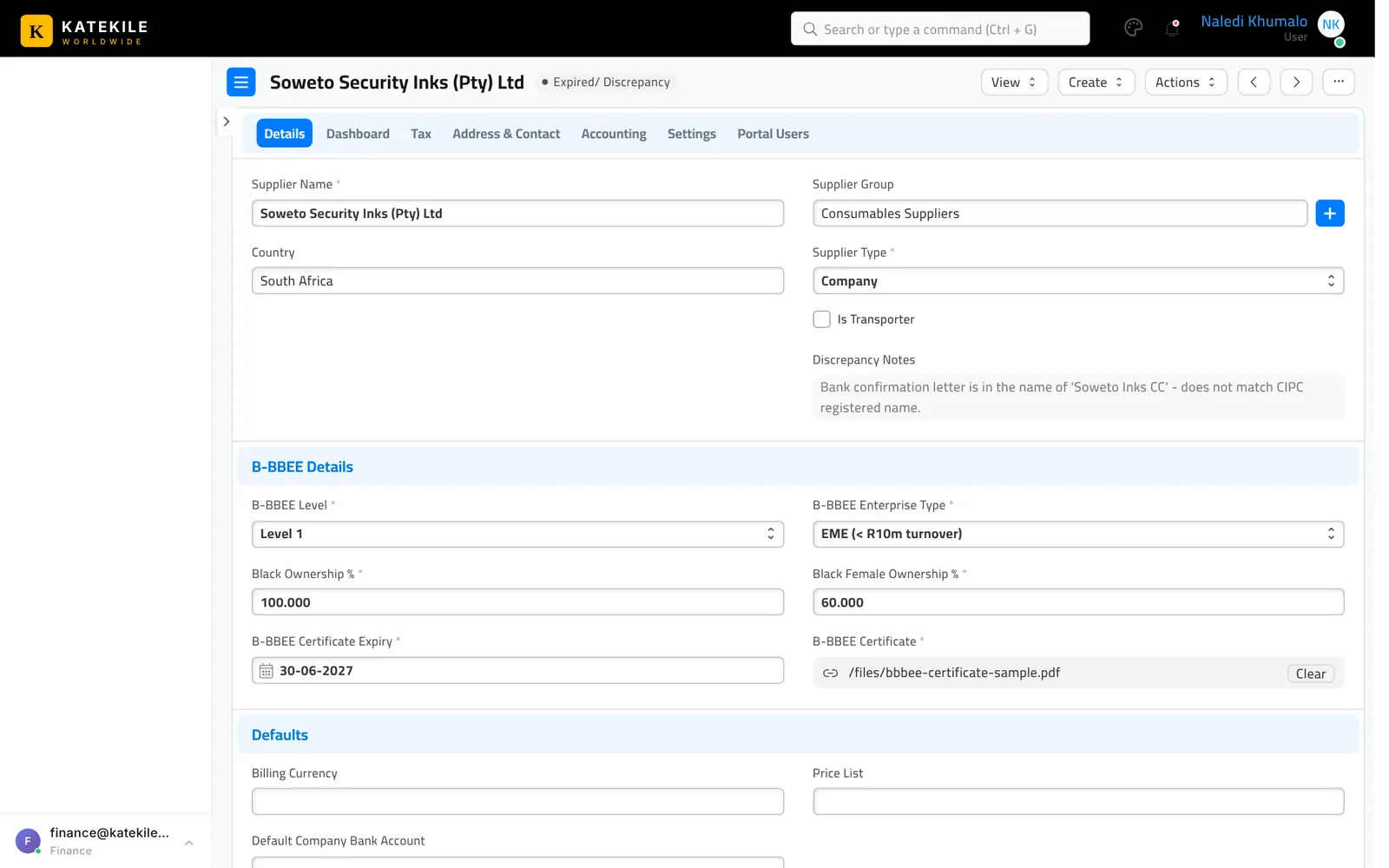
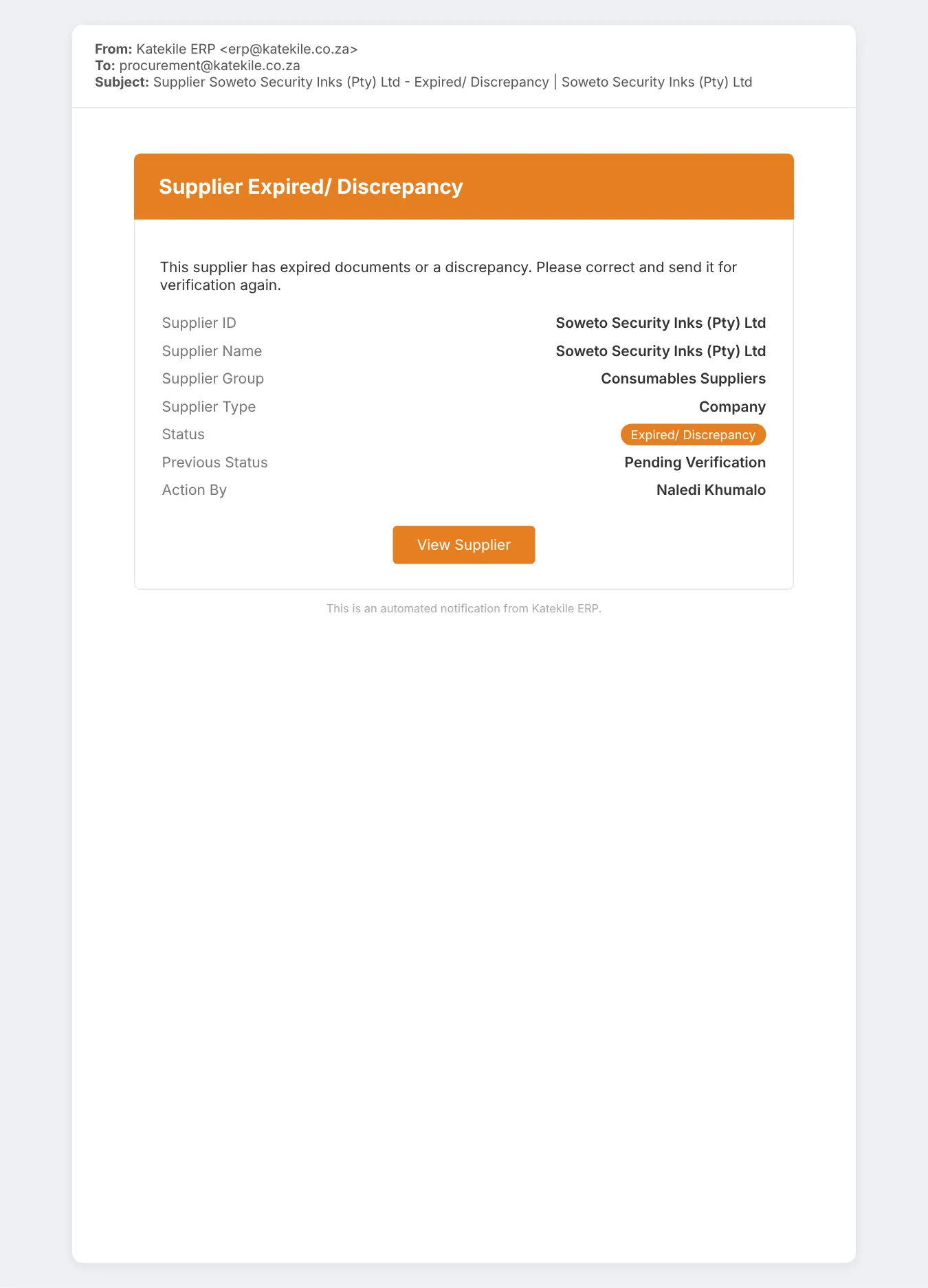
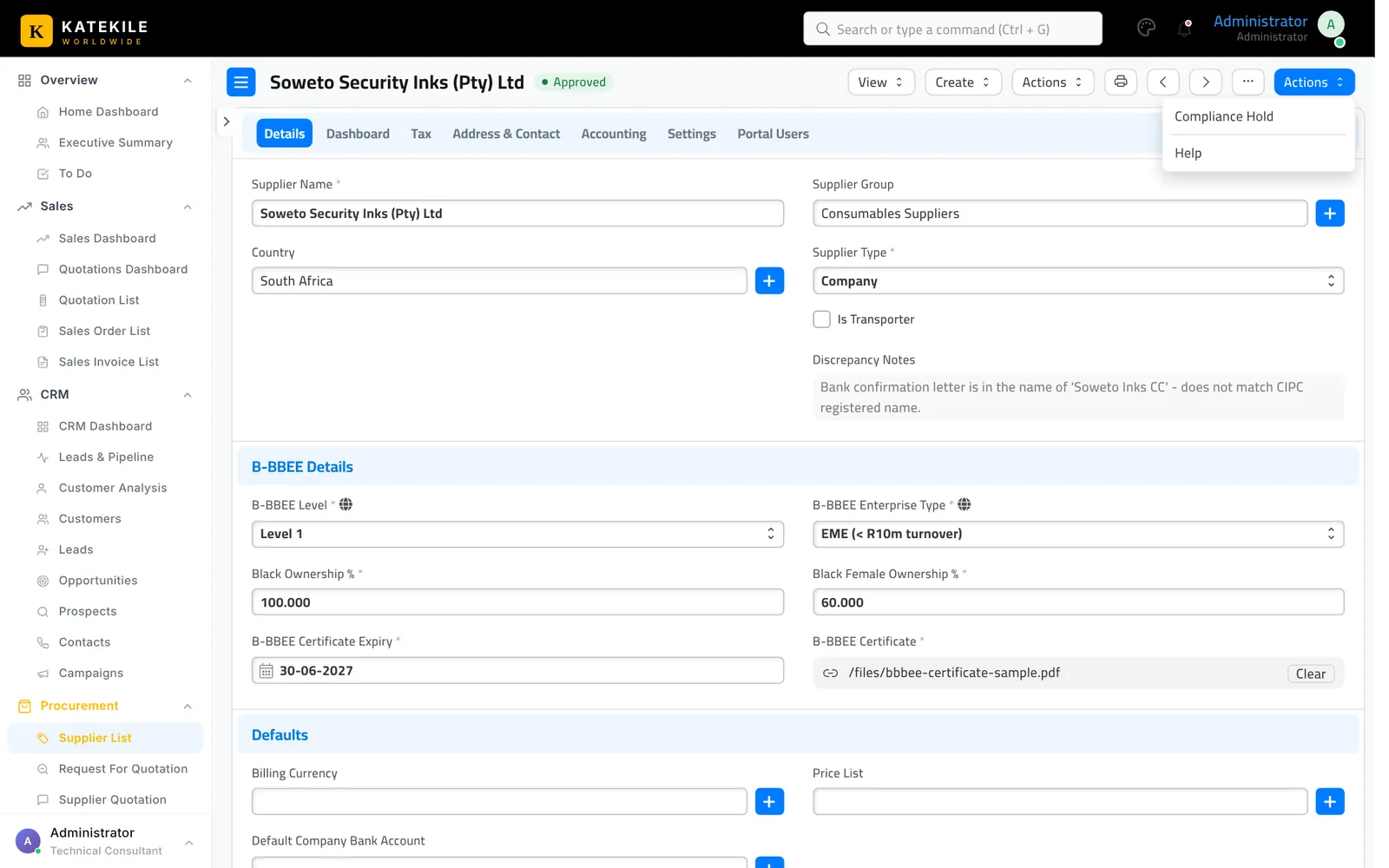
- Expired/ Discrepancy — a pop-up asks for a note (saved in Discrepancy Notes), e.g. an expired certificate or a bank letter in a different name. Procurement is emailed to fix it.
Step 4 — Fix and re-send (Procurement Team)
For suppliers in Expired/ Discrepancy (or Compliance Hold): update the details or attach the new certificate, save, and Actions → Send For Verification again.
Step 5 — Approved
Compliance Hold
If an approved supplier’s compliance lapses, an Administrator can choose Actions → Compliance Hold. The supplier is disabled again; Procurement and the Finance Manager are emailed. Procurement resolves the issue and re-sends it for verification.
Only approved suppliers on Purchase Orders
The Supplier field on a Purchase Order only lists suppliers in the Approved state that are not disabled.
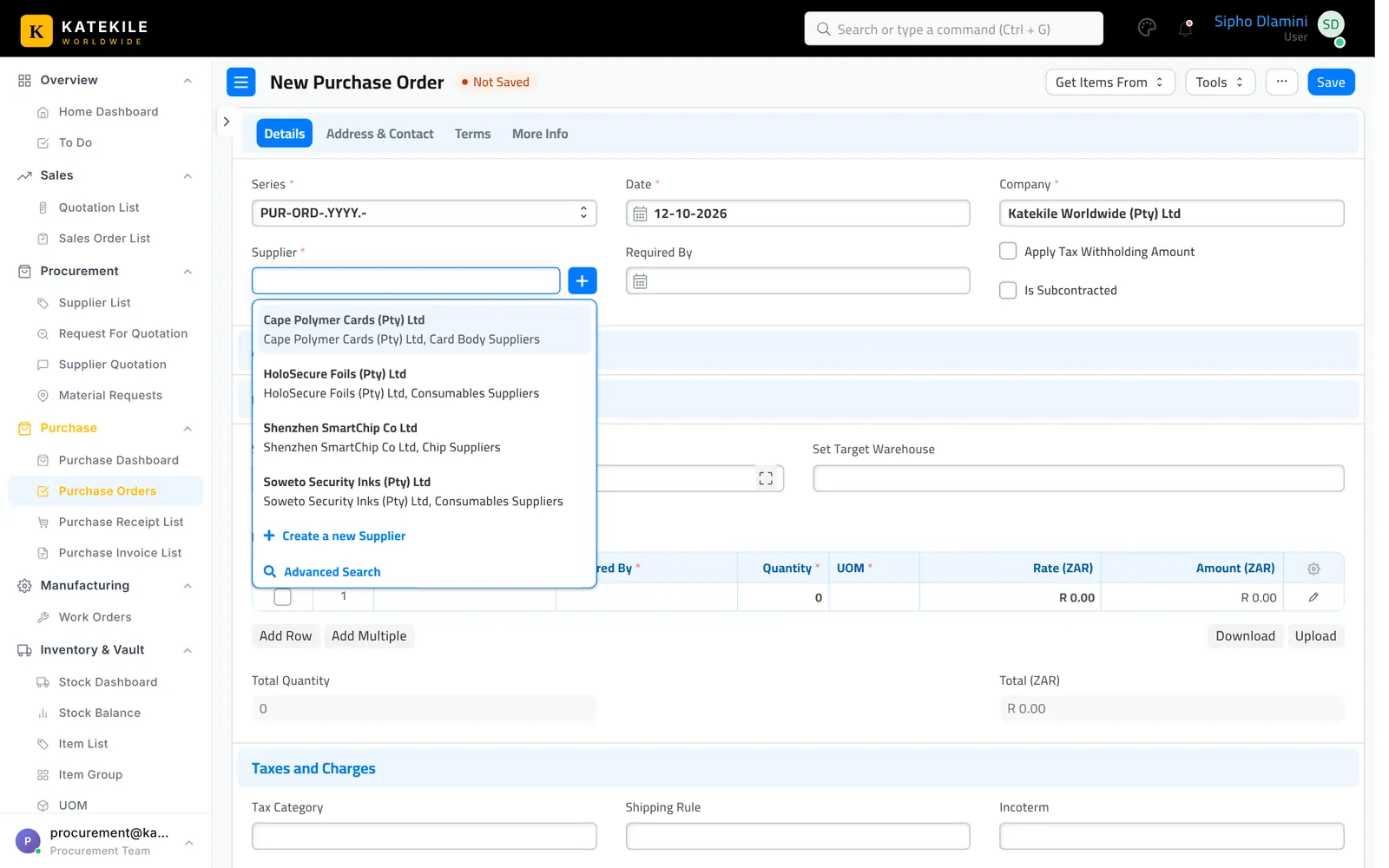
The supplier’s B-BBEE Level is copied onto the Purchase Order for B-BBEE procurement reporting.
Last updated October 16, 2026