Purchase Orders
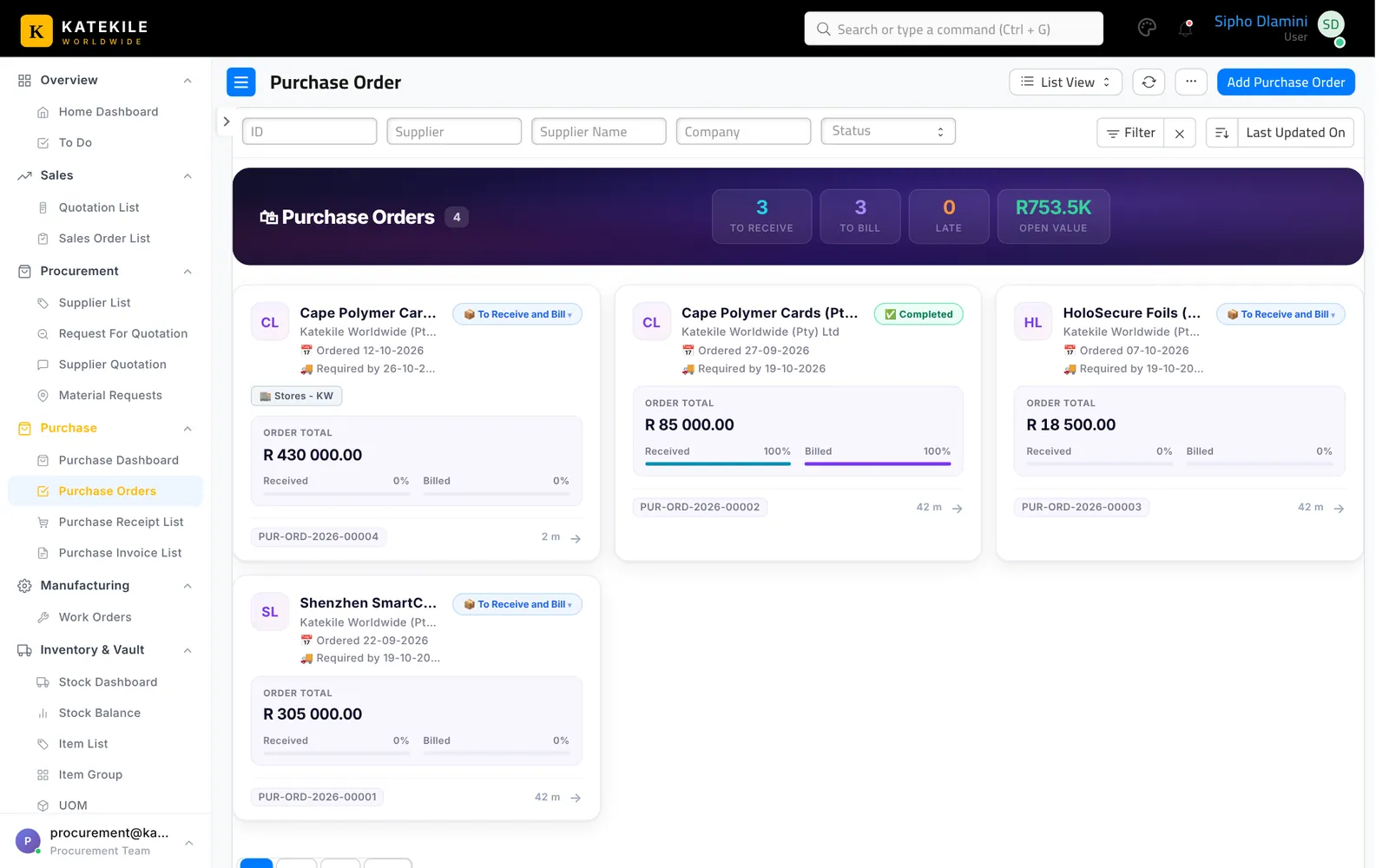
Raise, submit and print Purchase Orders to approved suppliers.
Used byProcurementFinance
Who: Procurement Team creates, submits and cancels; Katekile Finance can create and edit; Production, Warehouse and Finance read. Menu: Purchase → Purchase Orders.
Create a Purchase Order
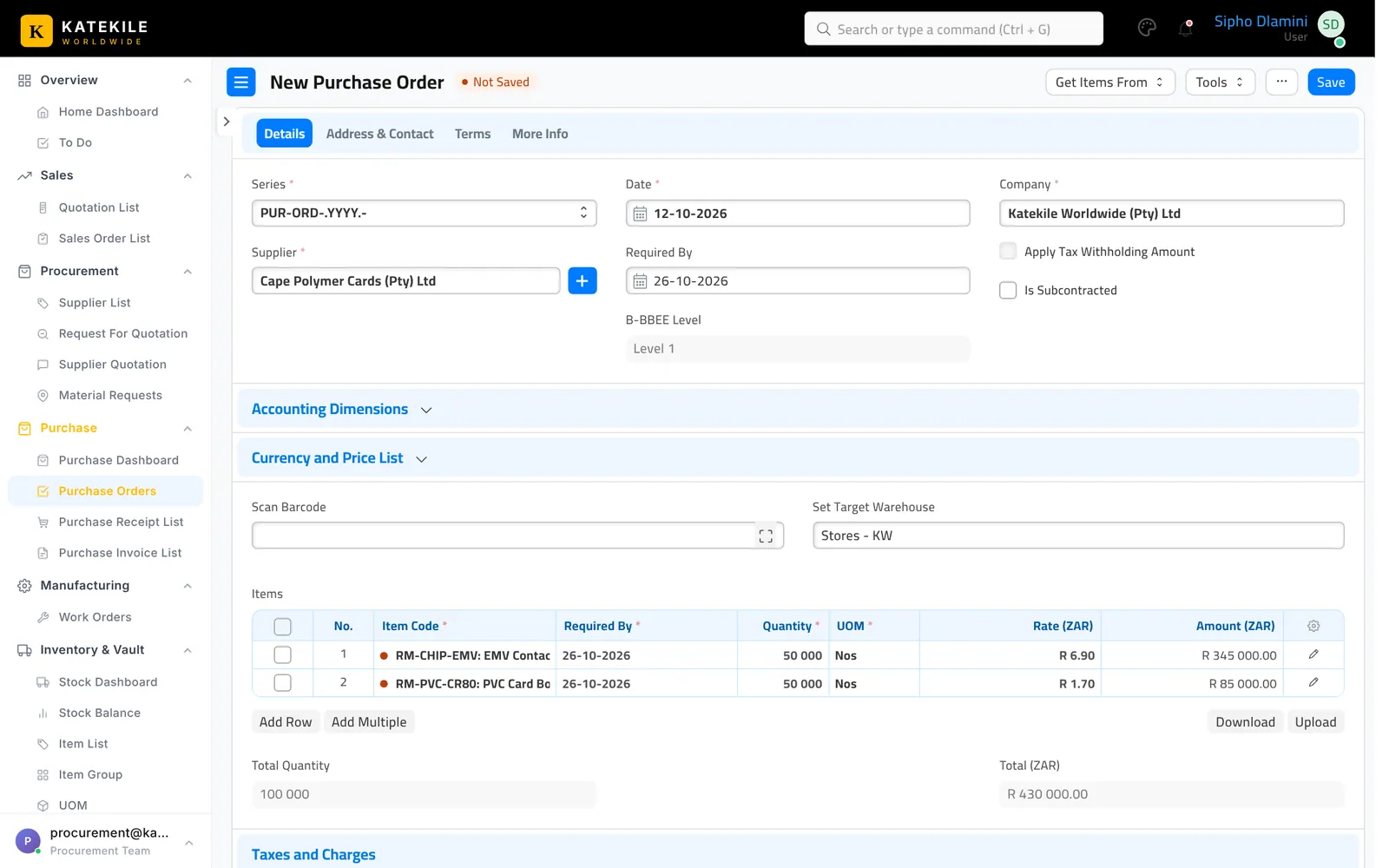
- From the selected Supplier Quotation use Create → Purchase Order (or from a Material Request, or Add Purchase Order).
- Supplier — only Approved suppliers are listed. The supplier’s B-BBEE Level fills in automatically.
- Set Required By and Set Target Warehouse (e.g. Stores – KW).
- Check items, quantities and rates; add taxes.
- Save.
Submit
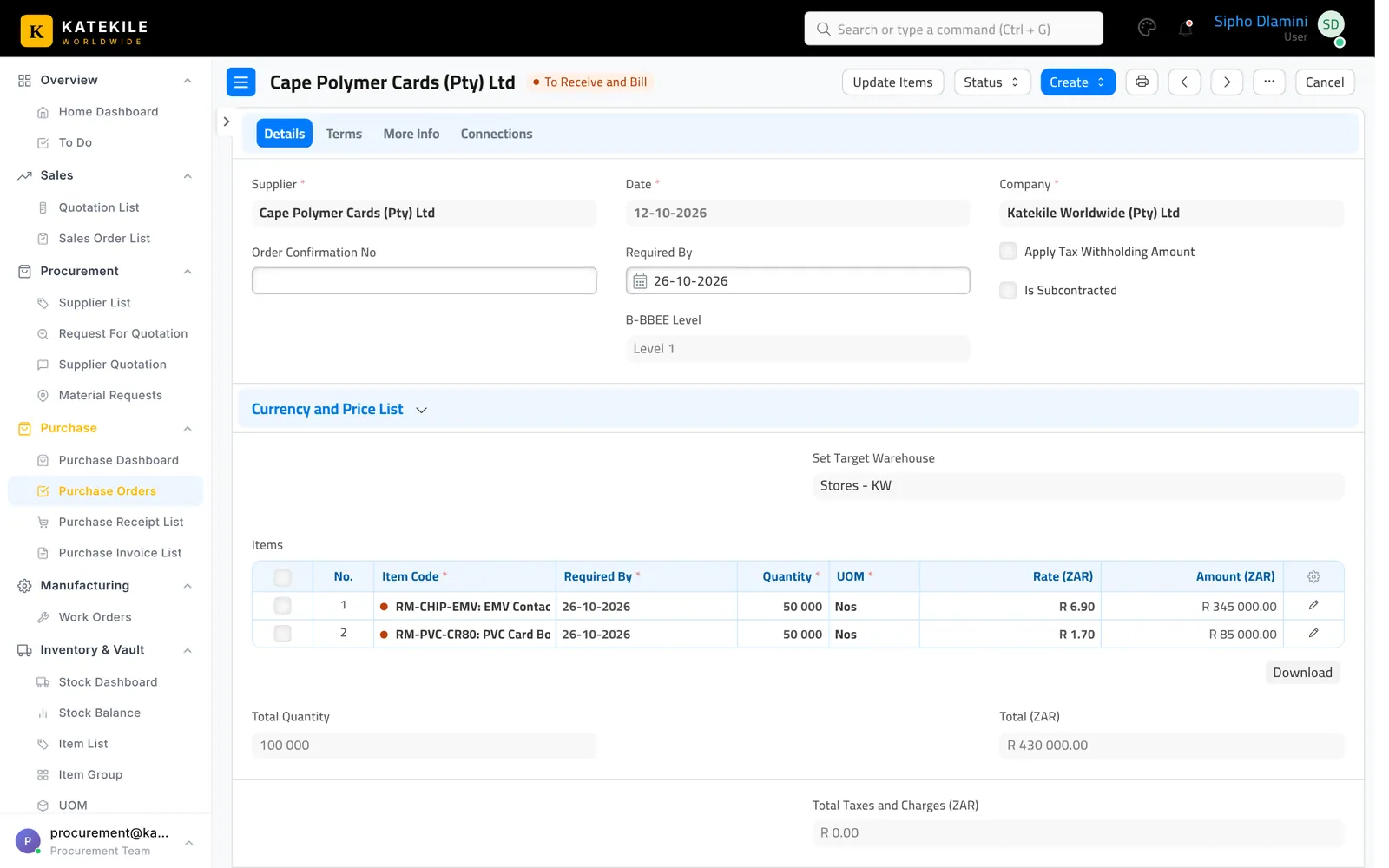
Click Submit and confirm. The PO is now To Receive and Bill.
Print and send
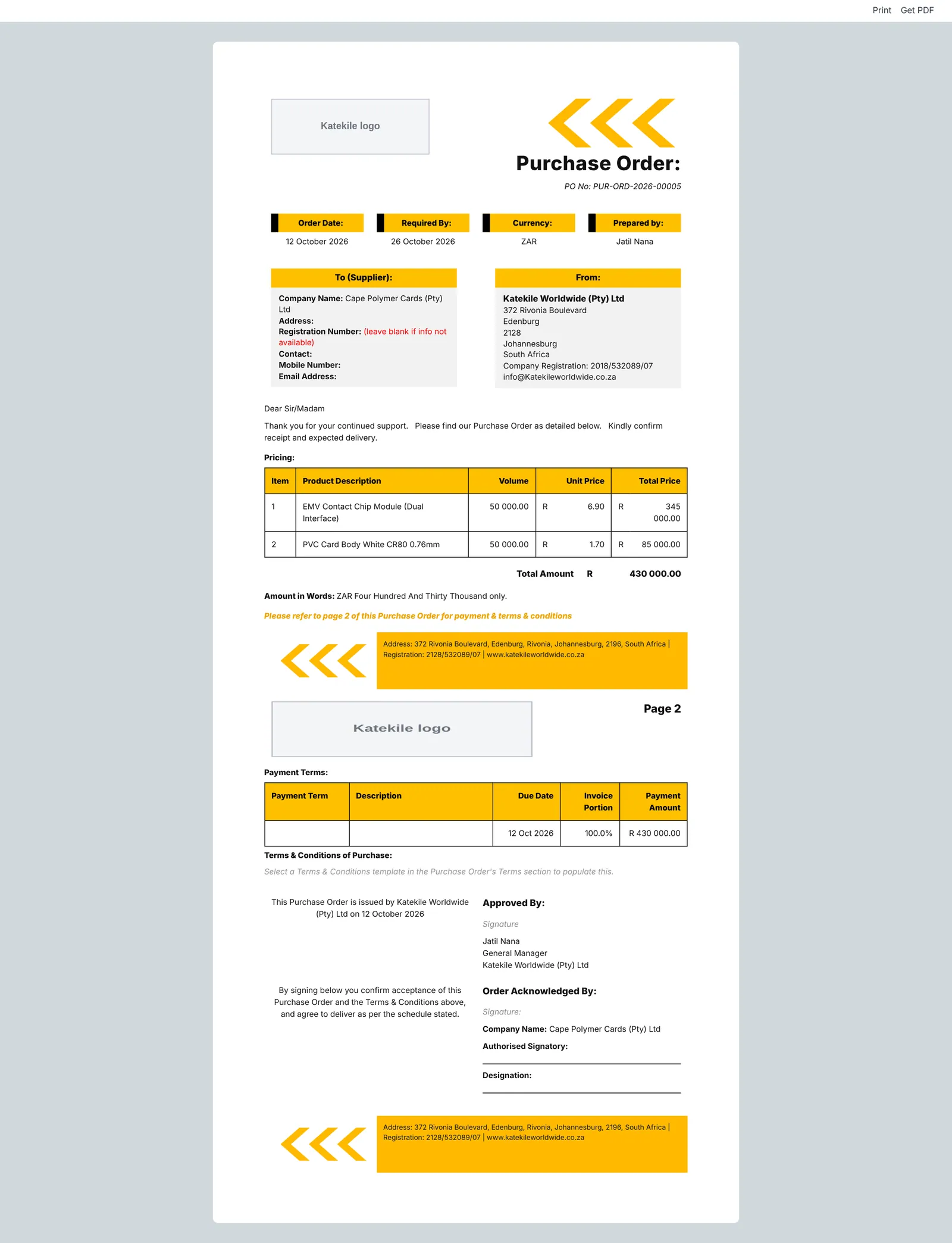
The default print format is Katekile Purchase Order Format. Print or email it to the supplier from the printer icon.
Managing open POs
From the list cards: Hold, Resume, Close and Re-open. Use the Purchase Dashboard and Purchase Order Analysis report to follow up late deliveries.
Saving a Purchase Order needs read access to Account and Cost Center (the expense account on each line). If a Procurement user sees “User don’t have permissions to select/read this account”, an administrator must add those read rights to the role — see Users & Roles.
Last updated October 16, 2026